Appearance
Tax settings (SST)
Settings → Taxes. This decides what tax, if any, appears on your invoice lines.
Most small businesses have one question to answer here: are you SST-registered? If the answer is no, this page takes two minutes.
What ships already
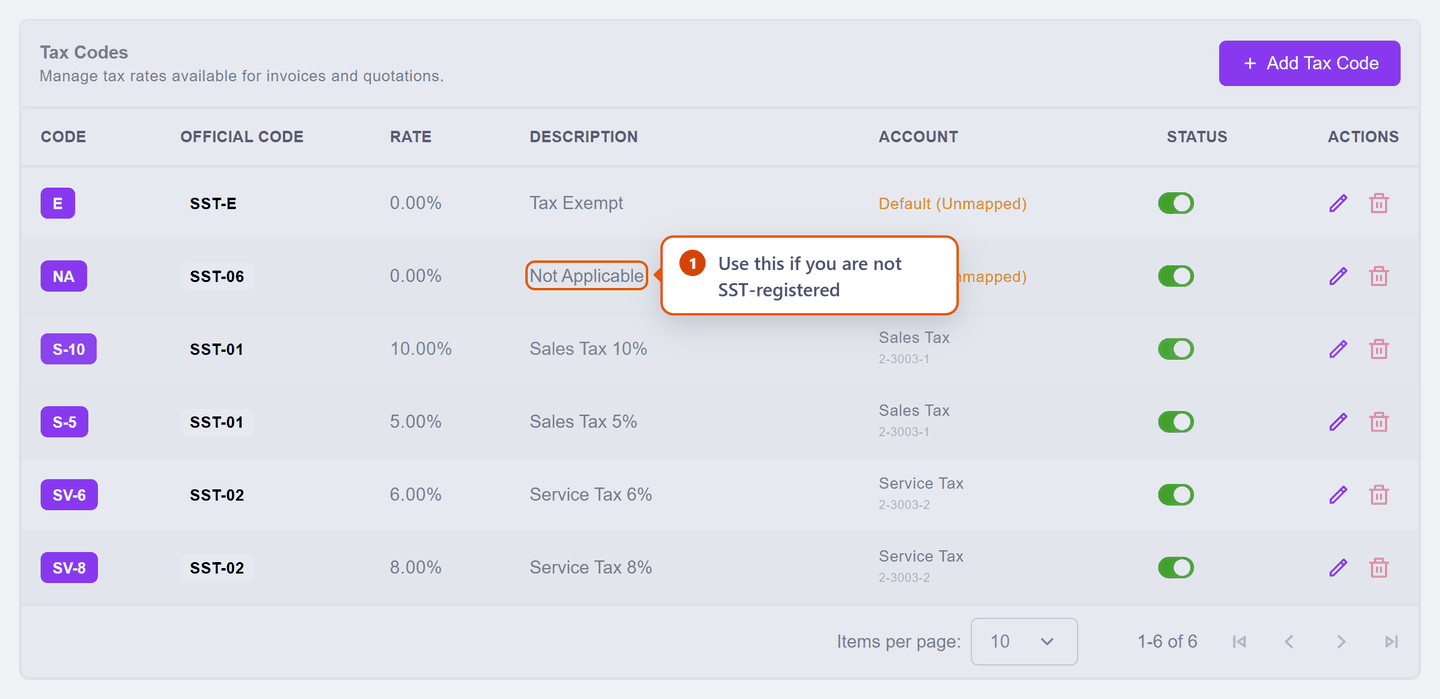
You do not need to create tax codes. KiraKira+ comes with the full Malaysian SST set, ready to use:
| Code | Rate | Use it for |
|---|---|---|
NA | 0% | Anything not subject to SST — the one to use if you are not registered |
E | 0% | The rare goods and services the law makes tax-free |
S-5 / S-10 | 5% / 10% | Sales Tax on goods, if you are registered for it |
SV-6 / SV-8 | 6% / 8% | Service Tax on services, if you are registered for it |
What the columns mean
| Column | What it is |
|---|---|
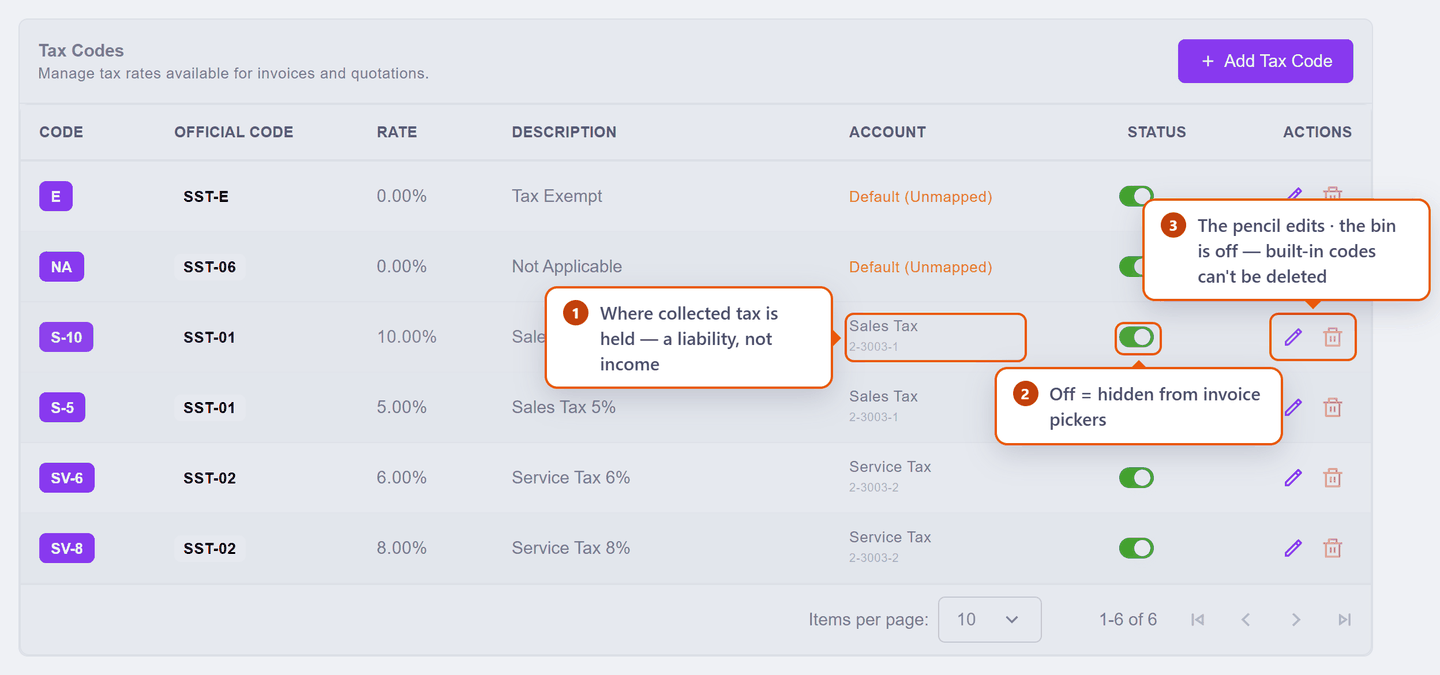
| Account | The liability account that tax you collect is held in until you pay it to the government. It is not income |
| Status | Whether the code appears in the picker on invoice lines |
| Actions | pencil edits the code · bin deletes it — greyed out for built-in codes and for any code already used on a document (see Why some things lock) |
Why some rows say "Default (Unmapped)"
E and NA are both 0% — they collect nothing, so there is nothing to hold and no account to hold it in. "Unmapped" is correct for them, not a mistake.
The rows that do charge tax are already mapped: Sales Tax to 2-3003-1 and Service Tax to 2-3003-2. You can see the mapping by clicking the pencil:
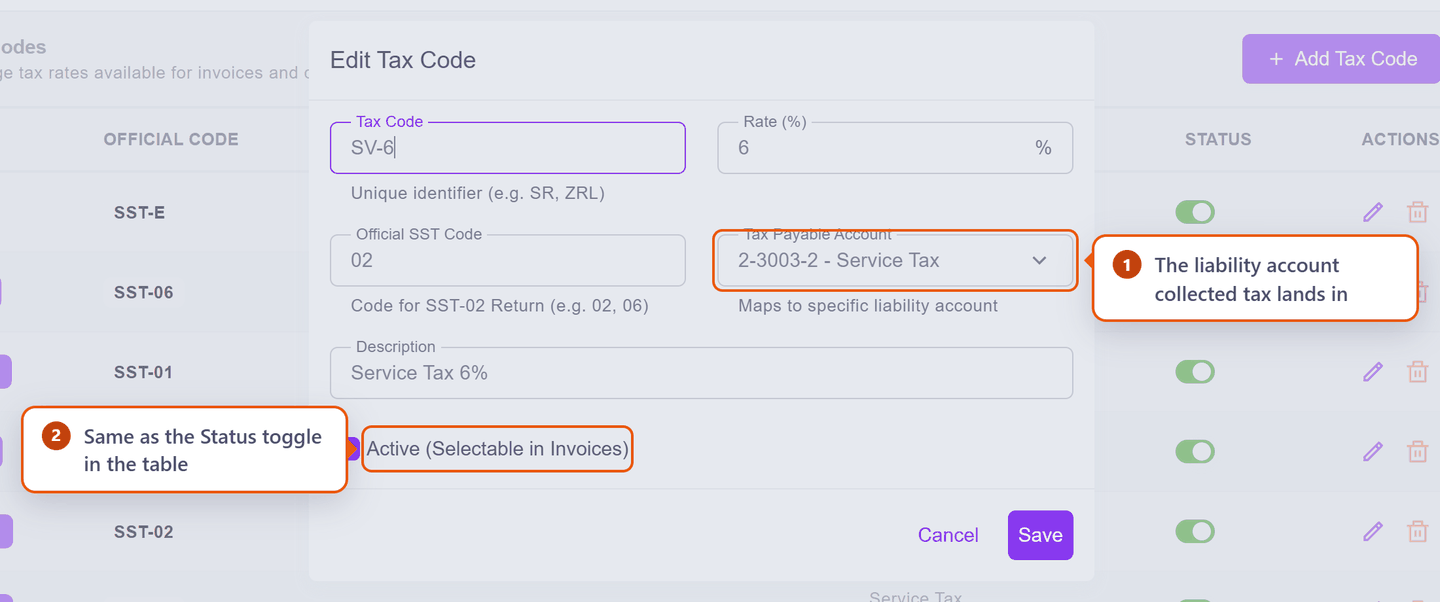
The dialog is also where the Active switch lives — the same setting as the Status toggle in the table.
Are you registered?
No — I am not SST-registered (most small businesses)
Recommended: switch off every code except NA.
Use the Status toggle to turn off S-5, S-10, SV-6 and SV-8. You are not registered to charge any of them, so leaving them switched on only creates the opportunity to pick one by accident — and an invoice charging SST you are not registered for is a problem with your customer and with the tax office.
With them off, the tax picker on an invoice line offers NA (and E if you keep it) and nothing else. Switching off is not destructive: turn one back on the day you register.
Then two things to check elsewhere:
- Leave the SST number blank in Settings → Company. A number there prints on your invoices and would claim a registration you do not hold.
- Set
NAon your products. Each product carries a tax code, which pre-fills the line whenever you use it — so setting it once on the product saves choosing it on every invoice.
Your invoices will then show no tax line at all.
Yes — I am SST-registered
Say you run an SST-registered consultancy charging 6% service tax.
Step 1 — record the registration. Put your SST number in Settings → Company. It then prints on every invoice as SST: ….
Step 2 — know which code to use. Services take SV-6 (or SV-8); goods take S-5 or S-10. Both are already set up and pointed at the right account.
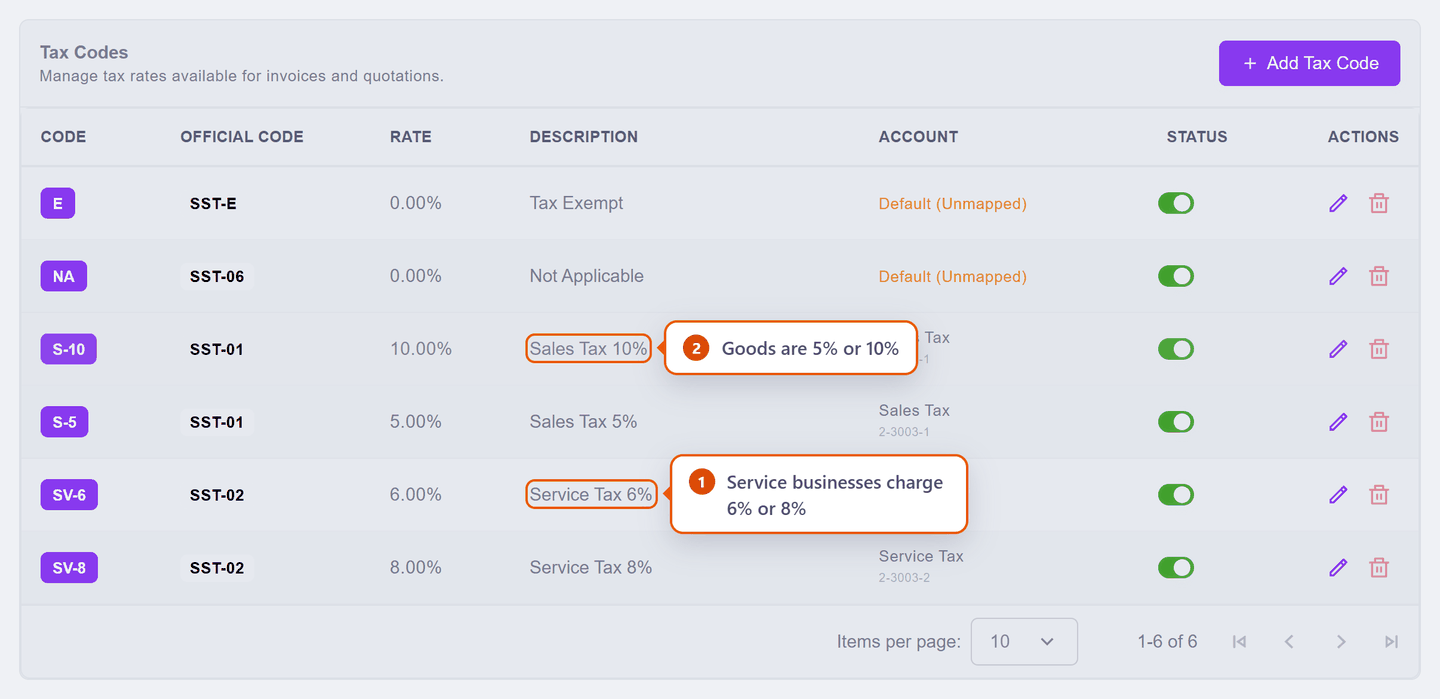
Step 3 — set it on your products. Put SV-6 on each service you sell. Every invoice line using that product then charges 6% without you thinking about it.
Step 4 — check one invoice. Create a draft invoice, add the product, and confirm the tax column shows 6% and the total includes it. Delete the draft afterwards.
The tax you charge is not income
Tax you collect sits in the Service Tax or Sales Tax account (the Account column above) until you pay it to the government. It never appears as profit, which is why those rows are mapped to an account and the 0% rows are not.
Where the code actually gets chosen
Tax is set per invoice line, not per invoice. The line inherits its code from the product, and you can change it on the line if one item is different.
That is why setting the right code on your products is the step that matters — do it once and your invoices are right by default.
Turning a code off
Switching a code off with the Status toggle removes it from the picker on invoice lines. It is the simplest guard against charging the wrong tax, and it is safe: documents that already used a code keep it, and you can switch it back on at any time.
Why some things lock
Every document line freezes its tax rate and classification at the moment it is issued — that is what keeps last year's invoices and your e-Invoice files stable. To protect the rest, KiraKira+ locks a tax code progressively:
| The code is… | Delete | Rate / Official code / Account | Name, description, Status |
|---|---|---|---|
| Built-in (the six that ship) | Never — the bin is greyed out | Editable until first use | Always editable |
| Used on any document | Refused — switch Status off instead | Locked — shown read-only in the edit dialog | Always editable |
| Yours, never used | Allowed | Editable | Always editable |
So the setup window is safe: before you issue anything, map accounts and adjust freely. After the first document, the parts that touch your numbers — rate, official code, account — are locked.
A rate change is a new code
When SST moves — as it did from 6% to 8% — you do not re-rate the old code; you start using a new one and switch the old one off. That is why SV-6 and SV-8 both ship as separate codes. The old code keeps describing your old documents; the new one takes over from today.
A good rule is to leave only the codes you are entitled to use switched on:
| Your situation | Leave on | Switch off |
|---|---|---|
| Not SST-registered | NA (and E if you make exempt supplies) | S-5, S-10, SV-6, SV-8 |
| Registered for Service Tax | SV-6 or SV-8, plus NA | the Sales Tax codes |
| Registered for Sales Tax | S-5 or S-10, plus NA | the Service Tax codes |
Keep NA on in every case — you will still have the occasional line that carries no tax.