
Appearance
Document templates
Settings → Templates. Every PDF you export — invoices, quotations, bills — is laid out by a template. This screen adjusts that layout: margins, what the header shows, which columns the items table carries, where the signature block sits.
The defaults are fine
Documents print properly without you ever opening this screen. Come here when you want something specific — a bigger logo, a hidden column, space for a pre-printed letterhead.
What you are looking at
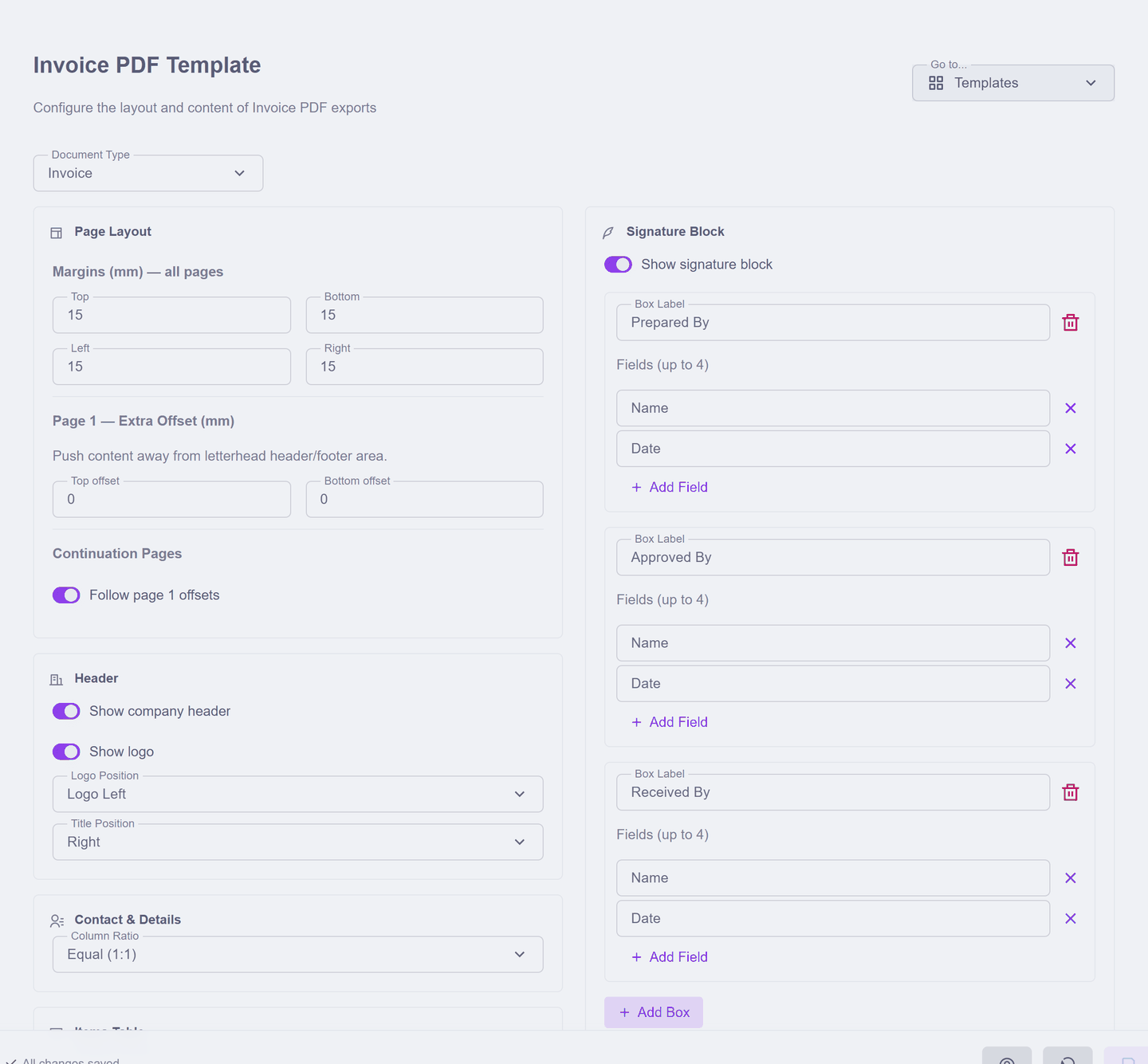
Pick the Document Type first — each document keeps its own template, so changing the invoice layout never touches your quotations. Then work through the section cards, top of the page to the bottom:
| Card | What it controls |
|---|---|
| Page Layout | Margins and per-page offsets — the one to visit if you print on letterhead |
| Header | Company name, logo, and whether they show at all |
| Contact & Details | The bill-to block and the date/number details beside it |
| Items Table | Which columns appear and how the lines are presented |
| Summary & Totals | The totals block at the bottom |
| Signature Block | Space to sign, if your documents need one |
| Typography | The font family and sizing |
| Background Overlay | A watermark or backing image behind the content |
Changes affect future exports of that document type. A PDF you generated last month is a file on disk — nothing here rewrites it.
Check it worked
Open any finalised invoice and export the PDF — the new layout is what comes out. Keep a copy of the old export if you want to compare side by side.