Appearance
Bank reconciliation
Once a month your bank sends a statement. Reconciliation is the simple, slightly tedious discipline of answering one question: does what the bank says match what your books say? You tick off every book entry that appears on the statement, and when the ticked total equals the statement's ending balance, the month is proven — and frozen.
It is match-only: this screen posts nothing. If the statement shows something your books don't have (a bank charge, interest), enter it first as a journal entry, then come back and tick it.
Turn the feature on
Go to Settings → Accounting features and switch on Bank Reconciliation — the card that says "Match your bank GL account against imported statement lines up to a cutoff date." Accounting → Bank Reconciliation appears in the menu.
One-time setup: a profile
The screen first wants to know which account is the bank. Click the + button in the bottom toolbar (New Profile), name it after the real account — Maybank current account — and pick the matching GL account (Cash At Bank):
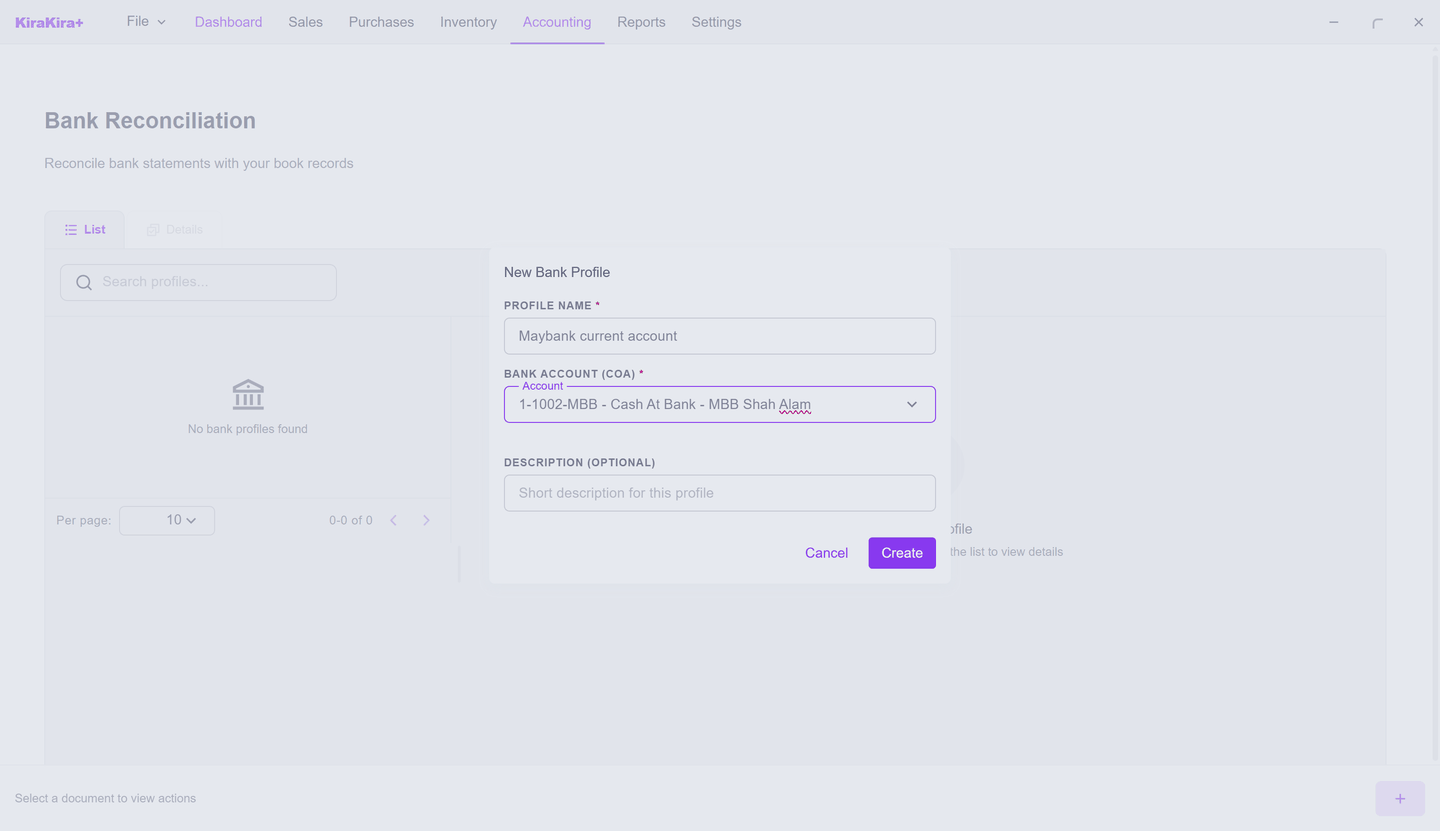
Click Create. You do this once per bank account; every month's reconciliation afterwards lives under this profile.
Each month: a reconciliation
Select the profile and click the checklist button in the bottom toolbar (New Reconciliation). Two things come straight off the paper statement:
- Statement Date — the statement's cutoff (its last day).
- Statement Ending Balance — the closing balance printed on it. Seri Maju's statement shows RM 14,995.00.
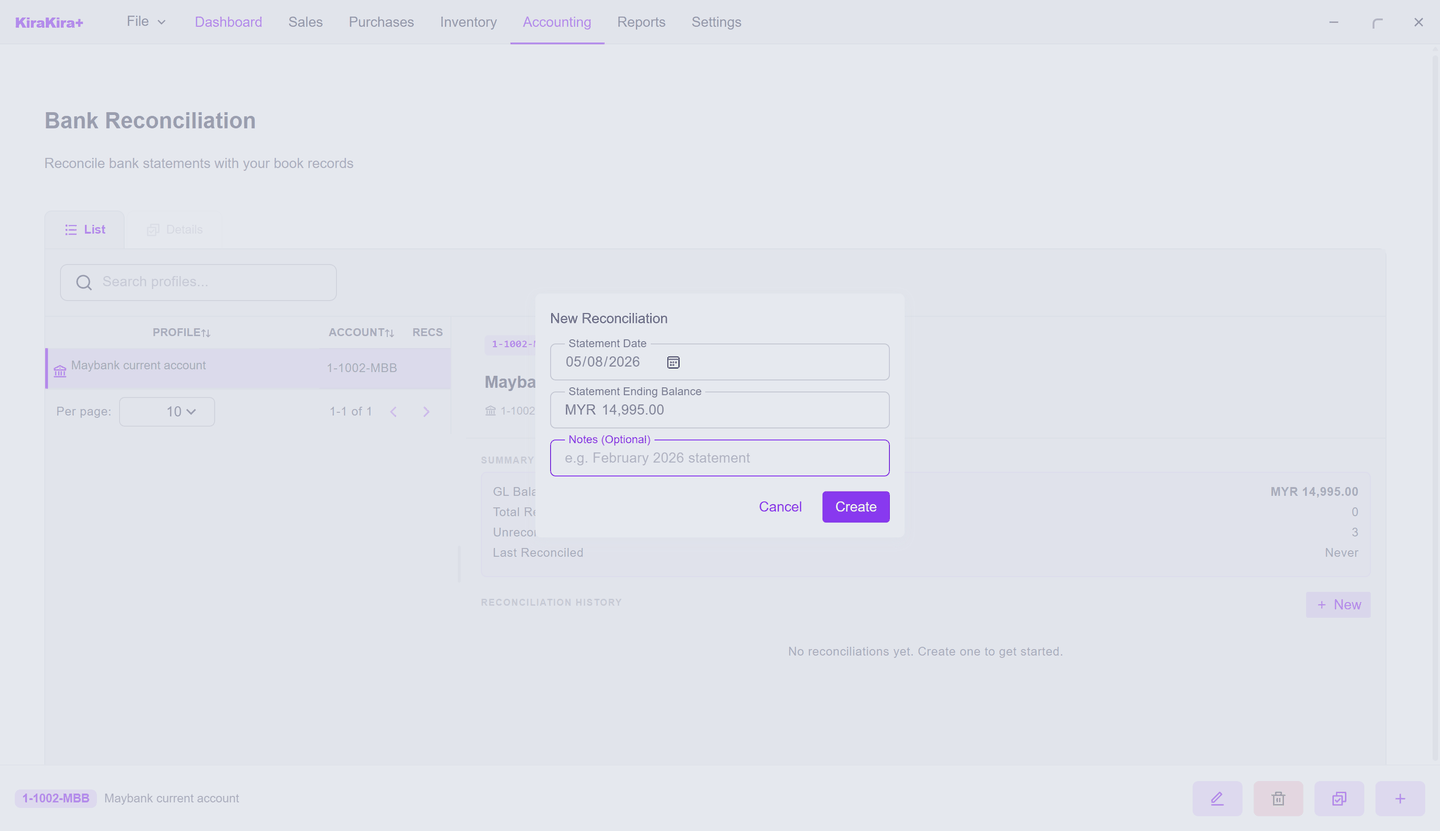
Click Create and the working screen opens: every bank-account book entry up to the cutoff on the left, a running summary on the right.
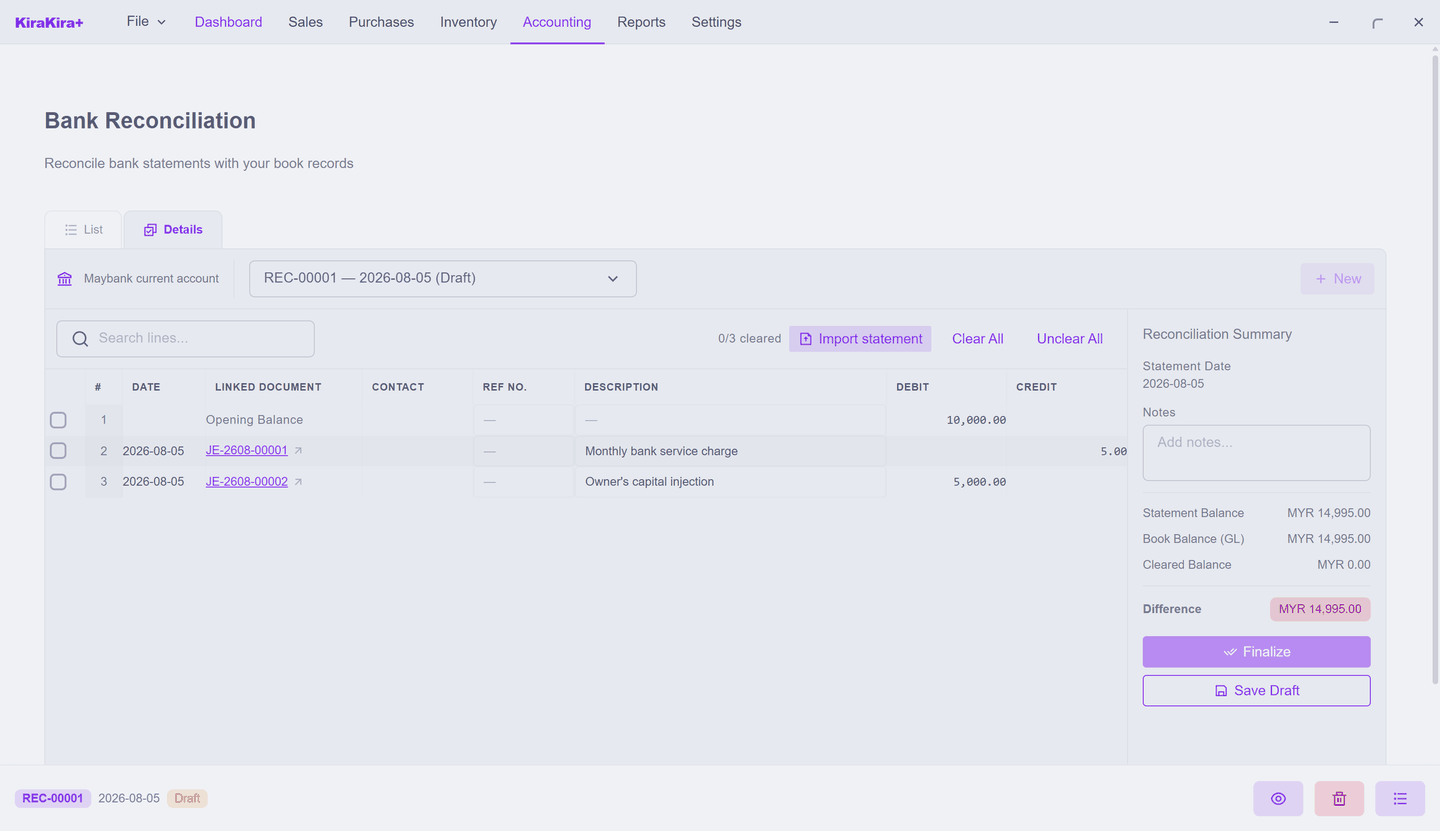
Seri Maju's bank account has three book entries: the RM 10,000 opening balance, the RM 5 bank charge (JE-2608-00001) and the RM 5,000 capital injection (JE-2608-00002). The Difference chip glares red at RM 14,995.00 — nothing is ticked yet.
Tick what the statement shows
Go down the paper statement line by line, and tick the matching book entry. Every tick moves Cleared Balance closer to Statement Balance; the Difference shrinks as you go. (Clear All ticks everything at once — handy when, like here, every line matches.)
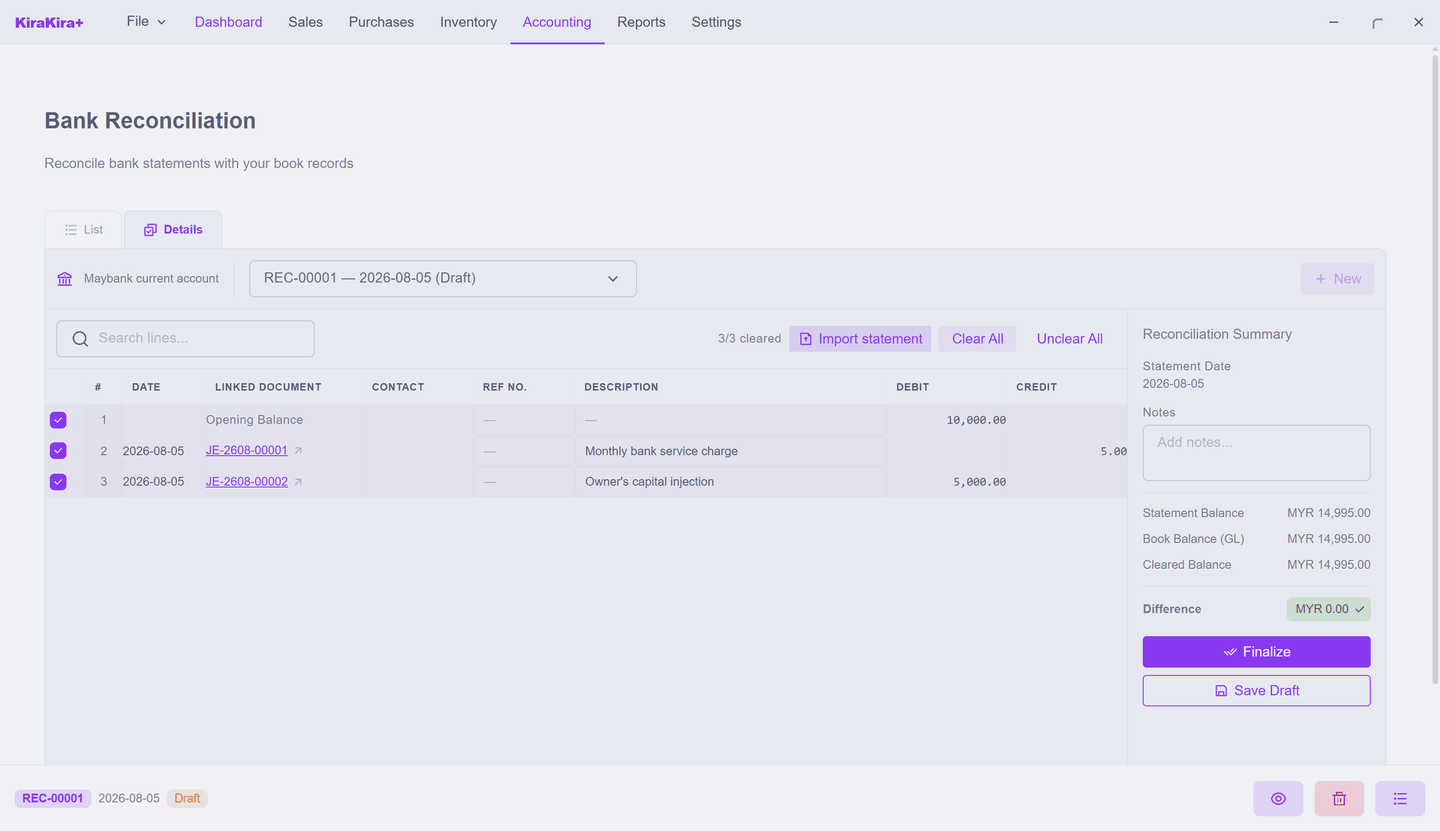
When the difference reads MYR 0.00 with a green tick, the month balances — and only then does Finalize unlock.
The difference won't reach zero?
Then the statement and your books genuinely disagree, and the gap is the clue. A charge on the statement that's not in your books? Post it as a journal entry, come back, tick it. A payment in your books the bank hasn't processed yet? Leave it unticked — it will clear on next month's statement.
Finalize
Click Finalize and confirm. The app warns you honestly: "Finalized reconciliations cannot be edited — only voided." The cleared entries are frozen as reconciled, and next month's reconciliation starts the day after this one's cutoff.
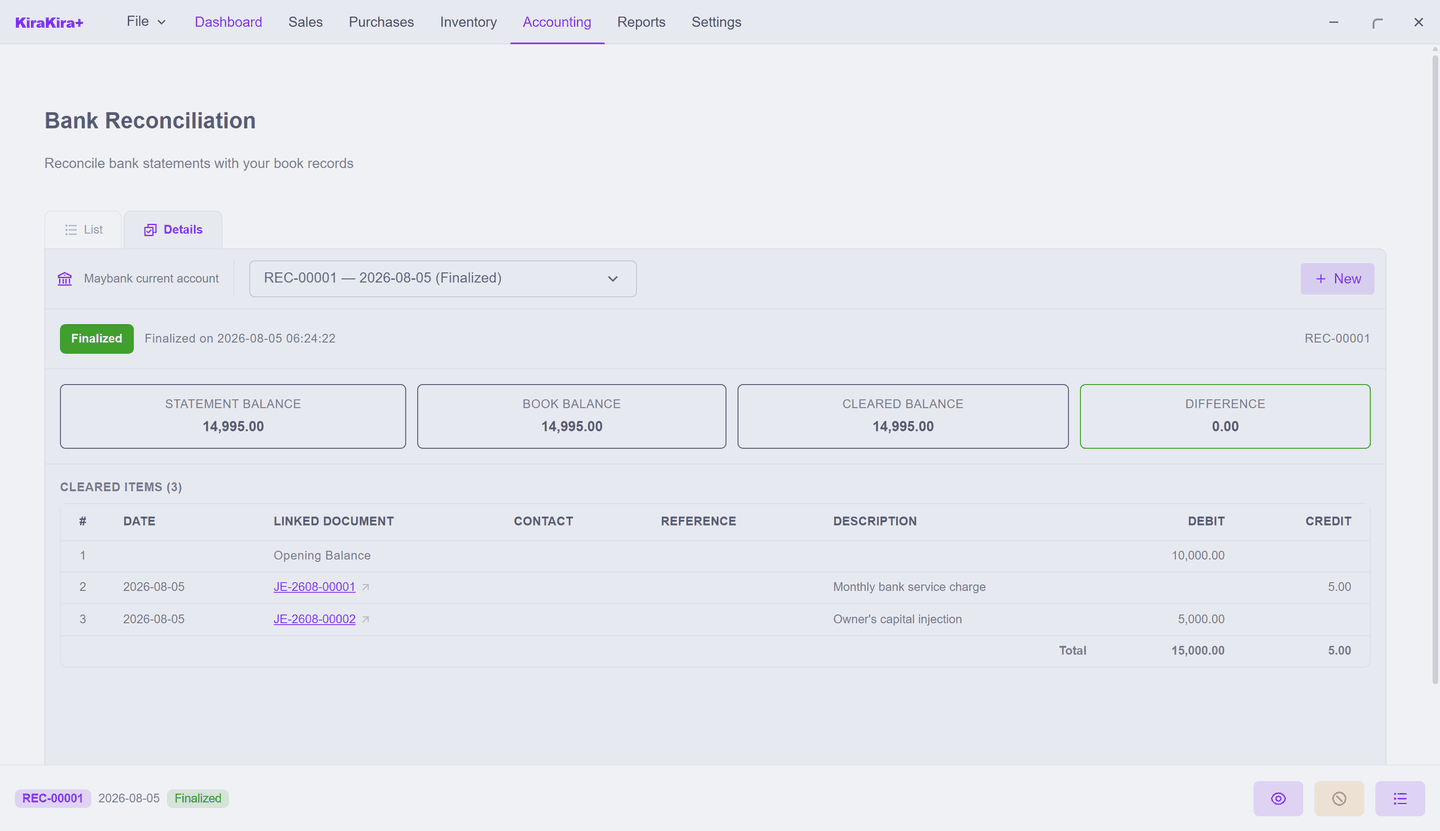
If you finalized too soon, a finalized reconciliation has a Void action (bottom toolbar) — it asks for a reason and releases the cleared marks.
Have the statement as a CSV file?
The workspace's Import statement button reads a CSV downloaded from your bank, matches its rows against your book entries by date and amount, and ticks the matches for you. The ticking is the same — the file just saves you the finger work. Unmatched rows are informational only; as the dialog puts it, post a journal entry first if a row should clear here.
Next: Closing the year.