Appearance
Invoices
Sales → Invoice. An invoice records something you sold and are now owed for. It is the mirror of the supplier bill: it takes goods off your shelf and puts money into what your customers owe you.
Just want to send one invoice?
Send your first invoice is the ten-minute version — a service, sold to a walk-in. This page is the reference: selling goods to a saved customer, and the one refusal this screen owns.
The customer brings their details
On a new invoice, leave the Contact switch on Yes and click the Click to search… box next to Bill To. Pick the customer, and everything you recorded about them arrives with them — address, tax details, the lot:
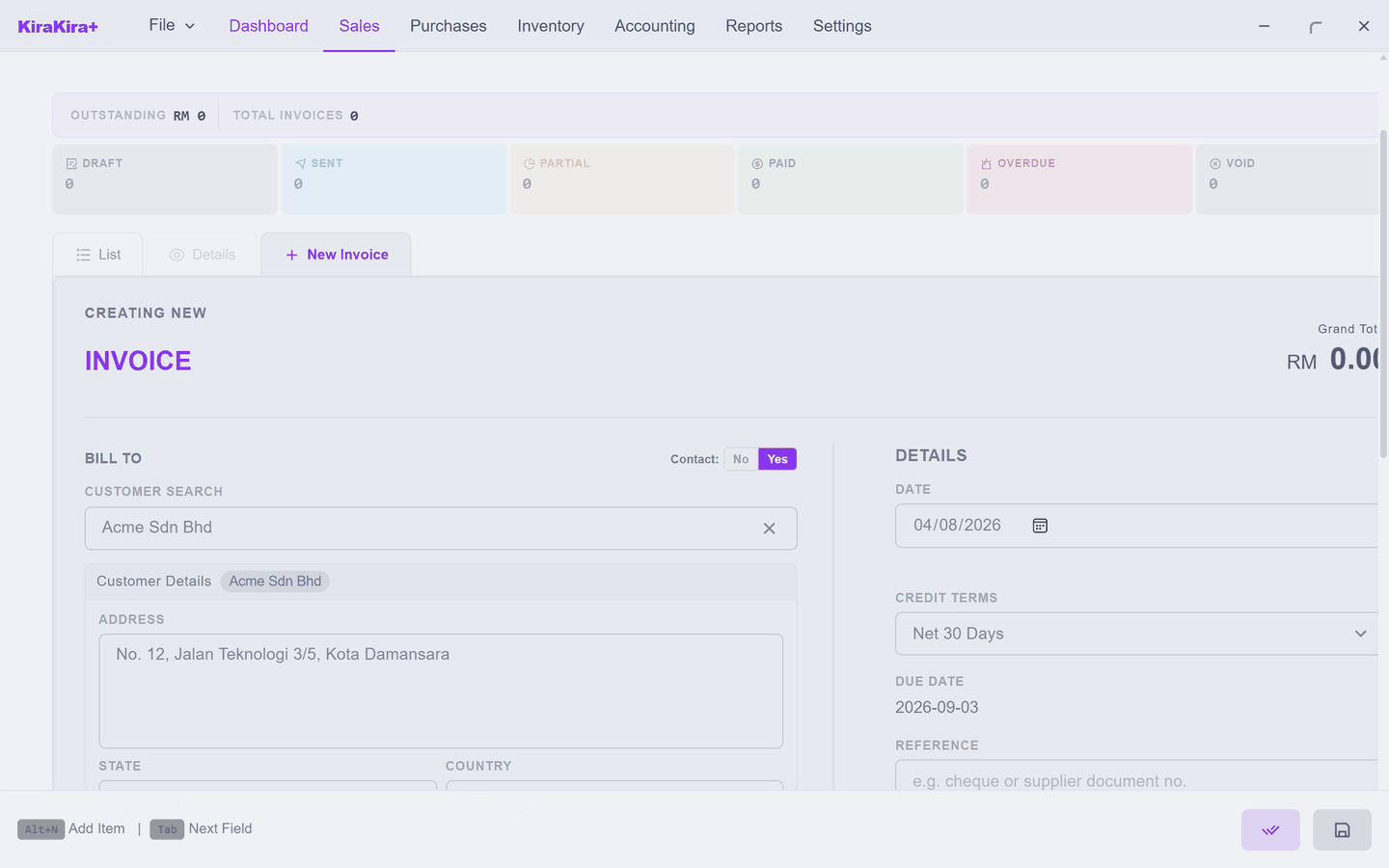
That is the payoff for setting up customers: type it once, never again. For a one-off sale, switch Contact to No instead — the walk-in page covers what that does and does not create.
The price fills itself in
Add the product to a line and look at the price column — it is already there:
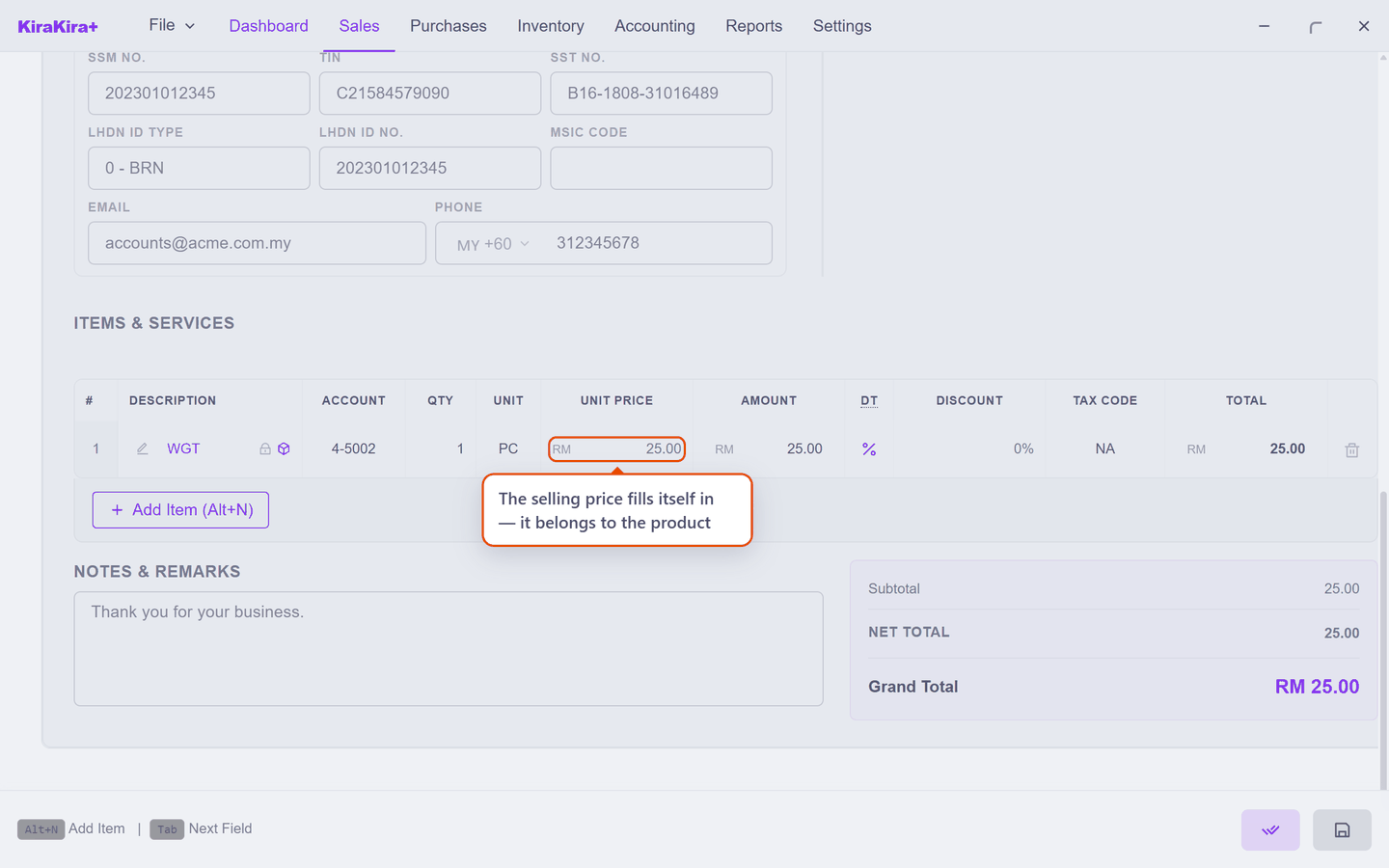
A selling price belongs to the product, so KiraKira+ fills it in — the exact mirror of the supplier bill, where a buying price belongs to the deal and lands at 0.00. It is still yours to change: type over it for a special deal, and the catalogue price stays untouched for next time.
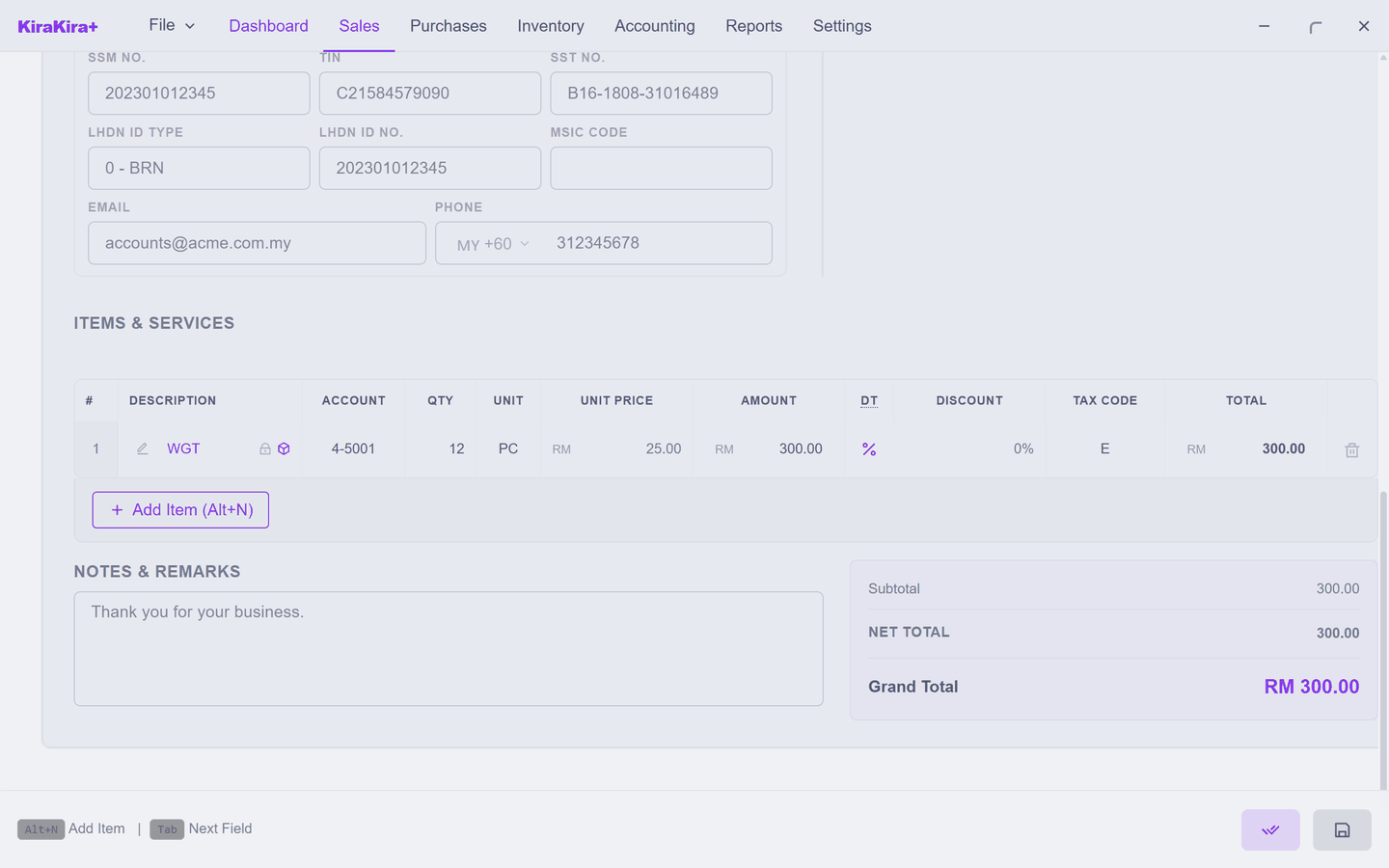
Set the quantity, then check the two cells every line needs — Account (which income the sale belongs to) and Tax Code. They arrive filled from the product's own defaults; change them if this sale is different:
Sell in the unit you handled
A line can say 2 BOX rather than 24 pieces — pick the unit on the line and the app converts. See Units of measure.
Finalising is what makes it real
Save keeps a draft — no number, nothing in your accounts, safe to change or delete. Finalise (the double-tick button) is the moment that counts:
| It | Effect |
|---|---|
| Takes the goods off your shelf | stock falls by the line quantities |
| Records what they owe | the customer now owes the invoice total |
| Gives the invoice its number | the INV- number, dated by the invoice's own date |
The first time you sell a product, one question comes first:
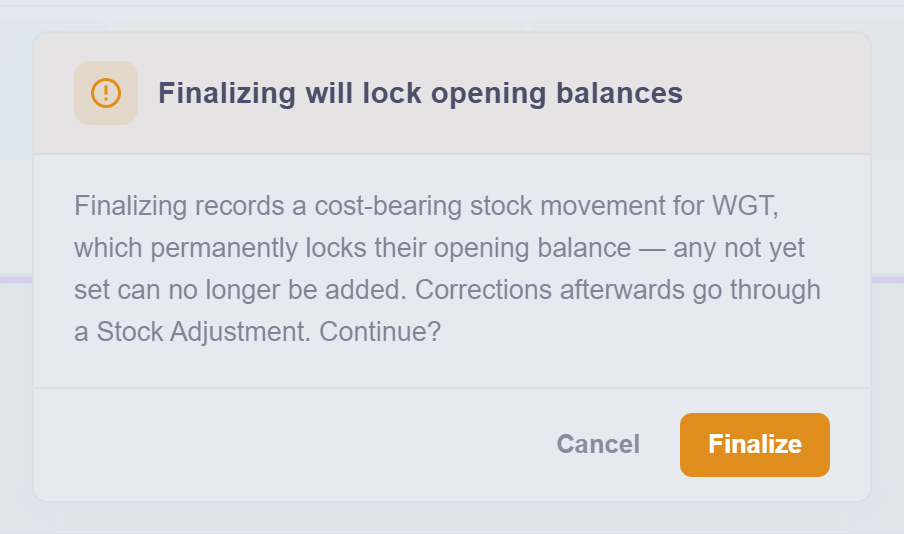
Your first sale of a product permanently locks its opening stock — the figure your books started from must stop moving once real trading is built on it. If your opening figures are in (or you never had any), press Finalize and carry on.
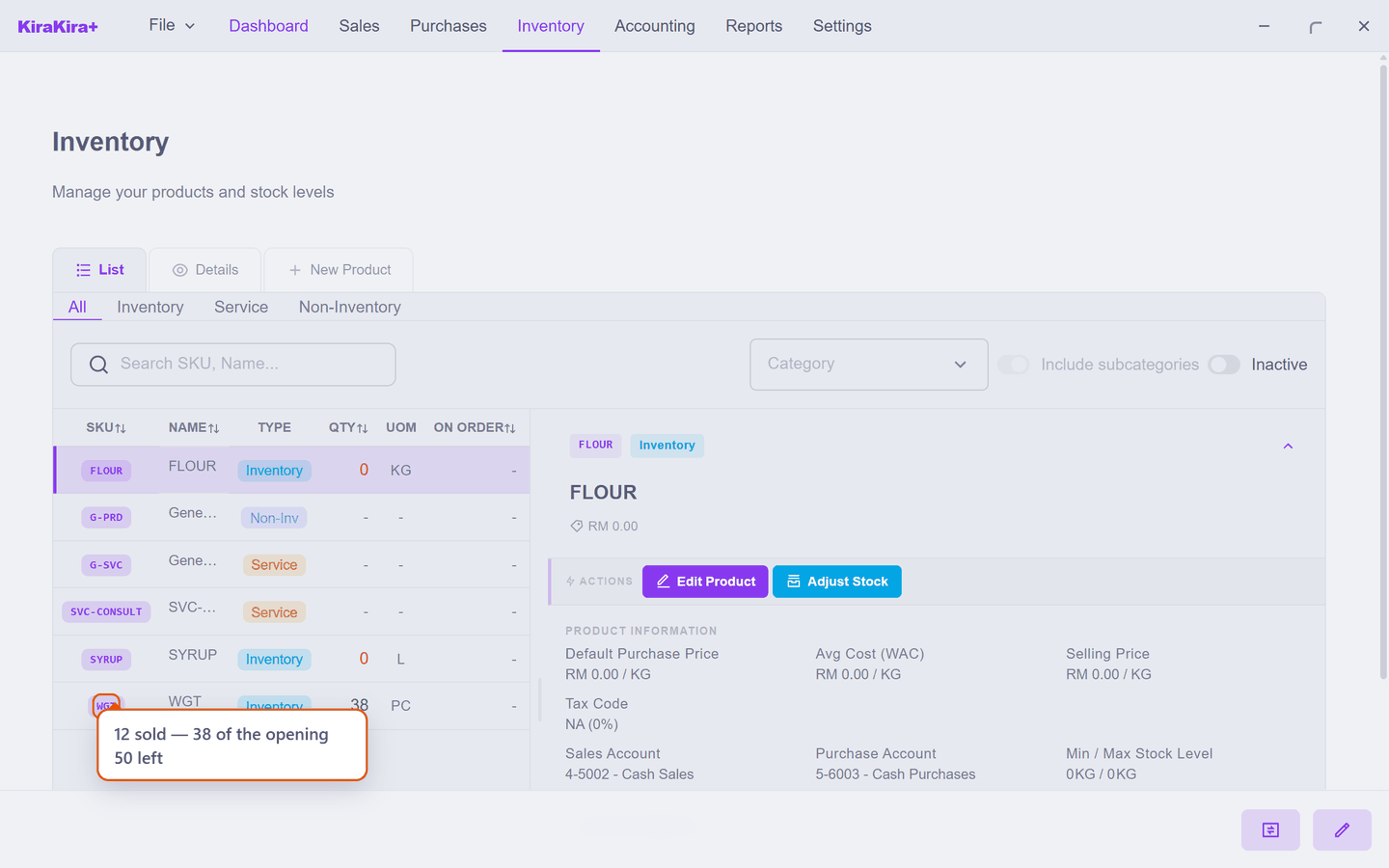
And the goods are genuinely gone — 12 sold, 38 of the opening 50 left:
A finalised invoice is not editable
The figures are locked once it is finalised, because your accounts now depend on them. To reduce one, raise a Credit Note; to give money back, a Refund Note — do not try to edit history.
You cannot sell what you do not have
An invoice takes real goods off a real shelf, so finalising checks the shelf. Ask for more than is there and the app refuses, telling you exactly how short you are:
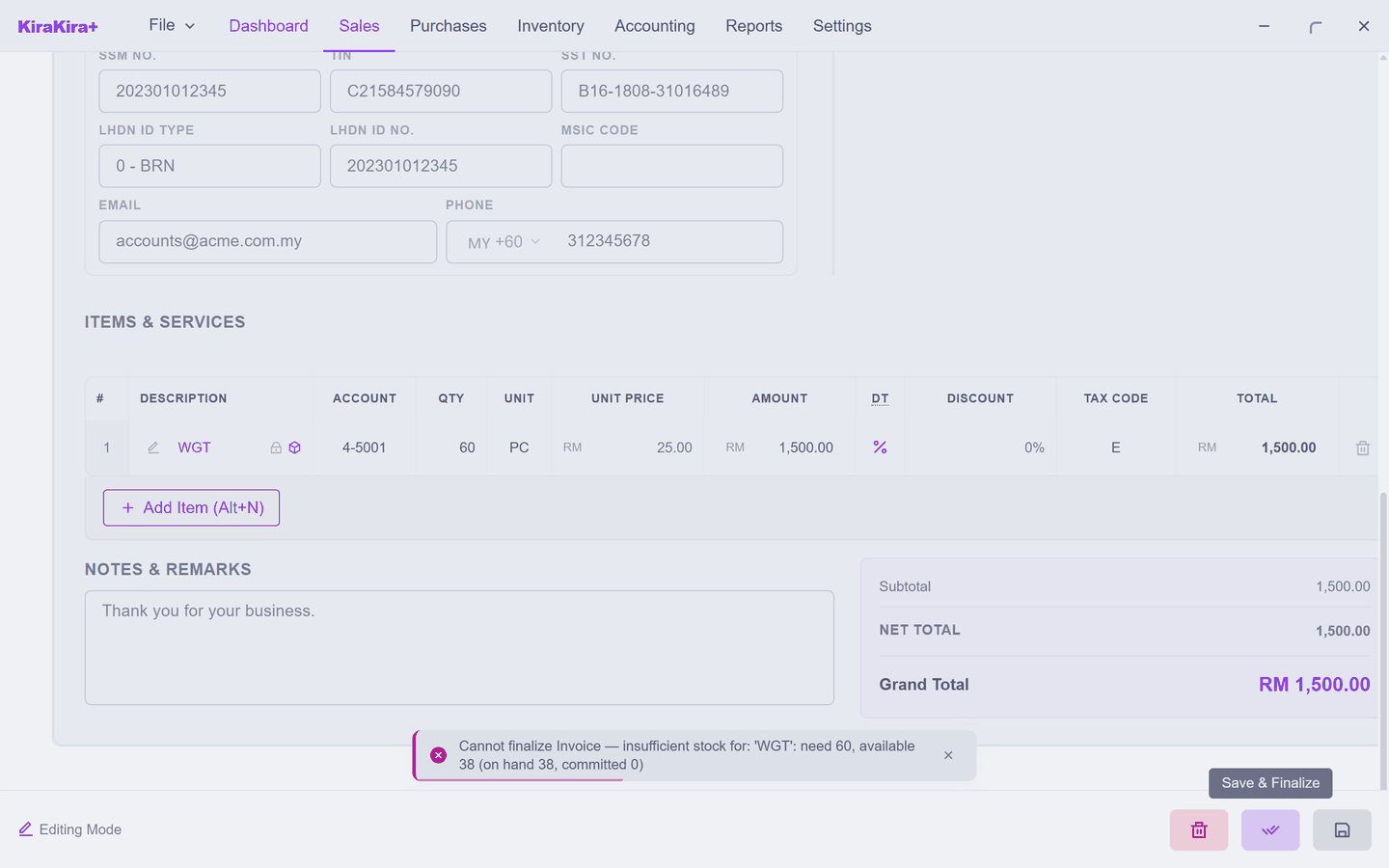
Nothing bad has happened — the invoice simply stays a Draft, safe to fix. Either reduce the quantity to what you can actually deliver, or record how the goods arrived first: a supplier bill if you bought them, opening stock if you already held them when you started the books. This is the whole reason the Buying chapter comes before this one.
Service lines never meet this check — there is no shelf to count. That is why the quickstart could invoice on day one.
After it is real
An invoice's status tracks the money, not the paperwork:
| Status | Means |
|---|---|
| Sent | finalised, nothing received yet |
| Partially Paid | some money in, the rest still owed |
| Paid | settled in full |
| Overdue | the due date passed with money still owed |
Recording the money is the next page — Recording payment (Receipt). Reducing or refunding a finalised invoice has its own pages, and Void exists for an invoice that should never have been issued at all — it reverses everything the finalise did, and refuses once payments or other documents hang off it.
Scenario — Seri Maju's first real sale
Acme Sdn Bhd takes twelve widgets at the catalogue price. Seri Maju has 50 in stock from its opening count.
1. Sales → Invoice, then the New Invoice tab. Leave Contact on Yes, click the Click to search… box and choose Acme Sdn Bhd. Their address and tax details fill themselves in.
2. On the items table, open the first line's editor (the small pencil), search WGT and pick it. The description, unit and price — 25.00 — arrive from the product.
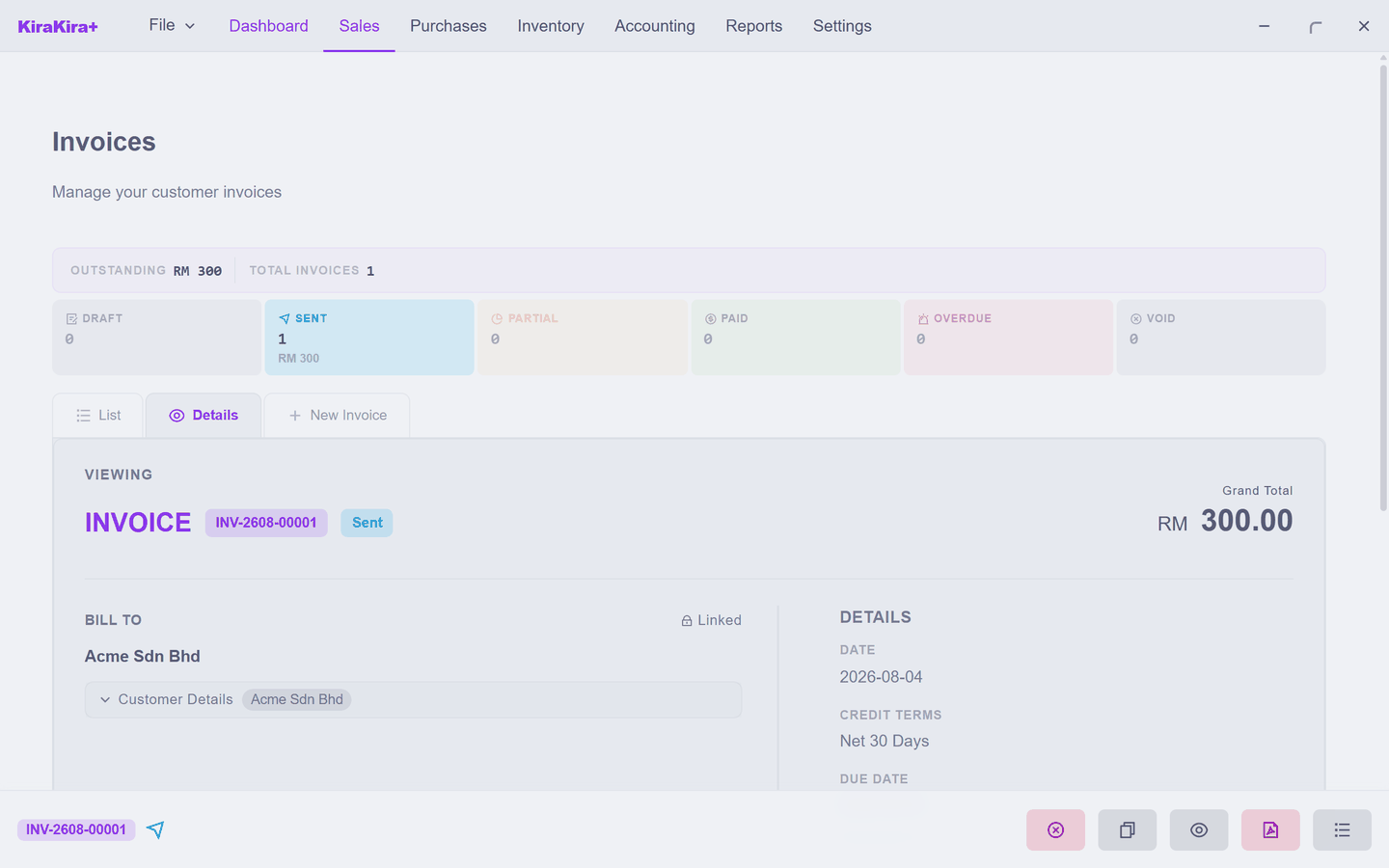
3. Click Qty and type 12. Check Account shows a sales income account and Tax Code is the one you charge. Grand Total reads RM 300.00.
4. Save (the disc button, bottom right). A Draft — still nothing in your accounts.
5. Press Finalise (the double-tick). This is Seri Maju's first ever sale of WGT, so the opening-stock lock question appears — the opening figures are long since entered, so press Finalize.
Check it worked.
| Where | What you see |
|---|---|
| Sales → Invoice | INV-2608-00001, Sent, RM 300.00 |
| Inventory | WGT down to 38 pieces |
| Dashboard | Receivables up by RM 300.00 — Acme owes it |
The money side comes next: when Acme pays, the receipt is what turns Sent into Paid.
Next: Recording payment (Receipt).