Appearance
Enter your first supplier bill
A supplier sends you a bill. Entering it does two things: it records the expense so your profit is honest, and it puts the amount in what you owe, so you know what is due and when.
This is the mirror image of an invoice
Same form, other direction. If you have sent an invoice you already know how this works — the differences are worth two minutes, and they are all on this page.
1. Open Purchases → Purchase Invoice → New PI
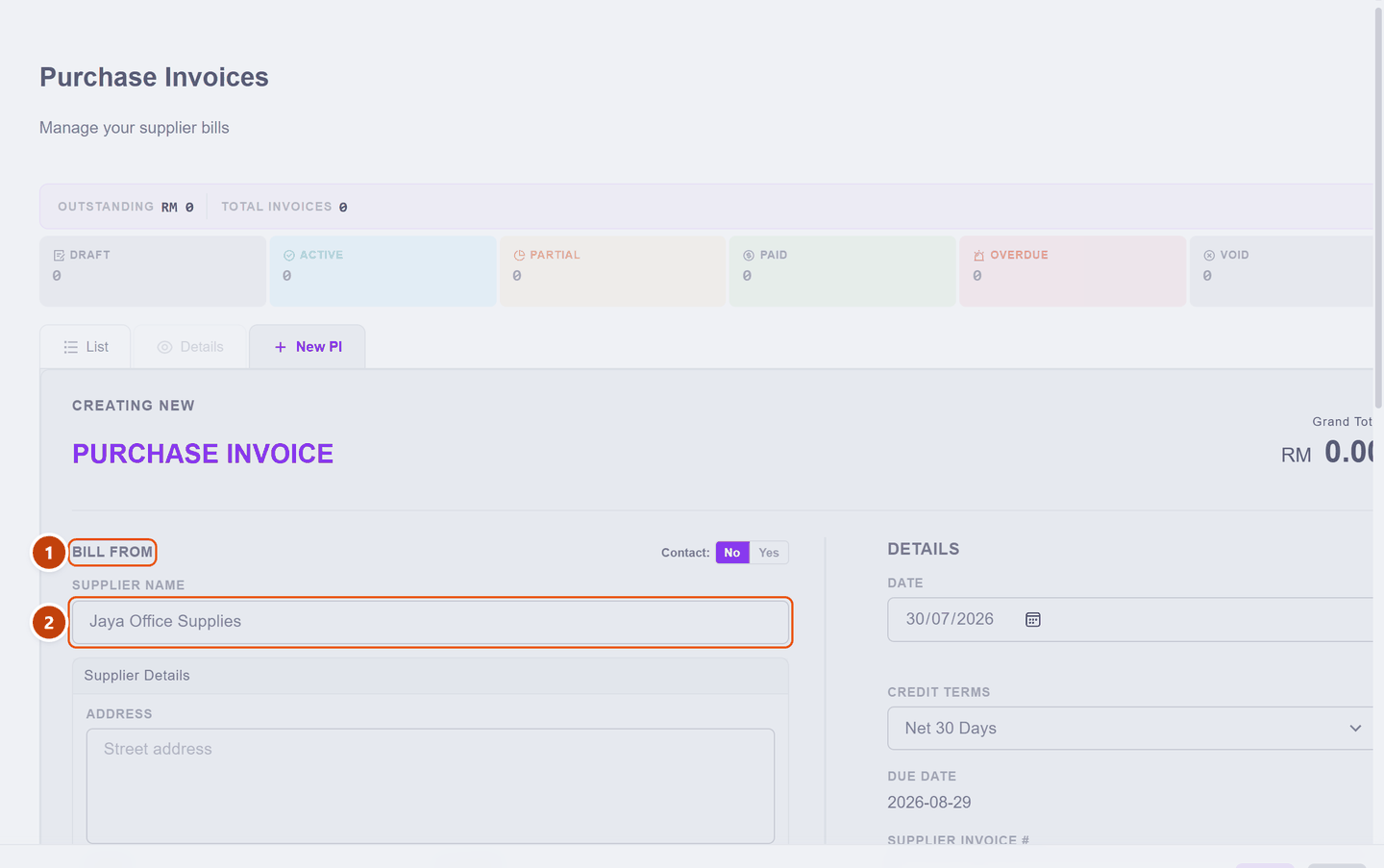
Who billed you? Just like a sales invoice, the Contact switch decides:
- Yes — a supplier you have saved before; their details fill in.
- No — a one-off purchase. Type the name and move on.
| What it is | ||
|---|---|---|
| 1 | Bill From | The supplier — the mirror of Bill To on a sales invoice |
| 2 | Supplier Name | Enough for a one-off. Save a proper contact when they become regular |
2. Fill in the dates and their invoice number
| Field | What to do | |
|---|---|---|
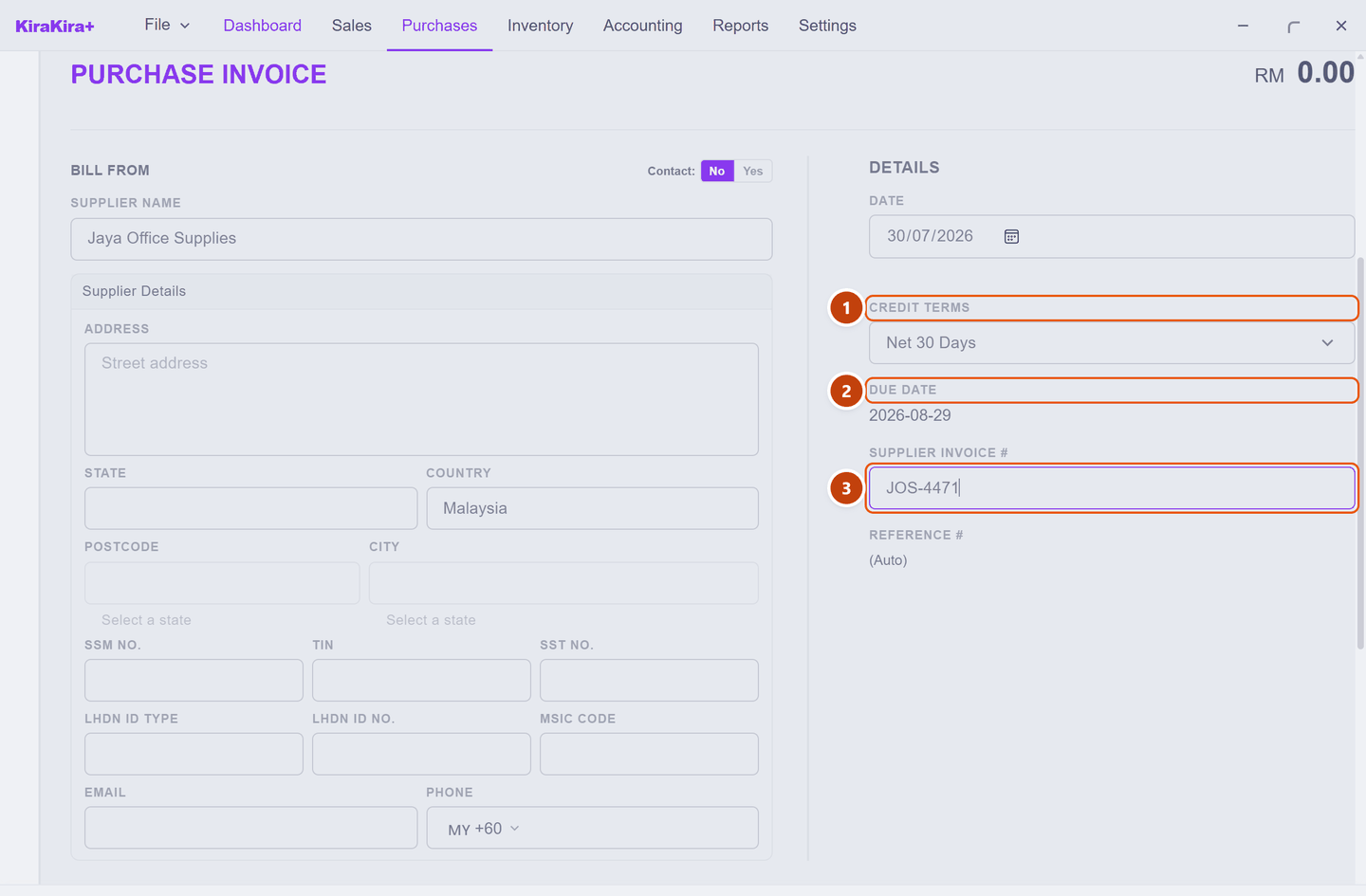
| 1 | Credit Terms | How long you have to pay. Net 30 Days means 30 days from the bill date |
| 2 | Due Date | Worked out from the terms — this is what drives your what I owe list |
| 3 | Supplier Invoice # | The number printed on their bill. Type it in |
That third field is the one with no equivalent on a sales invoice, and it earns its keep twice over: it is how you find the bill again when the supplier chases payment, and it is how you avoid paying the same bill twice.
Two numbers, and that is correct
JOS-4471 is their number. KiraKira+ still gives the document its own — PI-2607-00001 — because your records need a number in your own sequence. Both appear on the finished bill.
3. Add what you bought
Each line works as it does on an invoice: pick the product or service, then set the price and quantity.

One thing genuinely differs. On a sales line the price fills in from what you charge. On a purchase line it does not — it comes from what the item normally costs you, which is often blank. So type the price straight off the bill in front of you. That is the right instinct anyway: what matters is what they actually charged.
The Account on the line is the expense this belongs to — printing, rent, purchases. It is why a Profit & Loss report can later tell you where the money went, so it is worth a moment's thought rather than always taking the first option.
4. Save, then finalise
Save keeps it as a Draft — safe to change. Finalise makes it real:
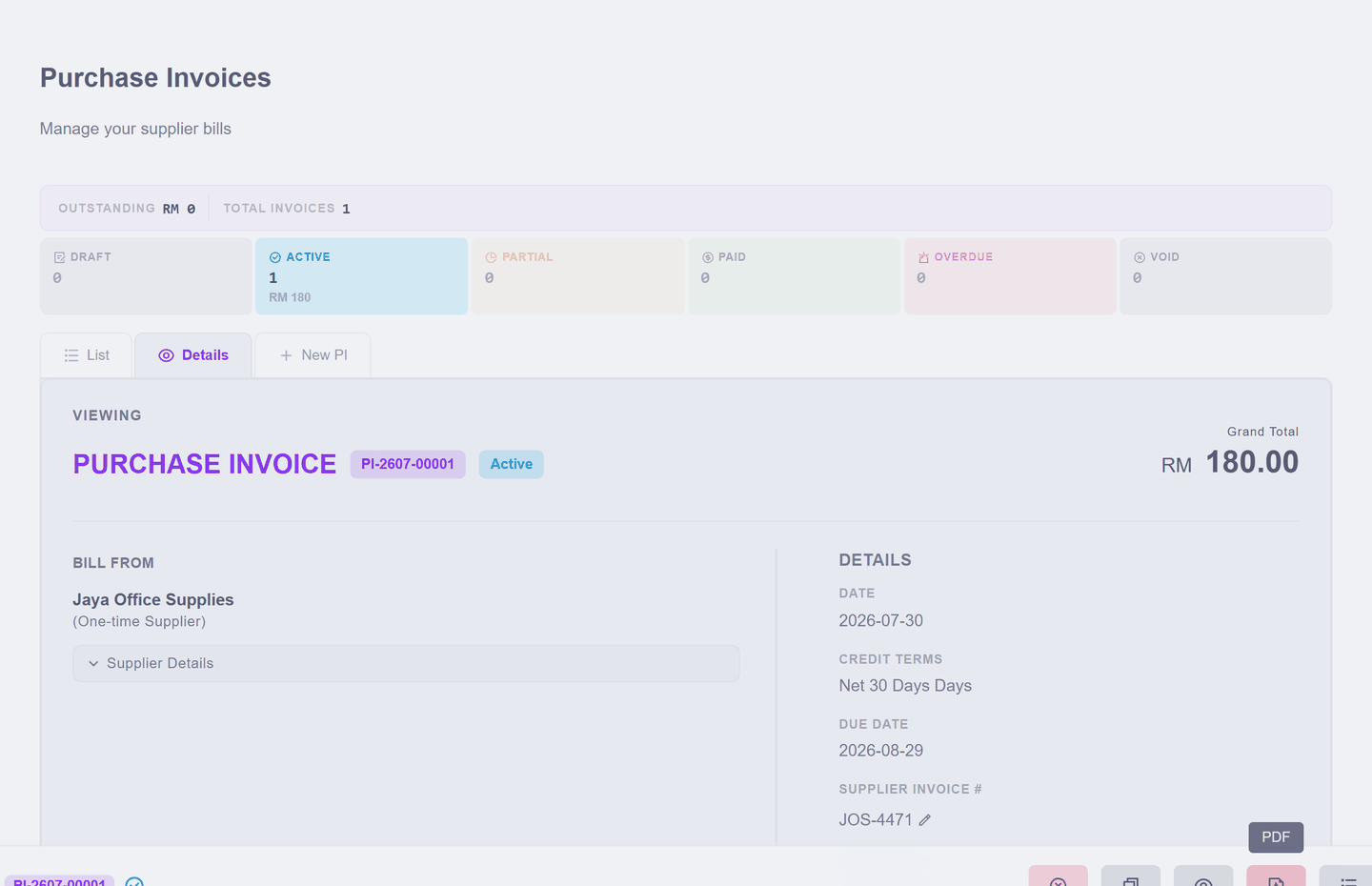
The bill is now Active: it has its number, the expense is recorded, and the amount sits in what you owe until you pay it.
You can still fix their invoice number
Notice the small pencil beside Supplier Invoice # even after finalising. Reference details like that stay editable, because correcting a typo in the supplier's number changes no figures. The amounts are what finalising locks — those need a Debit Note or a void.
What happened in your accounts
Again, only if you are curious: the expense went into your Profit & Loss, and the same amount went into creditors — the standing list of people you owe. Paying it later moves money out of your bank and clears that entry; the expense itself stays where it belongs, on the day you were billed.
Next: Pay a supplier — settling this bill, which is the receipt story in reverse.