Appearance
Closing the year
Accounting → Fiscal Year Close. Once a year, the books get a full stop. Closing the year does three things, all in one motion: it zeroes every income and expense account (they are this year's counters, and the new year starts them fresh), it moves the year's net profit into Retained Earnings (profit the business keeps), and it locks the period so nobody accidentally books January's sale into last year.
Everything for the whole lifecycle — the year boundary, the lock, the close, and starting the next year — lives on this one page.
The setup card (usually touched once)
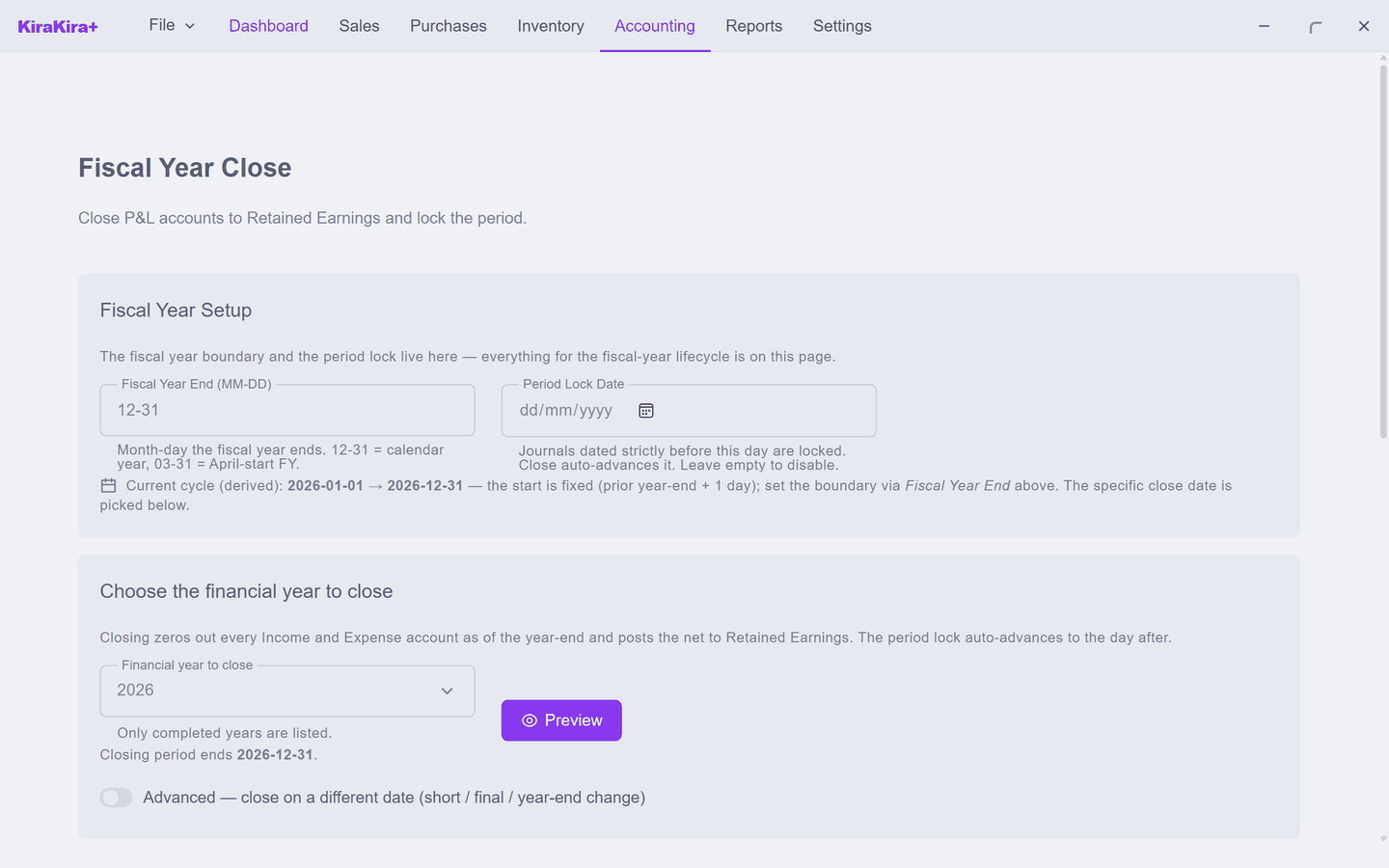
- Fiscal Year End (MM-DD) — the day your financial year ends.
12-31is a calendar year; a business with an April-start year would put03-31. - Period Lock Date — journals dated before this day are refused. You rarely set it by hand: closing a year advances it automatically.
About the pictures
You close a year after it ends — pick a future date and the screen refuses, plainly: "2026-12-31 is in the future." Seri Maju's demo books are only months old, so these pictures use the Advanced — close on a different date option to close a short first period on 2026-08-05. Your normal year-end close looks exactly the same, with your real date. (Advanced is real too, but as the screen says: use only for a ceased business, a short first period, or a year-end change.)
Step 1 — Preview
Pick the year and click Preview. Nothing is posted yet — the app shows you precisely what the close would do:
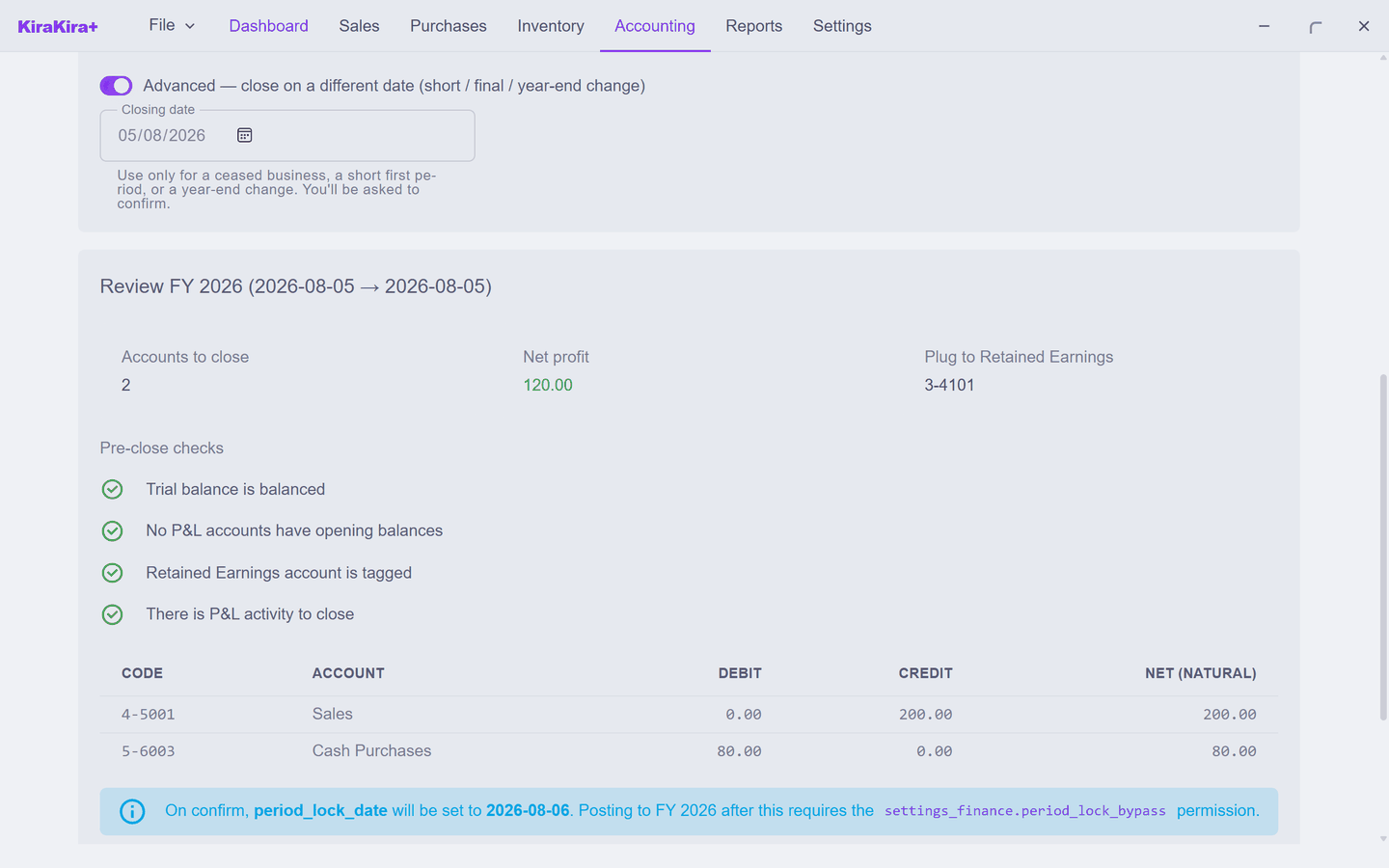
- Accounts to close and the account-by-account table — Seri Maju has Sales RM 200 and cost of goods RM 80.
- Net profit 120.00 — the figure headed for Retained Earnings.
- Pre-close checks — four green ticks the app insists on (trial balance balanced, Retained Earnings tagged, real activity to close…). A red one blocks the close and tells you what to fix.
Step 2 — Save a backup
The Close FY… button stays disabled until you click Save backup. This is deliberate, not bureaucratic: the backup (BACKUP_….kws) is the untouched, not-yet-closed original — the one full undo for everything that follows. Save it somewhere you'll find it again.
Step 3 — Close
Click Close FY 2026… and read the confirmation — it states the exact journal it will post, the new lock date, and (if anything is unusual) a warning you must explicitly tick past:
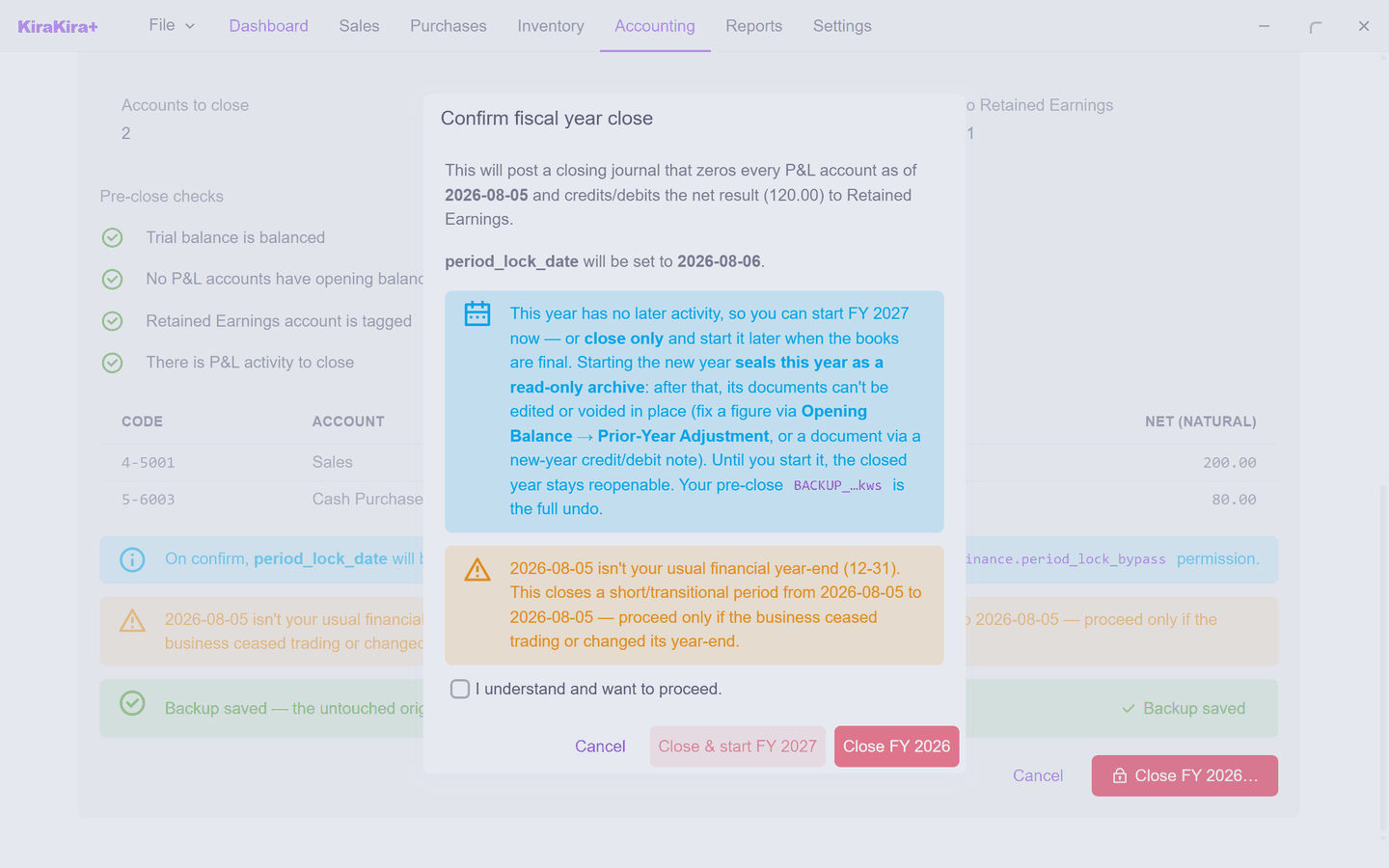
Two ways out, and the difference matters:
| Button | What happens |
|---|---|
| Close FY 2026 | Closes the year, keeps it reopenable. The safe default while adjustments might still come. |
| Close & start FY 2027 | Closes and starts the new year in one go — which seals the old year as a read-only archive. |
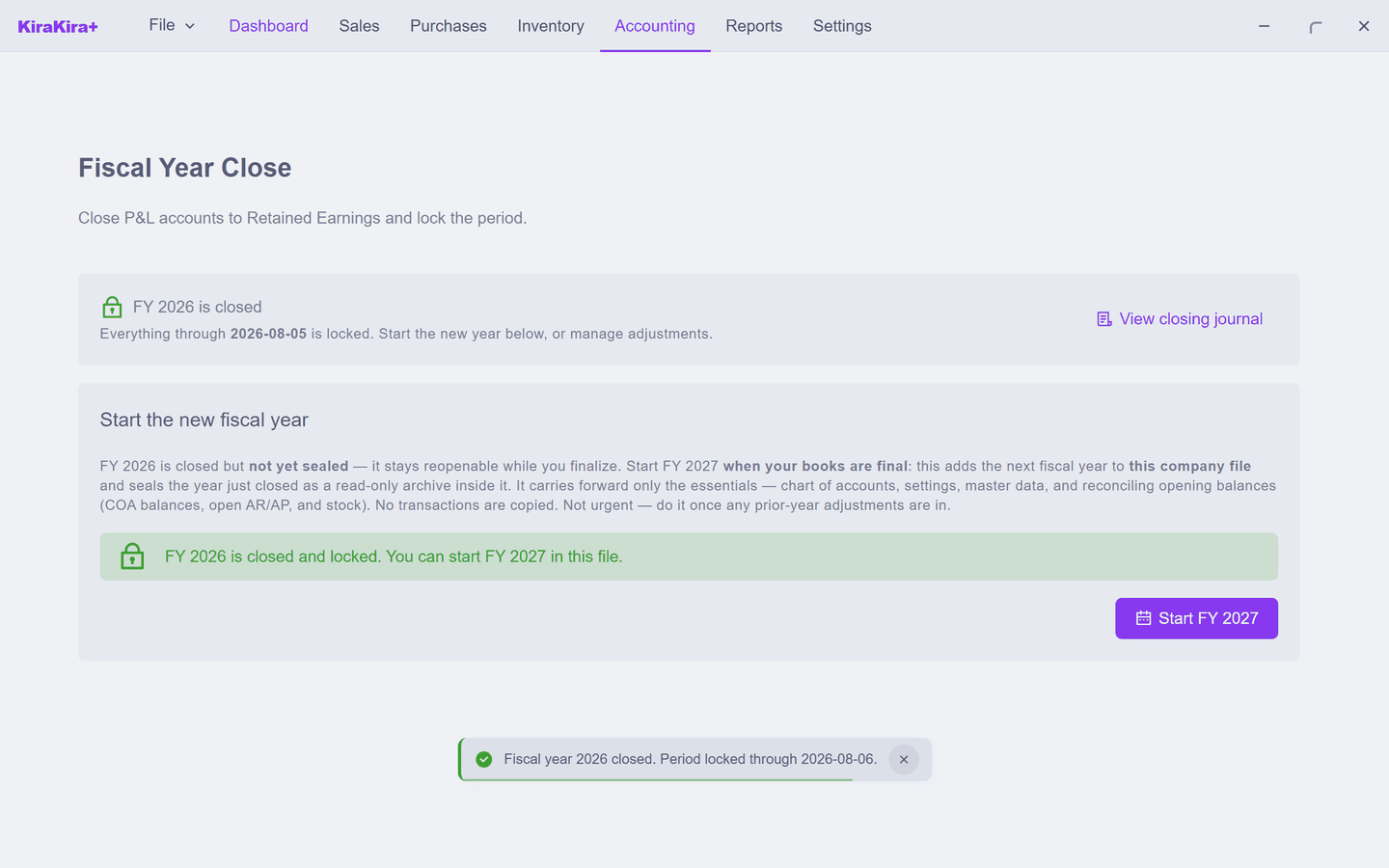
Seri Maju closes only. The page banner flips to "FY 2026 is closed — everything through 2026-08-05 is locked", with a View closing journal link to the entry the app just wrote:
Step 4 — Start the new fiscal year (when the books are final)
Closed is not sealed. The closed year stays reopenable while you and your accountant finish any prior-year adjustments — the card says so itself: "Not urgent — do it once any prior-year adjustments are in." When the books are truly final, click Start FY 2027:
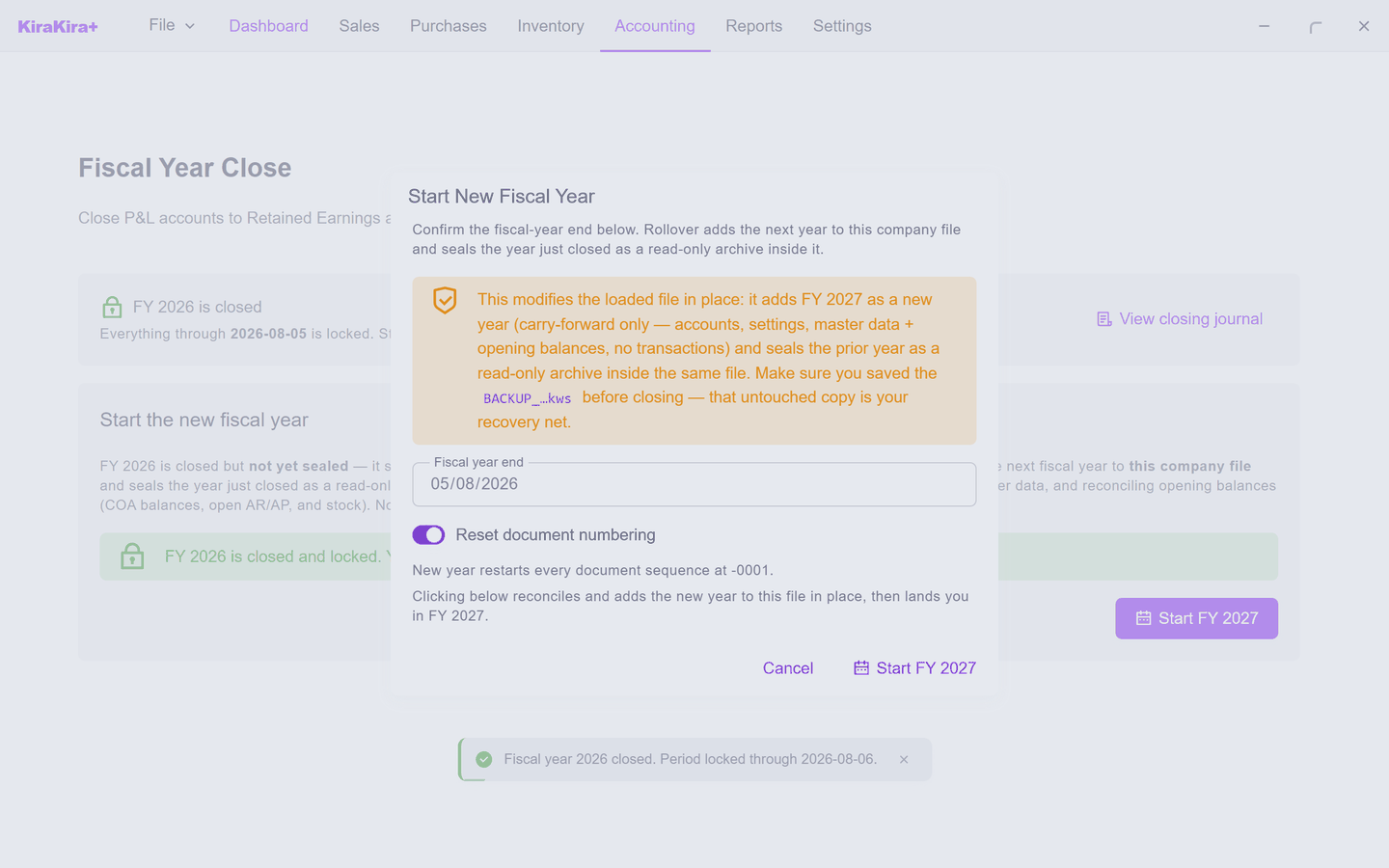
Rollover adds FY 2027 to the same company file and seals FY 2026 as a read-only archive inside it. It carries forward only the essentials — chart of accounts, settings, master data, and the reconciling opening balances (account balances, open customer/supplier debts, stock). No transactions are copied; last year's paperwork lives on in the sealed archive, browsable any time.
After the seal
A sealed year's documents can't be edited or voided in place — that is the point of sealing. Found a mistake afterwards? Fix forward: a figure via Opening Balance → Prior-Year Adjustment, a document via a new-year credit note or debit note — the same fix-forward habit as e-invoiced documents.
Rollover wants a saved file
Starting the new year rewrites your company file in place, so it insists the workspace is saved to a real .kws file first (File → Save). If you work from an unsaved workspace it will tell you exactly that and change nothing.