Appearance
What you must set up first
The moment you create a workspace, KiraKira+ gives you a working set of books. The categories for your money are already built, and the app already knows where an invoice or a payment belongs. You could raise an invoice five minutes from now.
But a few things only you can answer — your company name, whether you charge tax, where your money sits. Get them right before you send anything to a real customer, because a document you have issued keeps the details it was issued with. This page is the short list, in order.
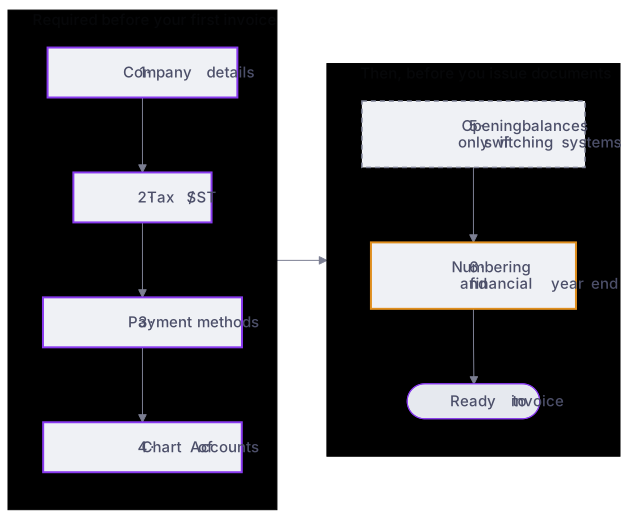
Purple = required before you invoice · dashed = only when switching from another system · amber = set before you issue documents.
1. Your company details — do this first
Settings → Company.
A new workspace starts with a demo company so the screens are not empty. It is a placeholder — replace it with your own details. If you skip this, your first invoice goes out with someone else's name on it.
| Field | Why it matters |
|---|---|
| Company name | Printed on every invoice and quotation you send |
| Address | A proper invoice needs one |
| SSM / registration no. | Tells customers exactly which business sent the bill |
| SST number | Only if you are SST-registered — see step 2 |
| TIN | Only needed for e-Invoice later; harmless to fill in now |
Documents remember
When you issue a document, it keeps the company details that were on file at that moment. Fixing your company name next month does not rewrite the invoices you already sent — so fix it now, while there are none.
2. Tax — only if you charge it
KiraKira+ handles tax with tax codes — small labels like "SST 6%" that you pick on an invoice line. No tax code on a line means no tax on that line. That is the whole system.
- Most small businesses charge no tax: do nothing. Skip to step 3.
- If you charge SST: check Settings → Tax has the rate you charge (the usual Malaysian rates are already there), and put your SST number in Settings → Company so it prints on your invoices.
Wrong tax is hard to undo
Tax is baked into each invoice when you issue it. If you notice a wrong rate afterwards, the fix is a Credit Note — extra paperwork you can avoid by checking this once, now.
3. Payment methods — where your money sits
Settings → Payment.
A payment method answers one question: when a customer pays you, where does the money land? Set up one method for each real place:
| Example method | The real-world place |
|---|---|
| Maybank current account | your business bank account |
| Cash on hand | the cash drawer or petty-cash box |
Skipping this blocks you later
You can raise invoices without payment methods — but you cannot record getting paid. The moment a customer pays, you will need one.
4. Glance at the Chart of Accounts
Accounting → Chart of Accounts.
Despite the intimidating name, this is just the list of labels your money is sorted under — "Sales", "Rent", "Bank", and so on. A complete set is already built. You do not need to create one, and most people change very little.
Worth five minutes on day one:
- Rename anything that does not match how you talk about your business.
- Switch off labels you will never use, so the drop-down lists on your documents stay short.
- Add one if your trade has an income or expense the list does not cover.
Switch off, never delete
A label that has ever been used is part of your history, and KiraKira+ will refuse to delete it. Make it inactive instead — it vanishes from the drop-downs, and your old documents stay exactly as they were.
5. Opening balances — only when switching
Was your business already trading before KiraKira+ — on another app, or a spreadsheet? Then tell it where you stood on day one: unpaid customer invoices, unpaid supplier bills, bank balances, and stock on the shelf.
Starting a brand-new business? Skip this entirely. There is nothing to carry over.
See Opening balances.
6. Document numbering — before the first document
Settings → Numbering.
Choose what your invoice numbers look like — for example INV-2607-00001. Every document type has its own counter, and each one counts up without gaps.
Set the pattern before you issue anything. Changing it midway leaves a visible jump in the sequence that you may one day have to explain to an auditor.
7. Financial year end
Most businesses close their year on 31 December, and that is the default. If yours ends on a different date, set it in Accounting → Fiscal Year Close — everything about the financial year (the end date, locking old months, closing the year) lives on that one page.
See Closing the year when you get there — it is a next-year problem, not a today problem.
What you can safely leave alone
Behind the scenes, invoices, bills, stock and banking are already wired to the right money labels. You only need to revisit that wiring if you add your own labels later and want documents to use them instead. Everything not on this page can wait until the day you actually need it.