Appearance
Purchase Orders
Purchases → Purchase Order. A purchase order is what you send a supplier before anything arrives: this is what we want, at this price. It commits you to buying — it does not record that you have bought.
You may not have this yet
A new set of books starts with purchase orders switched off, so the Purchases menu has no entry for them. Turning it on is the first section below.
Turn it on first
KiraKira+ starts every workspace with the smallest useful set of documents — bills, payments and debit notes — so the menus are not full of things you never use. Purchase orders are one of the extras.
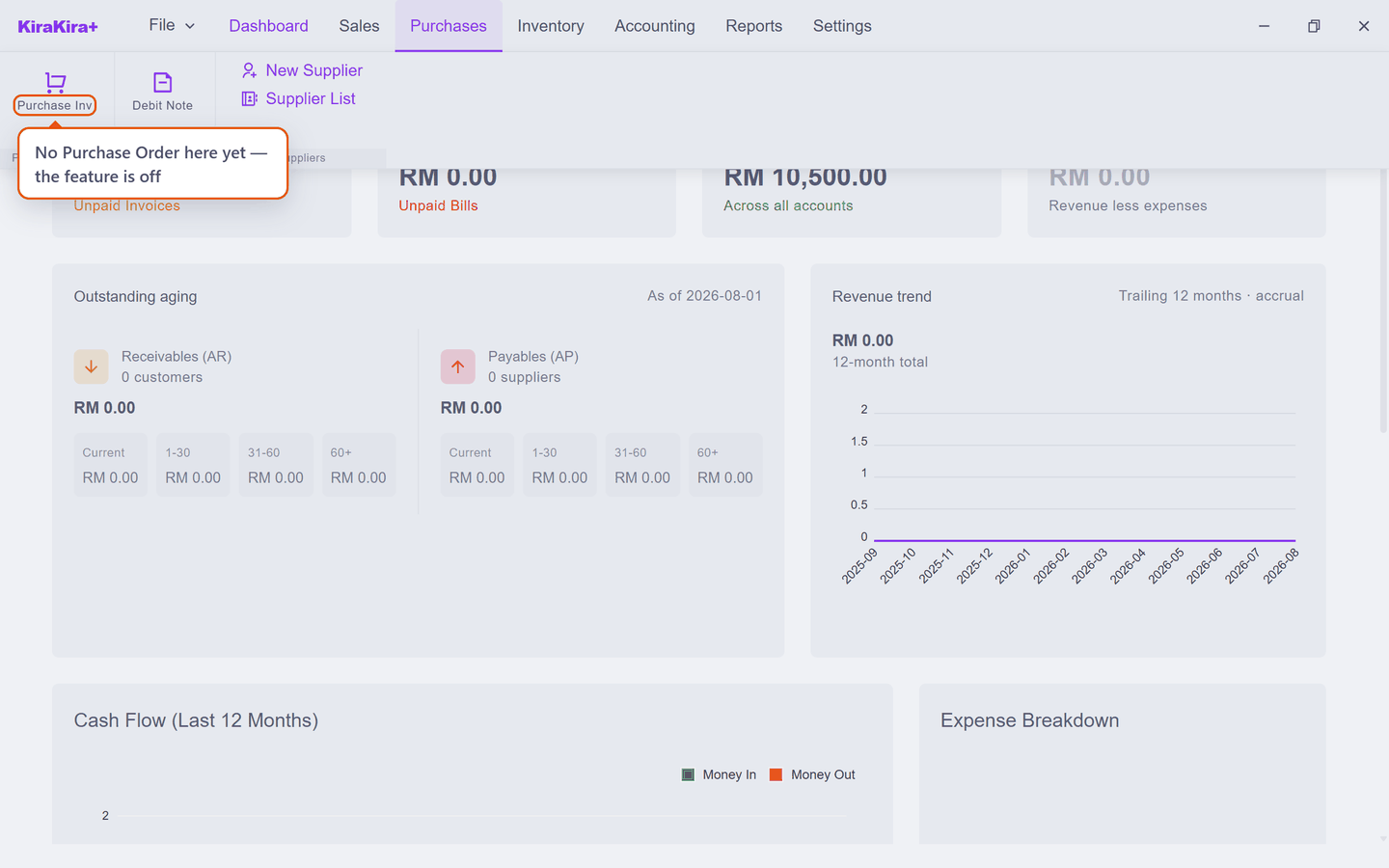
Open Purchases and you will see there is nothing there for ordering:
Go to Settings → Purchase Features:
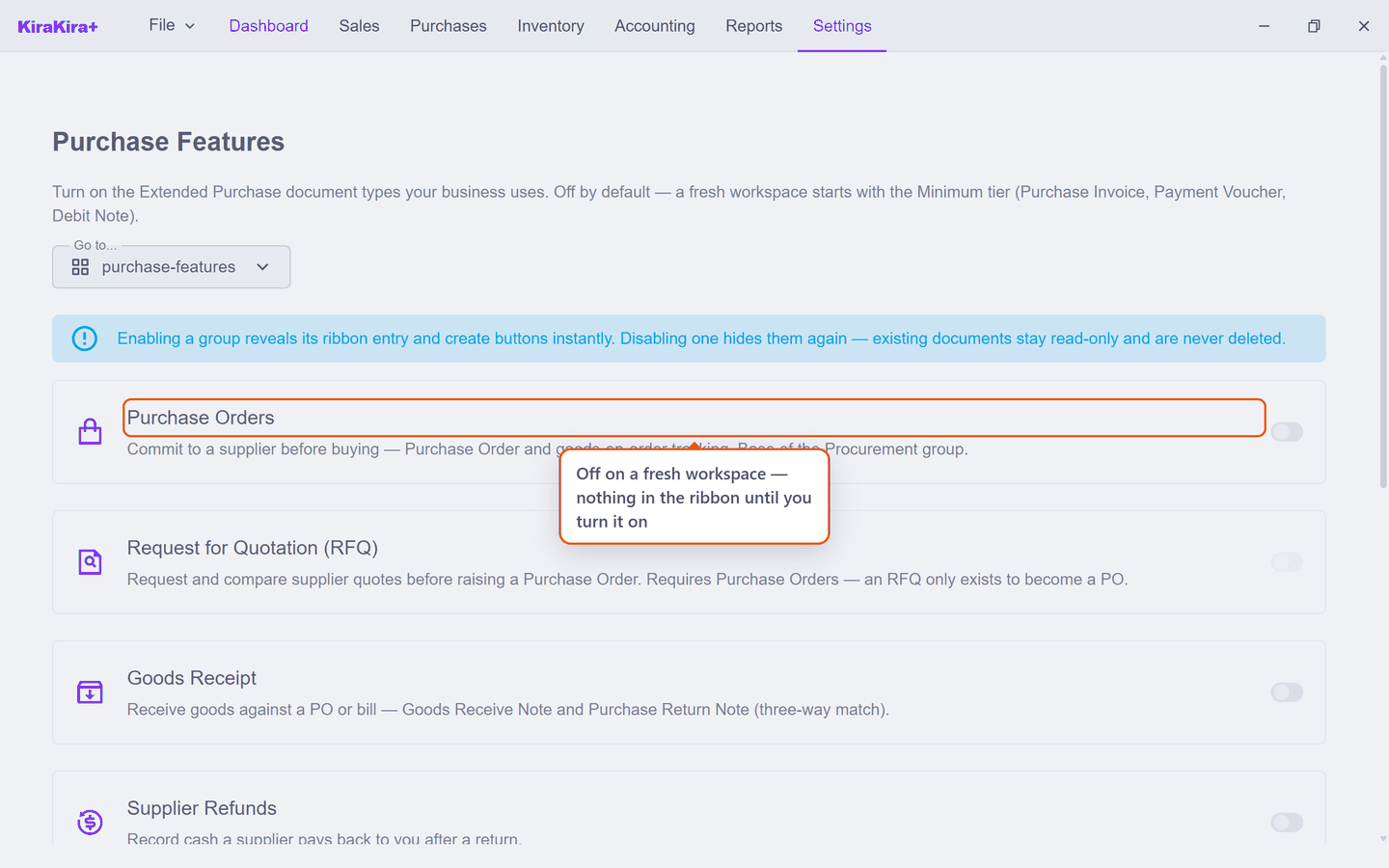
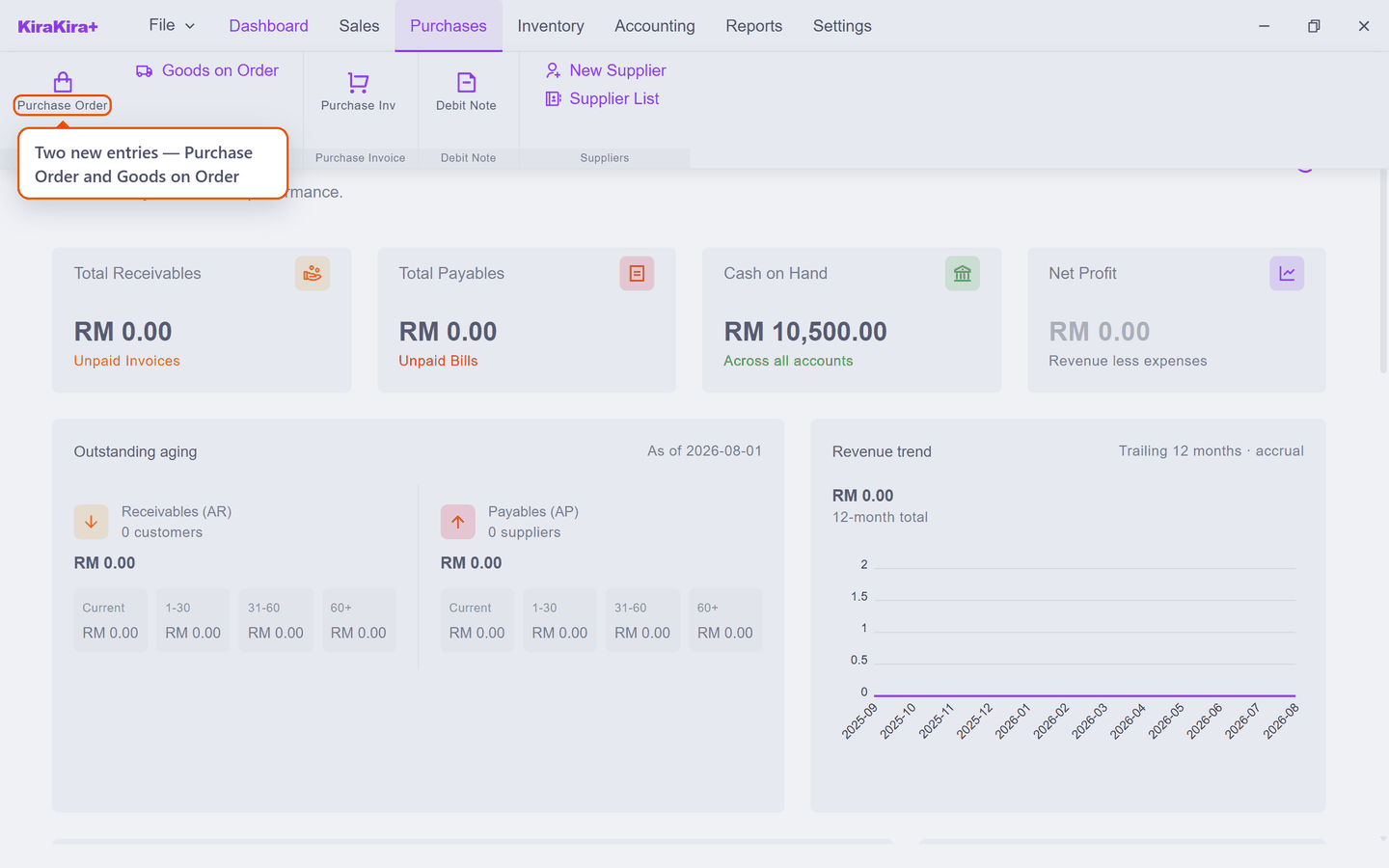
Switch Purchase Orders on, then Save. Open Purchases again and there are two new entries:
Turning it off again is safe
Switching a feature off only hides it. Orders you already raised are kept and stay readable — nothing is deleted.
An order is a promise, not a purchase
This is the part worth being clear about, because it is the whole reason the document exists.
| A purchase order | A supplier bill |
|---|---|
| What you intend to buy | What you have bought and now owe for |
| Moves no stock | Puts the goods on your shelf |
| Changes no accounts | Records the debt |
| Can be changed or cancelled | Locked once finalised |
Nothing you do on this page affects your profit, your stock figures or what you owe. That only happens when the order becomes a bill.
Raising one
Pick the supplier, then add what you want to order.
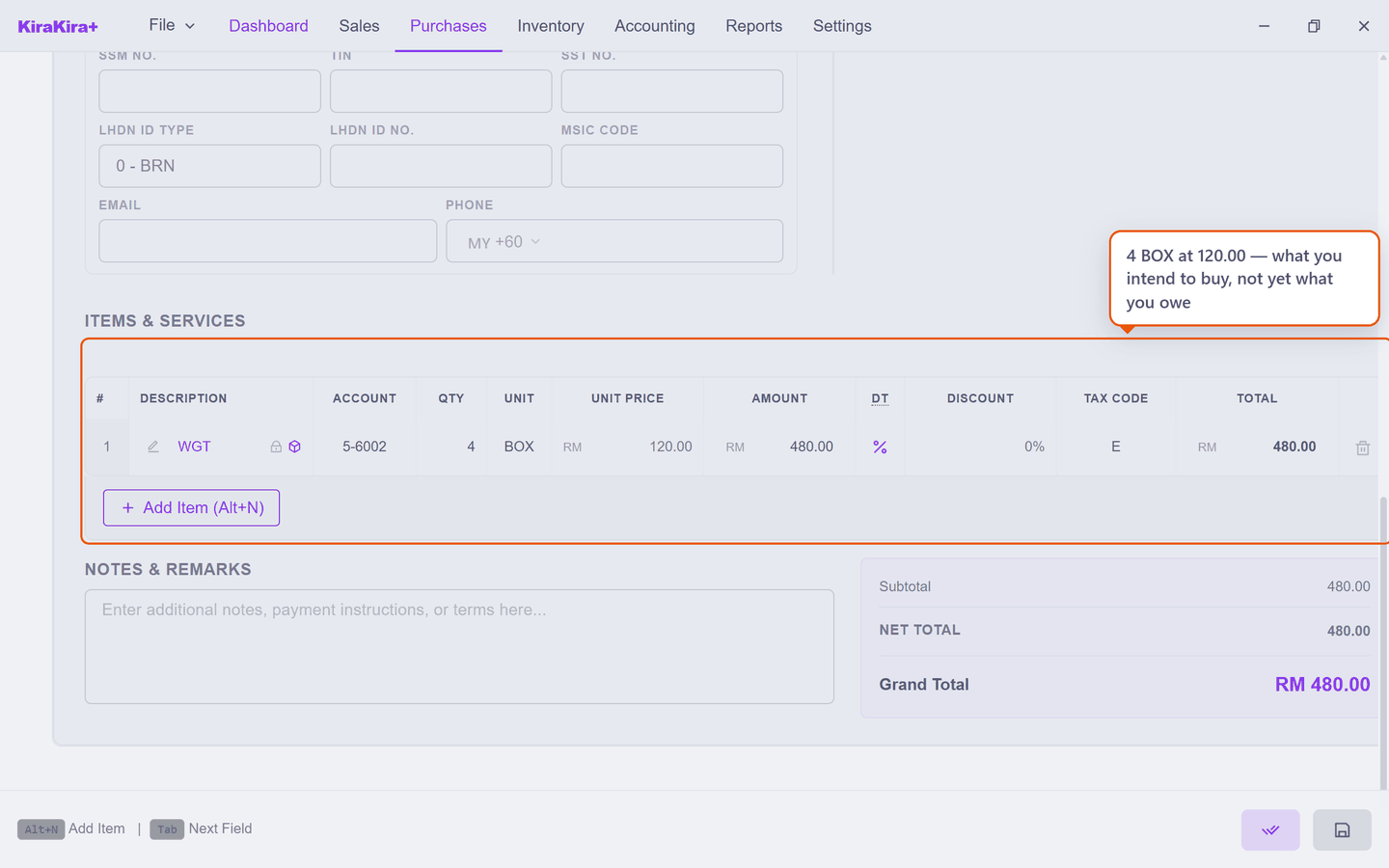
The price does not fill itself in, exactly as on a supplier bill — a buying price belongs to the deal, not to the product. Type what you expect to pay. Here that is 4 BOX at RM 120.00, so the order totals RM 480.00.
Order in the unit the supplier sells in
Four boxes, not forty-eight pieces. See Units of measure.
Save keeps it as a draft. A draft is yours alone — you can still change anything on it.
Sending it, and getting it accepted
An order moves through three states, and each one is a fact about the real world rather than an accounting step.
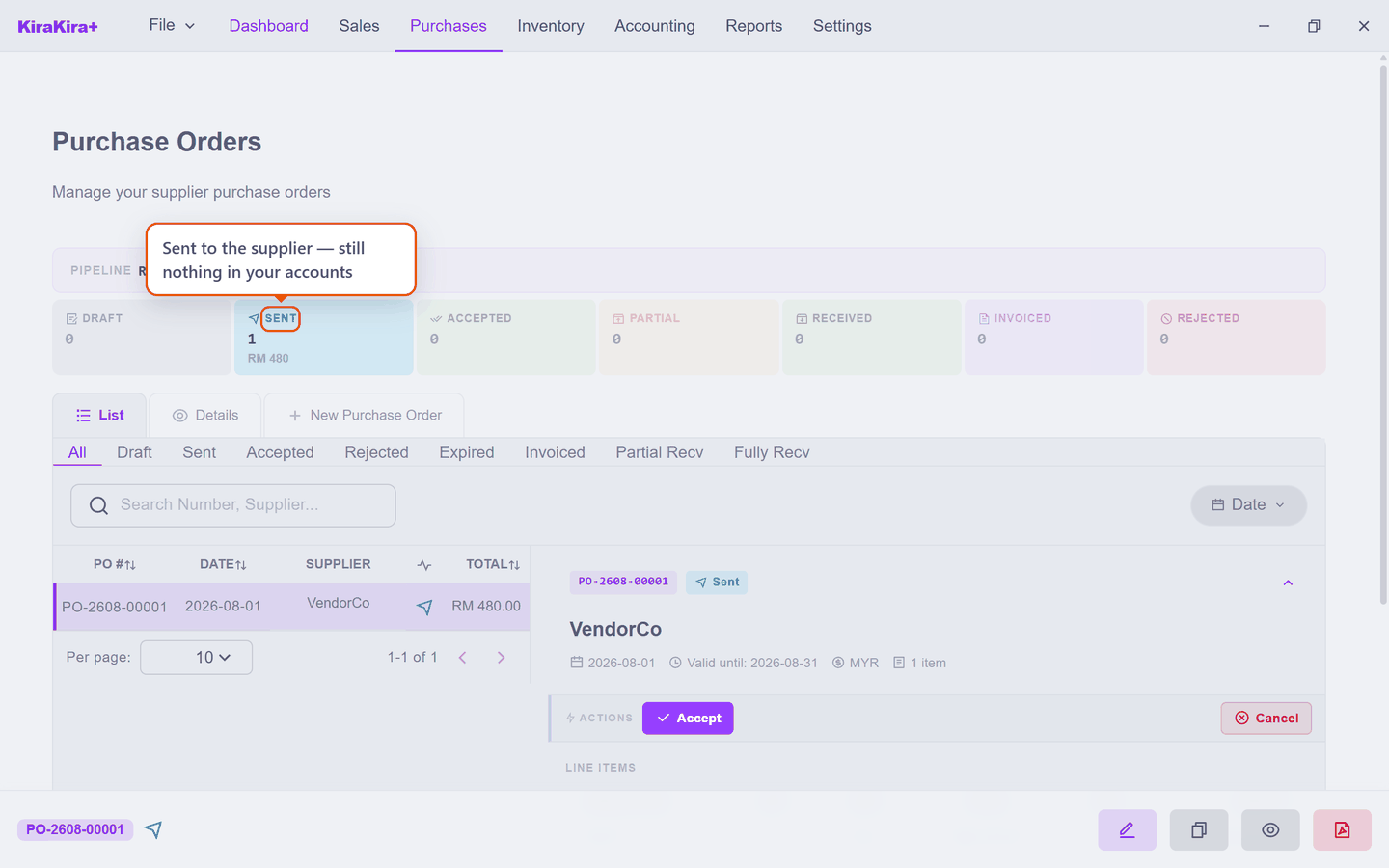
Finalize turns the draft into a Sent order — the version you emailed or printed for the supplier. It now carries its own number, PO-2608-00001:
When the supplier confirms they will supply it, press Accept:
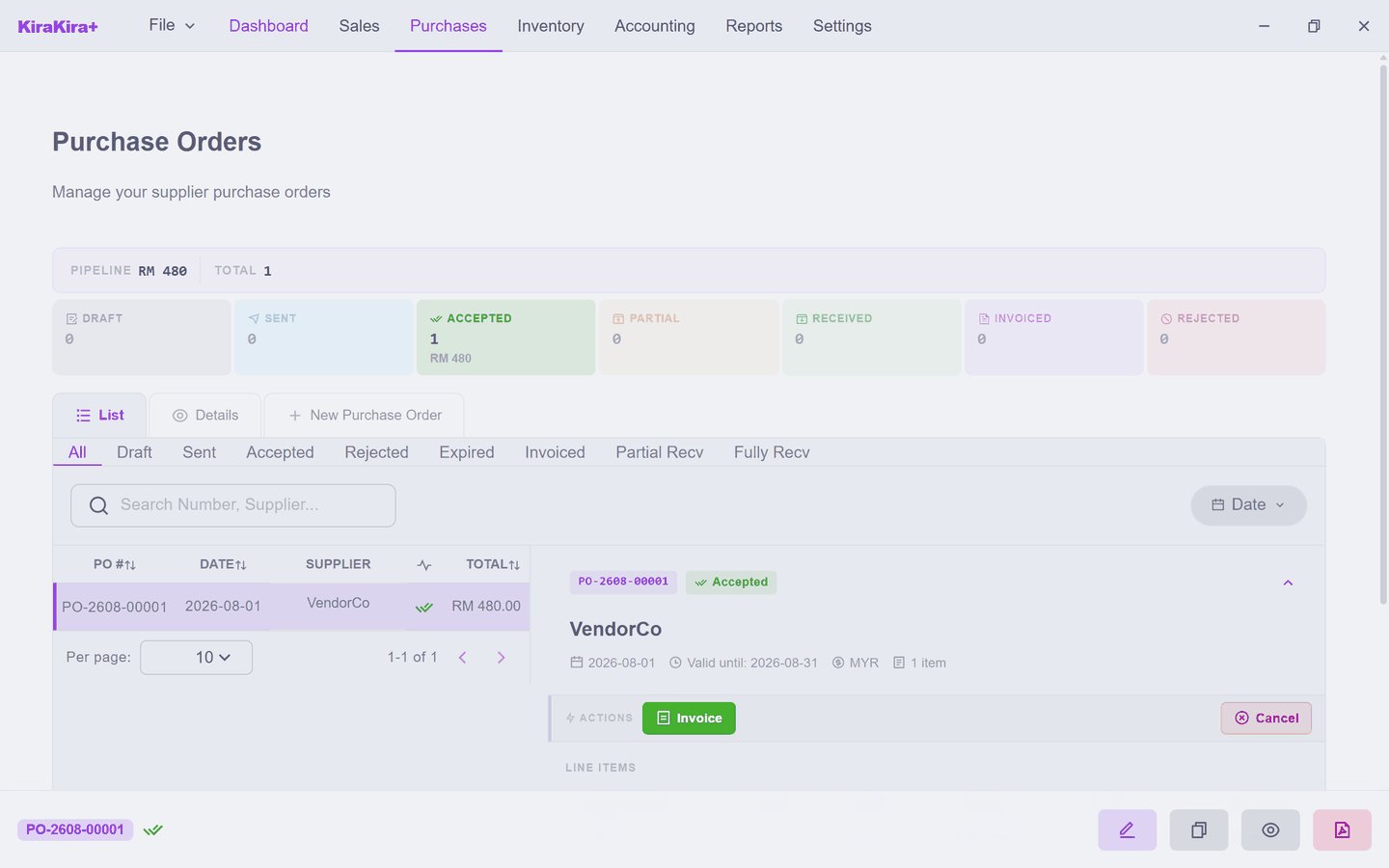
Accepted is what unlocks billing
You cannot turn a Sent order into a bill — only an Accepted one. If the supplier never confirms, press Cancel instead: the order closes as Rejected and nothing is carried forward. Because it never touched your accounts, there is nothing to reverse.
Still, at this point, nothing has reached your accounts.
What an open order is for
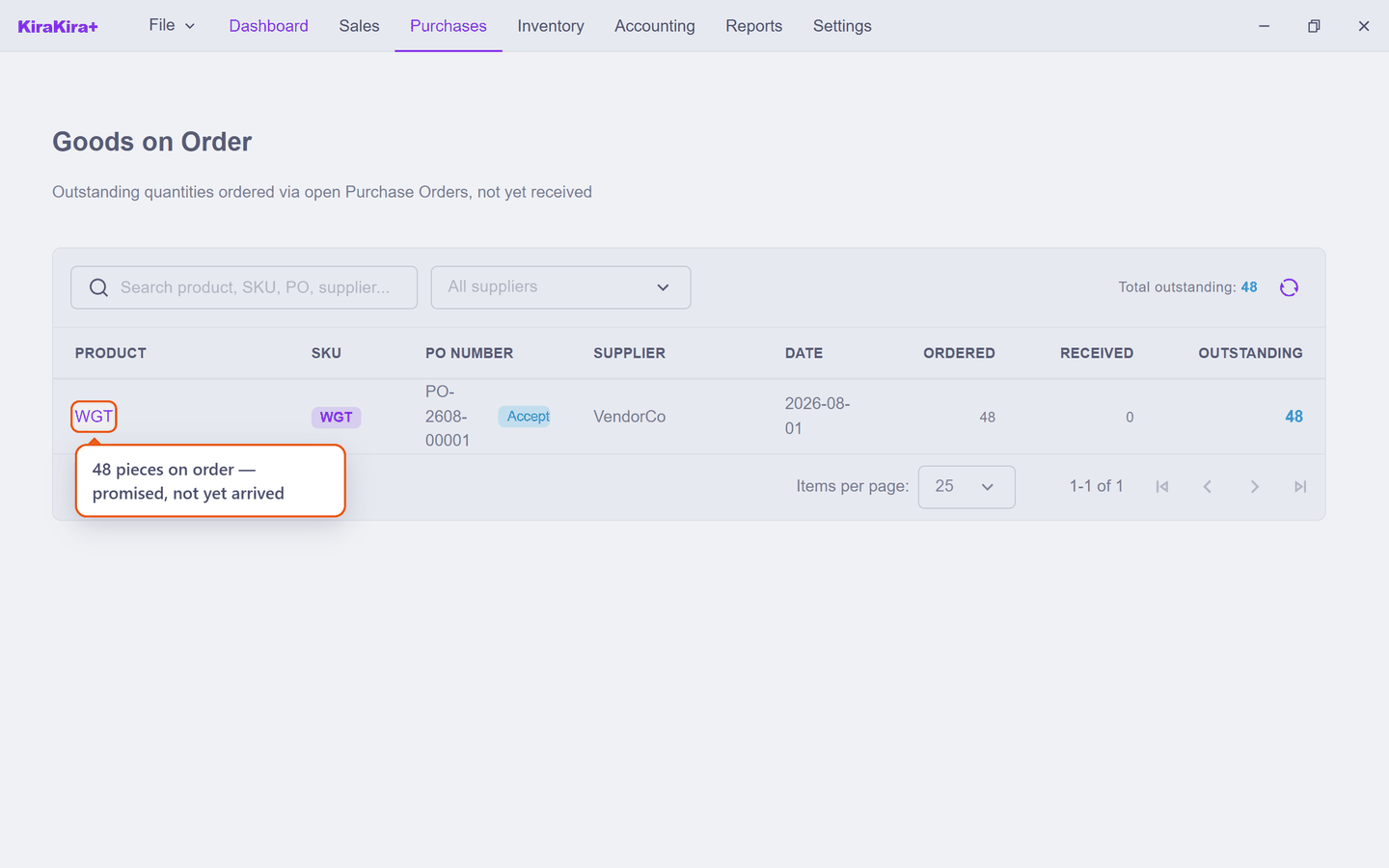
Purchases → Goods on Order answers one question: what have I ordered that has not turned up yet?
| Column | Means |
|---|---|
| Ordered | How much the order asked for |
| Received | How much has arrived so far |
| Outstanding | The difference — still owed to you |
The four boxes show as 48 outstanding, because the list counts in pieces: 4 BOX × 12. This is a stock expectation, not stock — it does not appear in your inventory value or on any report until the goods are billed.
Turning the order into a bill
When the goods arrive with the supplier's invoice, you do not retype anything. Open the order and press Invoice:
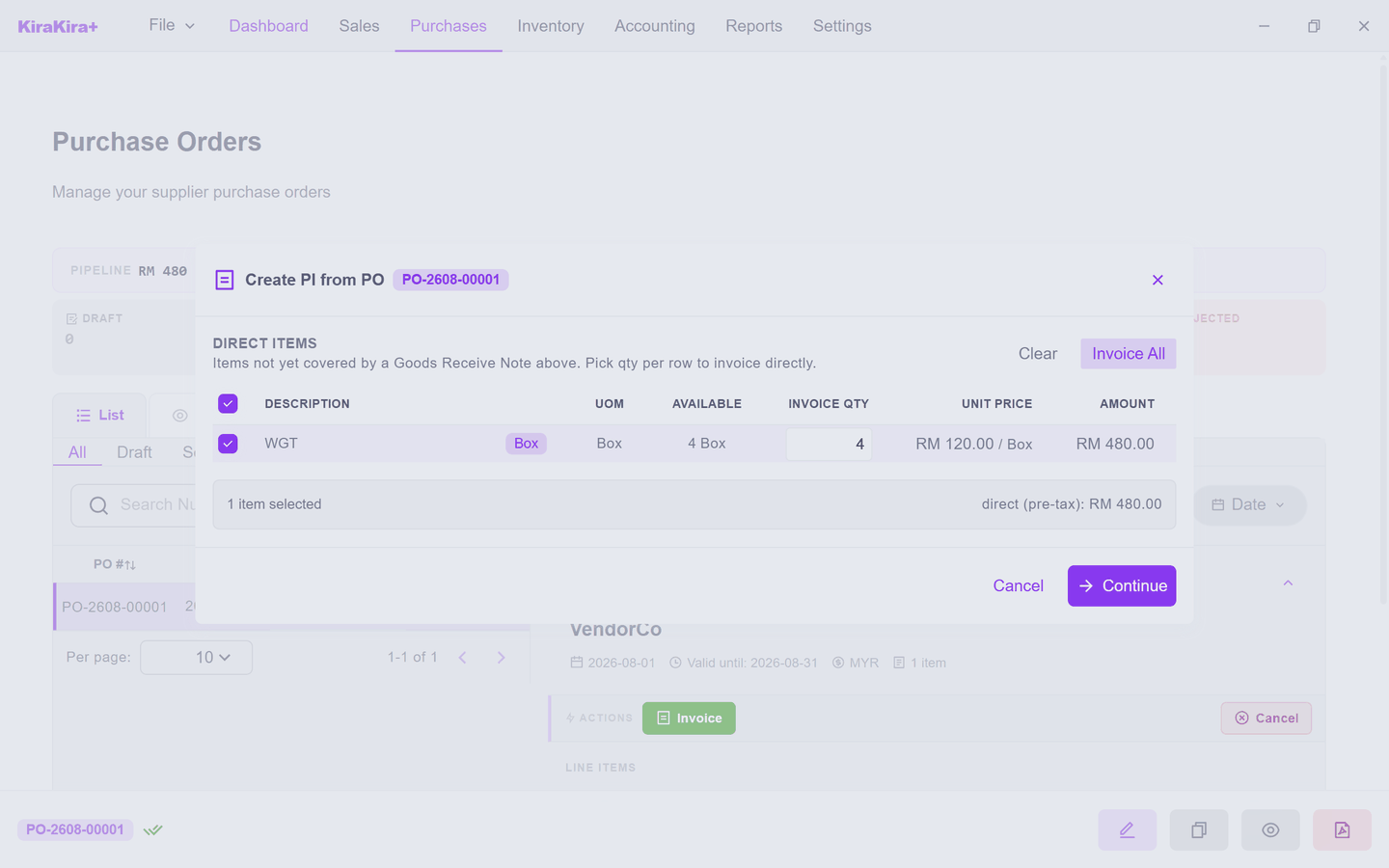
You choose what to bill, because a supplier may send only part of an order. Take everything and press Continue.
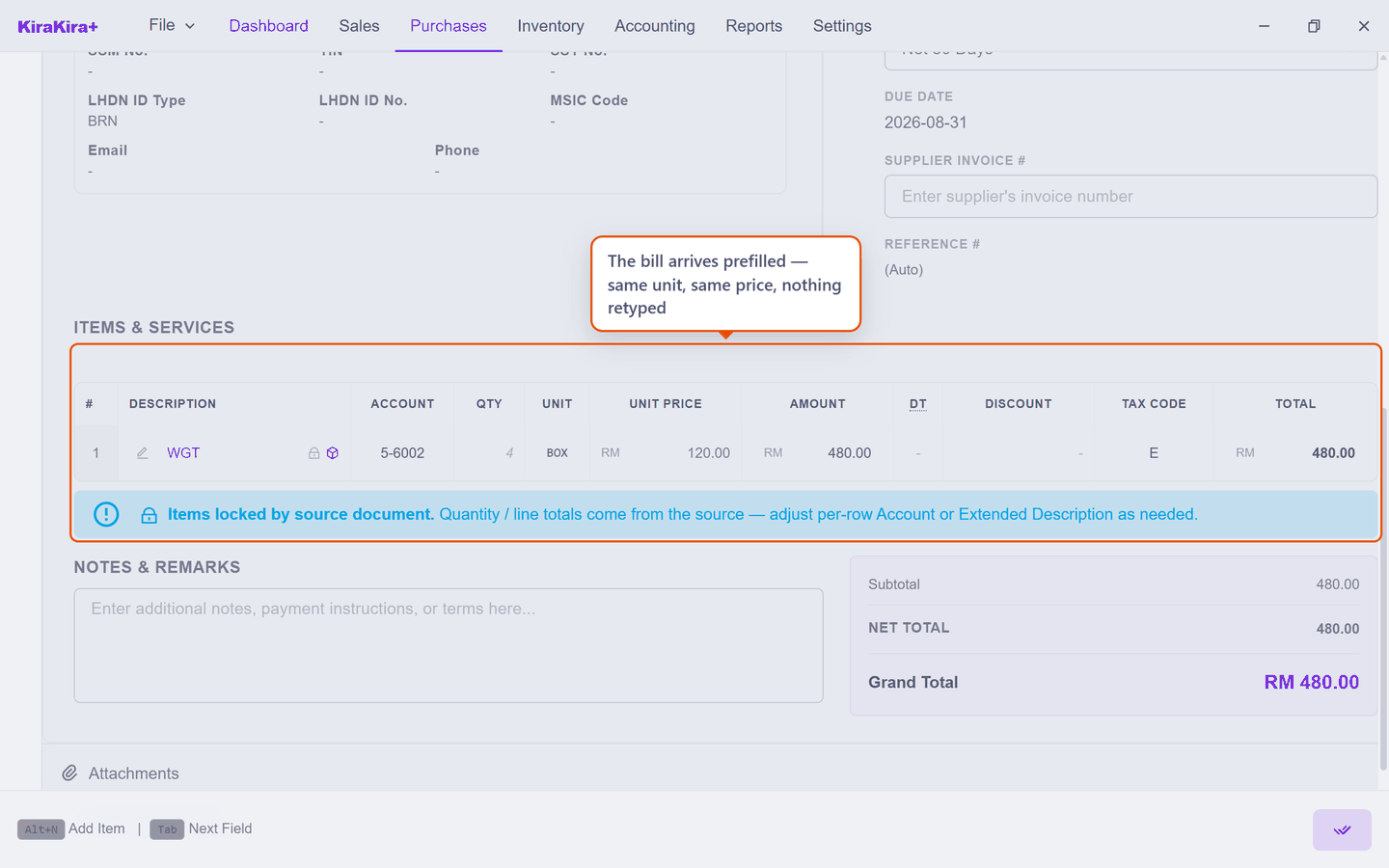
The bill arrives already filled in — same product, same unit, same price. Check it against the paper the supplier actually sent, add their invoice number, and finalise it as you would any bill. That is the moment stock moves and the debt is recorded.
If the supplier charged something different from what you ordered, correct it on the bill. The bill is the document your accounts follow; the order is only what you asked for.
Scenario — Seri Maju orders widgets before it needs them
Stock is running low and VendorCo needs a week's notice, so Seri Maju orders four boxes of widgets now and bills them when they arrive.
Part 1 — raise the order
1. Purchases → Purchase Order, then the New Purchase Order tab. In Supplier, click the Click to search… box and choose VendorCo — the box does not accept typing, it opens a list.
2. Under Items & Services, click + Add Item, search WGT and pick it. Click the Unit cell and choose BOX, Qty and type 4, then Unit Price and type 120. Nothing prefills that price.
3. Check the Account cell shows a purchase or cost account and Tax Code is the one you use for this supplier. Total should read 480.00.
4. Save (the disk button, bottom right). You now have a Draft — nothing has left the building.
Part 2 — send it
5. Go to the List tab and click your order's row; its details open beside the list. Press Finalize. The status becomes Sent and the order takes its number, PO-2608-00001. Send that to VendorCo.
6. VendorCo phones to confirm, so press Accept.
Check it worked. Purchases → Goods on Order lists WGT with 48 outstanding:
Now open Inventory — WGT's stock has not moved, and it should not have. You have ordered, not received.
Part 3 — the goods arrive
A week later the boxes turn up with VendorCo's invoice V-2026-0413.
7. Purchases → Purchase Order → List, click the order, and press Invoice. A picker asks which lines to bill.
8. Leave everything selected and press Continue. A supplier bill opens, already filled in — WGT, 4 BOX, RM 120.00, nothing retyped.
9. Type V-2026-0413 into Supplier Invoice # — their number, not yours. Compare the total against the paper bill, and correct it here if VendorCo charged something different.
10. Save, then Finalize.
Check it worked. Three things move at once, and only now:
| Where | What you see |
|---|---|
| Inventory | WGT rises by 48 pieces (4 BOX × 12) |
| Purchases → Purchase Inv | VendorCo owed RM 480.00 |
| Purchases → Goods on Order | the WGT line is gone |
The promise has become a purchase.
Next: Paying suppliers.