
Appearance
Put something into stock
Only for businesses that sell goods they count. If you sell services or one-off jobs, skip this page — nothing here applies to you, and the earlier quickstart pages already cover your whole workflow.
You do not type stock in — you buy it
There is no "set stock to 10" box, and that is deliberate. Stock arrives because you bought it, so recording the purchase is what puts it on the shelf. That way the quantity and the money always agree, and every unit can be traced to the bill it came in on.
(The one exception is stock you already had when you started using KiraKira+ — that is Opening balances.)
1. Make the product a counted one
The switch that matters is Product Type. Service means nothing to count — that is what the first invoice used. Choose Inventory instead and the product starts keeping a quantity.
A counted product has two prices, and mixing them up is the classic mistake:
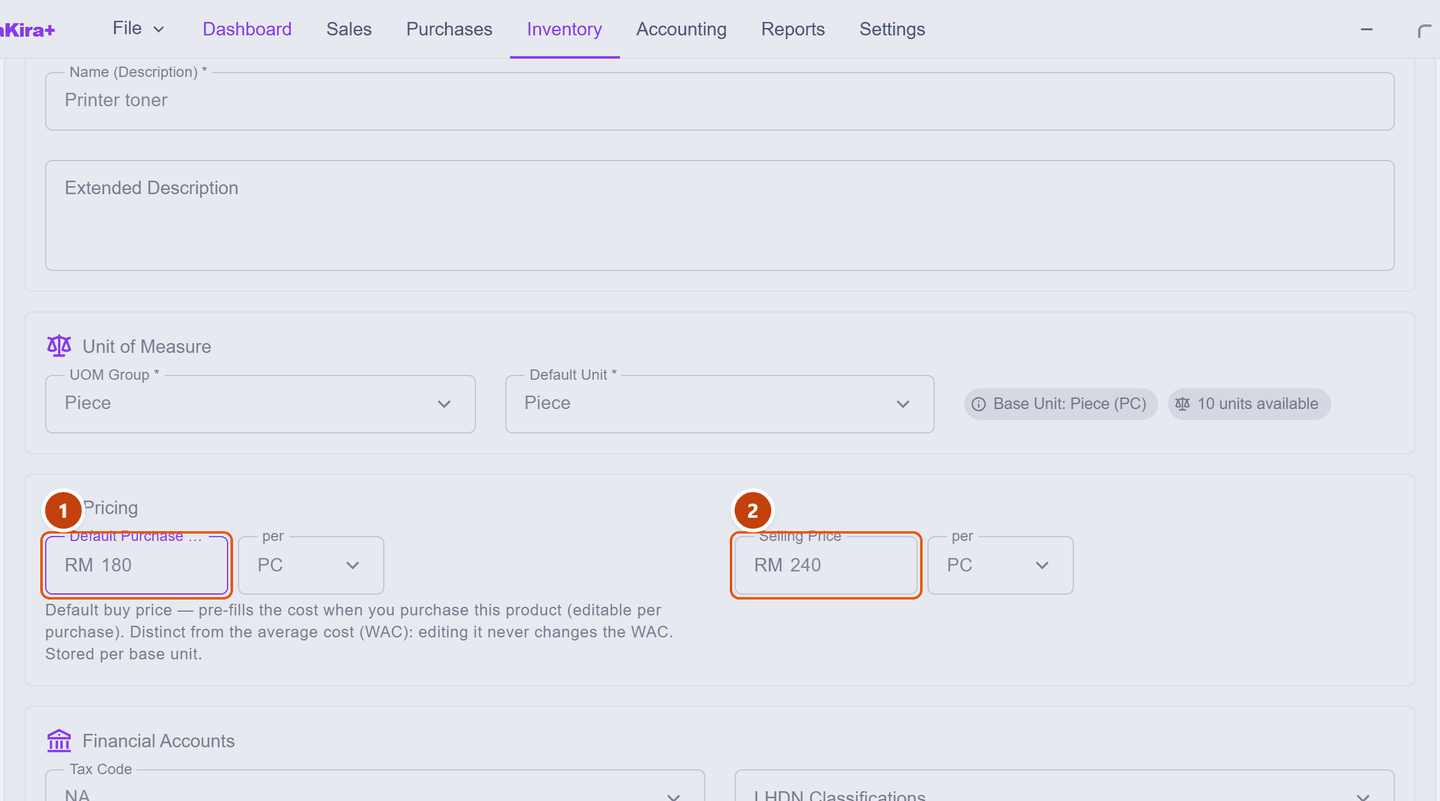
| Field | What it is | |
|---|---|---|
| 1 | Default Purchase Price | What you normally pay your supplier. It pre-fills the cost when you buy this product |
| 2 | Selling Price | What you charge the customer |
Filling in the purchase price is optional but worth it — it is what stops the purchase line arriving blank, which is the wrinkle the supplier bill page warned about.
Min / Max Stock Level
A counted product also offers these. Set the minimum and KiraKira+ can tell you what to reorder before you run out. Leave them at zero for now.
2. Buy some
Raise a supplier bill exactly as before — Purchases → Purchase Invoice → New PI — and put the product on a line. Then set Qty to how many arrived:

| What to notice | ||
|---|---|---|
| 1 | Qty | How many units the supplier delivered |
| 2 | Unit Price | Already filled in — from the product's default purchase price. Change it if this delivery cost something different |
Set the Account to your stock or purchases account, pick the tax code, then Save and Finalise. Ten units at RM 180 makes a bill of RM 1,800.
3. Check it worked
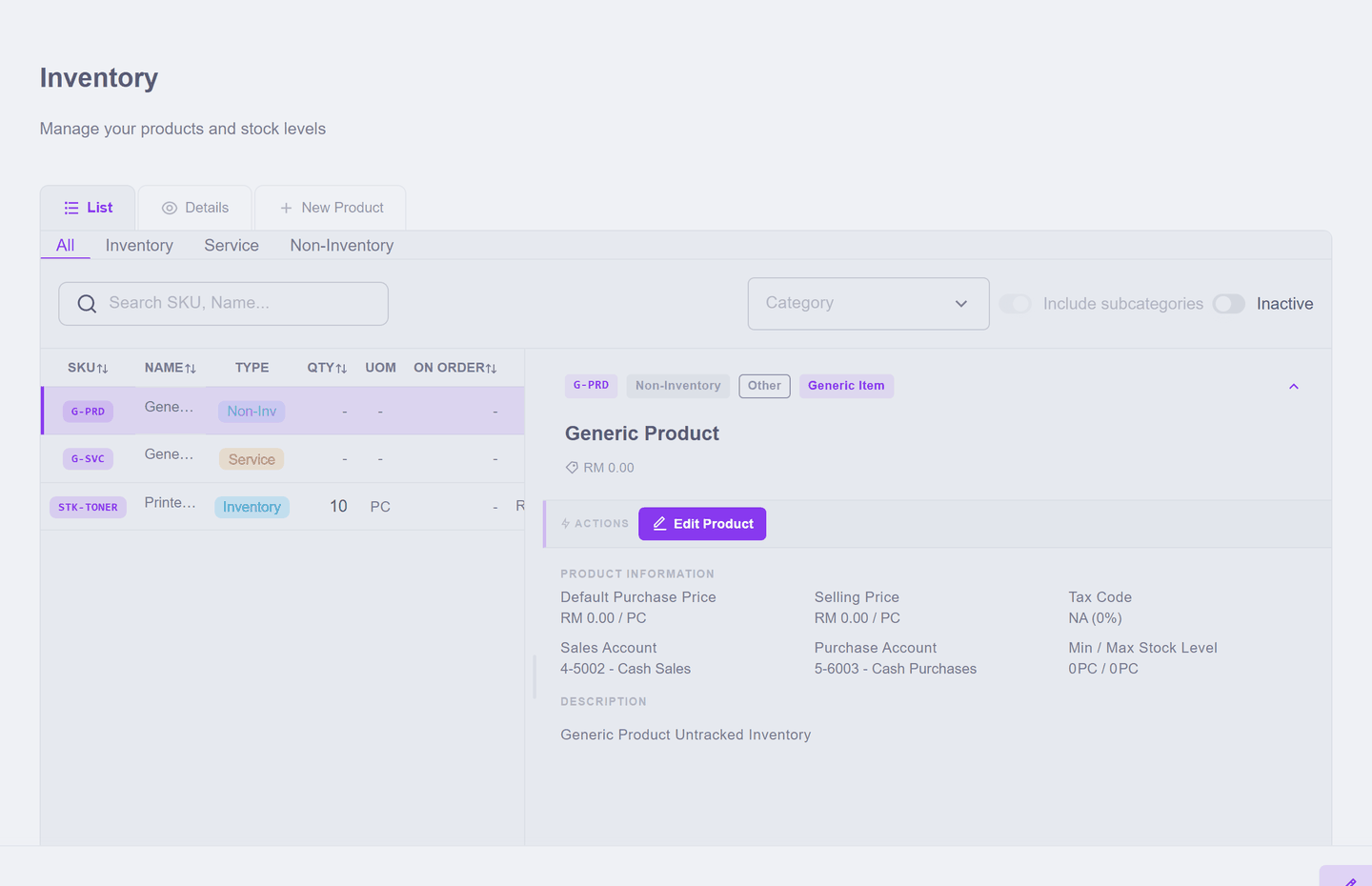
Inventory now shows the product with a real quantity — 10 PC:
And Inventory → Stock Control records why it changed:
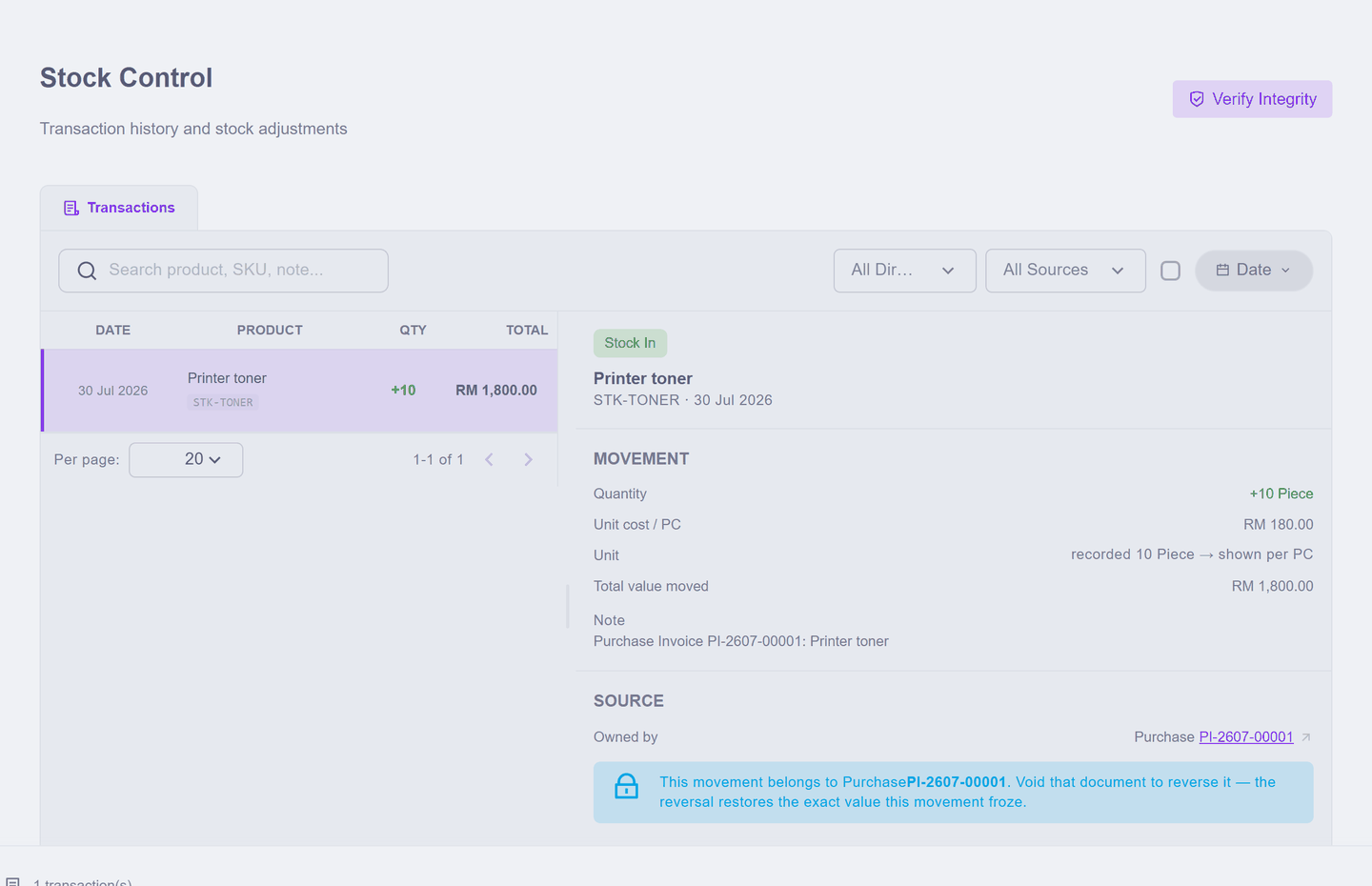
Click the movement and it explains itself completely:
- Stock In,
+10 Piece - Unit cost RM 180.00, Total value moved RM 1,800.00
- Owned by
PI-2607-00001— the bill that brought it in
That last part matters. As the panel puts it: "This movement belongs to Purchase PI-2607-00001. Void that document to reverse it — the reversal restores the exact value this movement froze."
You correct stock by correcting the document
That message is the rule for everything in stock. A movement is not edited on its own, because it belongs to a real event. Bought the wrong quantity? Fix or void the bill, and the stock follows. That is why your stock figures and your accounts can never quietly disagree.
Genuine differences — breakage, loss, a miscount found on the shelf — are a Stock Adjustment, which records the reason rather than pretending the purchase was wrong.
What happened in your accounts
Buying stock did not create an expense. You swapped one asset for another: money (or a debt to the supplier) became goods worth RM 1,800 sitting on your shelf. The cost only becomes an expense when you sell it — which is why your profit does not lurch downwards every time you restock.
Next: See how the business is doing — where all of this turns into numbers you can act on.