
Appearance
Refund Notes (giving money back)
Sales → Refund Note. A refund note records actual money leaving your bank and going back to a customer. Where a credit note reduces what they owe, a refund note returns what they paid — which is why the fork table sends you here whenever the invoice is already settled, and always when the customer is a person rather than a business.
It is also the twin of the buying side's Supplier Refund, pointing the other way — with one deliberate difference this page is built around.
It starts from a paid invoice
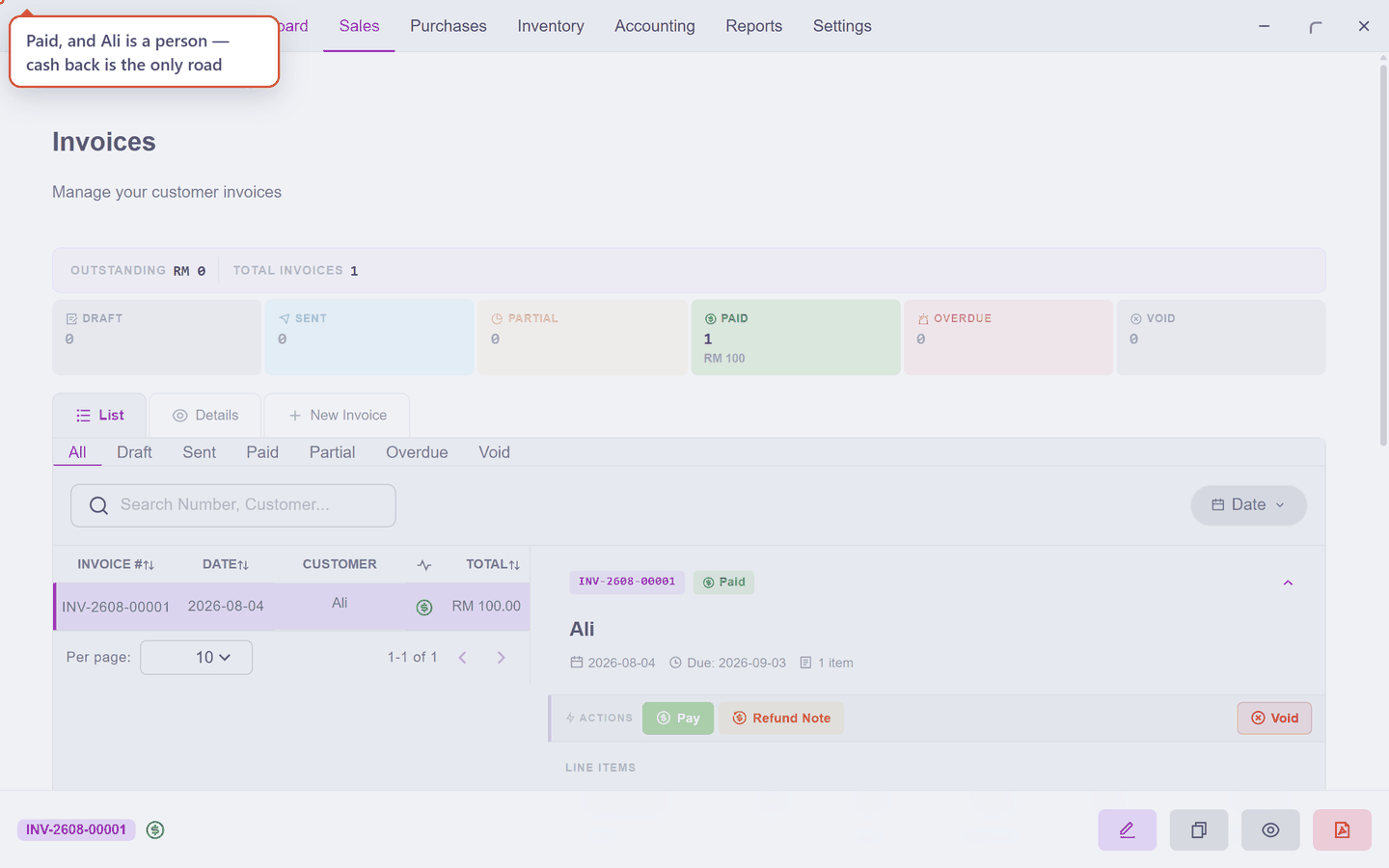
On Ali's invoice — paid in full — the Refund Note button is awake (the Credit Note page showed it grey while nothing had been paid; a refund needs money to have actually arrived):
Press it, tick the line in the picker (Refund All for everything), press Continue, and trim the quantity on the form — Ali is returning one piece of four, so the note totals RM 25.00:
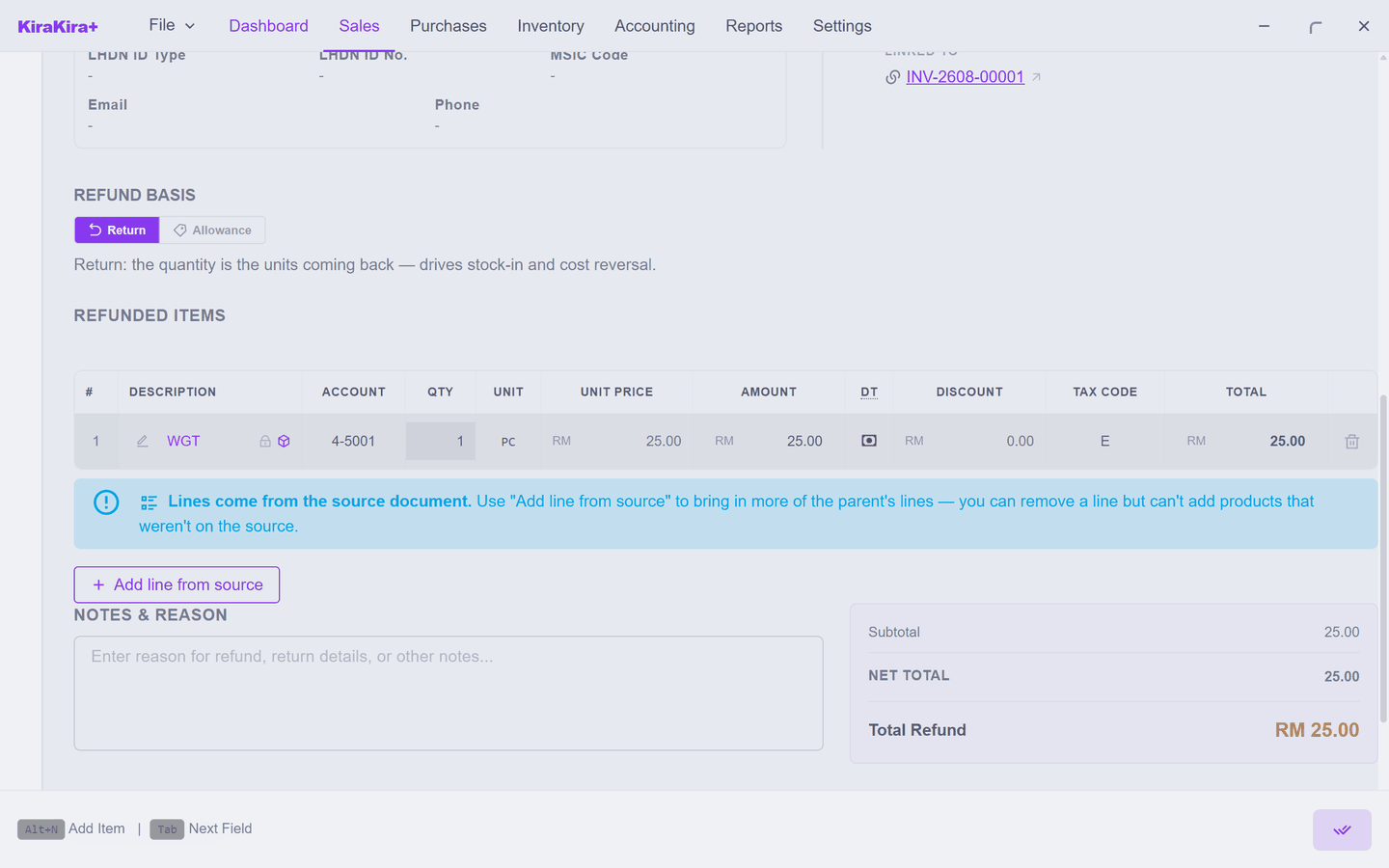
The Return or Allowance question is the same one every adjustment note asks — goods physically coming back move stock; a money-only concession does not.
Owed first, paid second
Here is the difference. Money you receive is recorded when you already have it — so a Supplier Refund finishes in one click. Money you pay out always earns its own step, the same reason supplier payments run through approval. A refund note therefore rests in the middle:
Save & Submit sends the note for a yes:
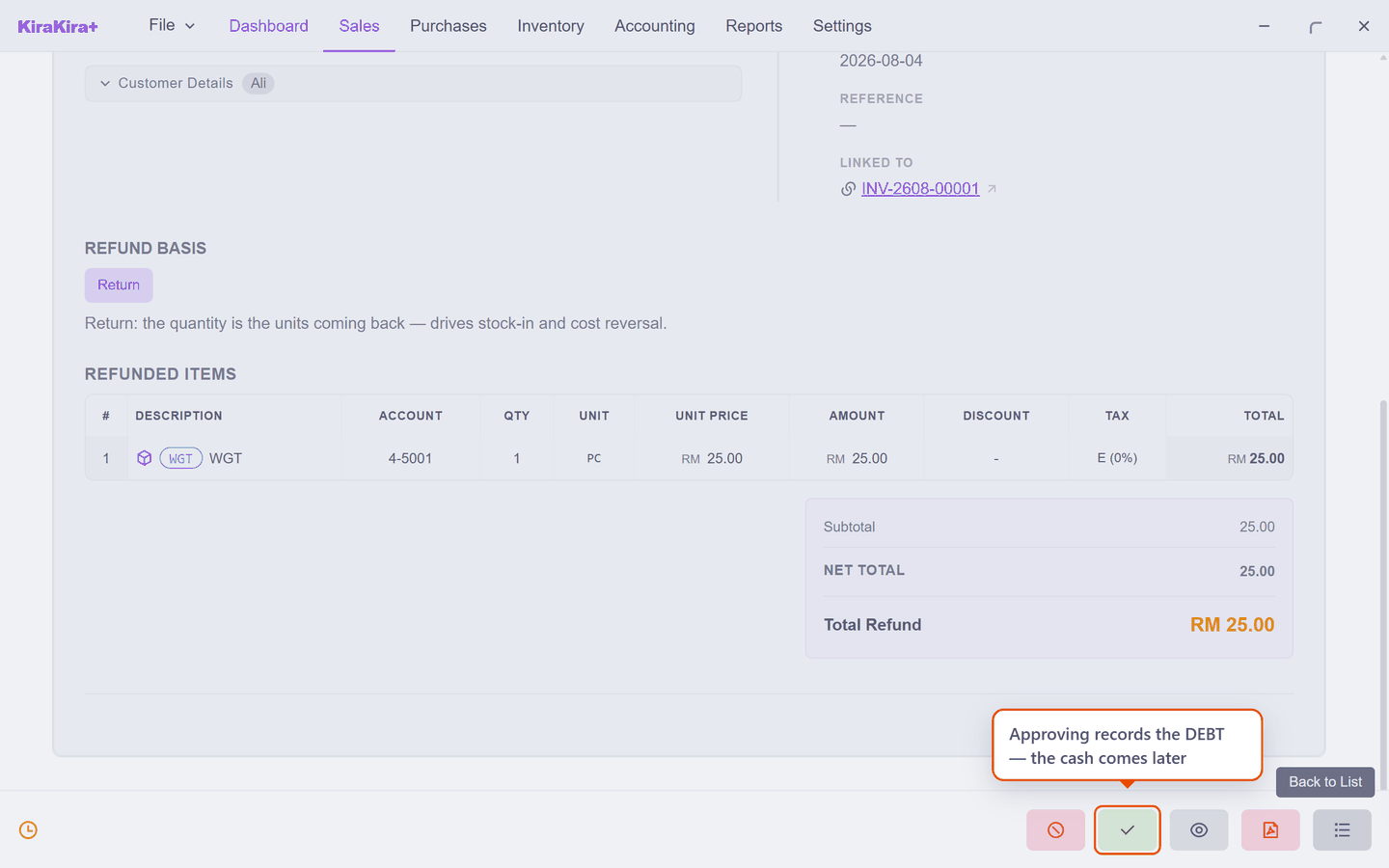
Approve & Post is the yes — it posts the note, mints its RFN- number, and brings the returned goods back onto the shelf. But look at the status it lands on:
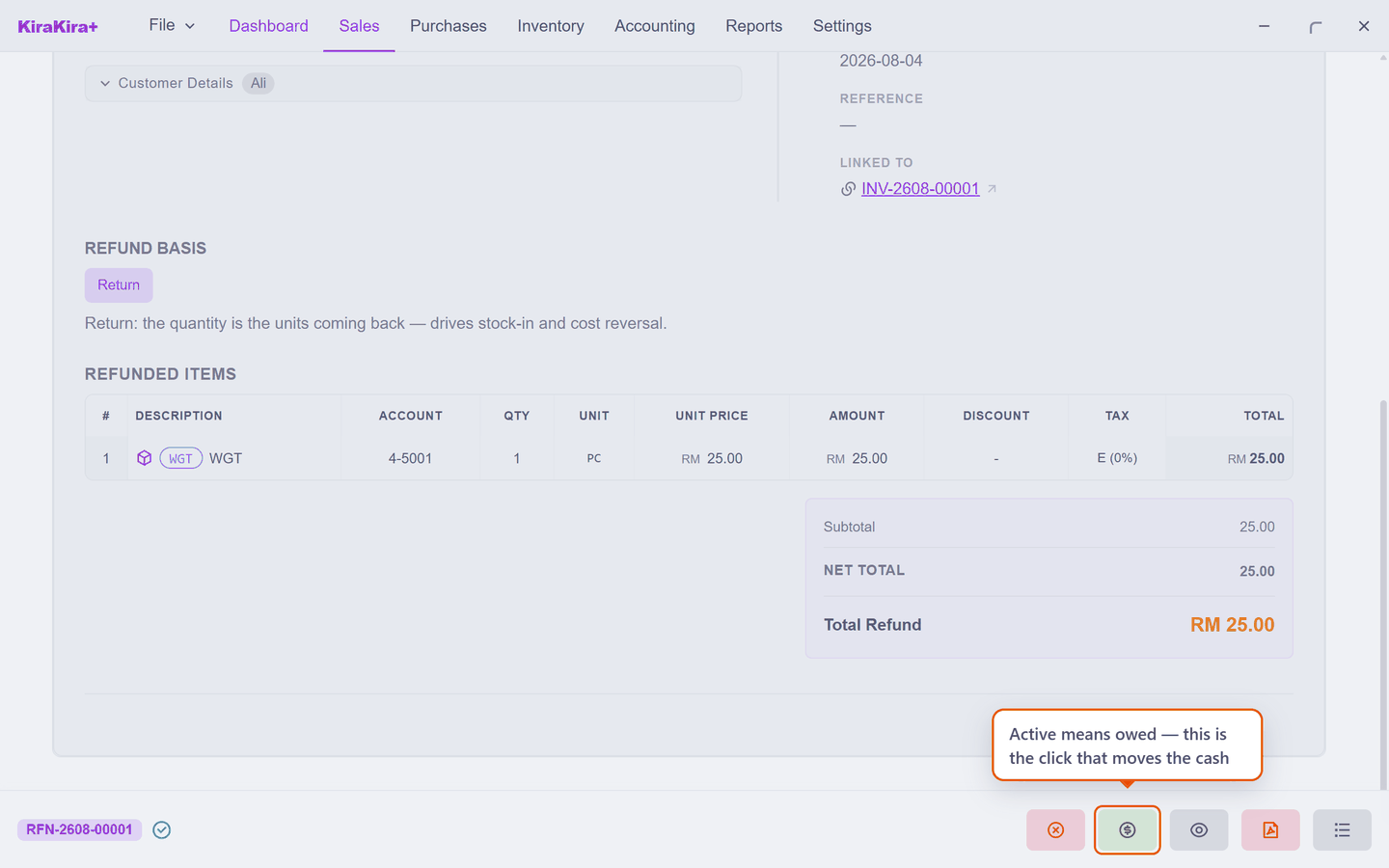
Active means the refund is now owed. Your books carry it as a debt to Ali — real, numbered, posted — and not a sen has moved. If you walked away now, the books would truthfully say: we owe Ali RM 25.
In fact the app offers the payout immediately after approving — the Pay Refund dialog opens on its own. Ali standing at the counter? Pay it on the spot. Refunding by bank transfer tonight? Press Cancel: the note simply rests at Active, honestly owed, and the Payment button reopens the same dialog whenever the money actually goes.
Pay it
Press Payment (or take the offer at approval), and the dialog is the same shape as every other payment in the app — because money out is money out, whoever it goes to:
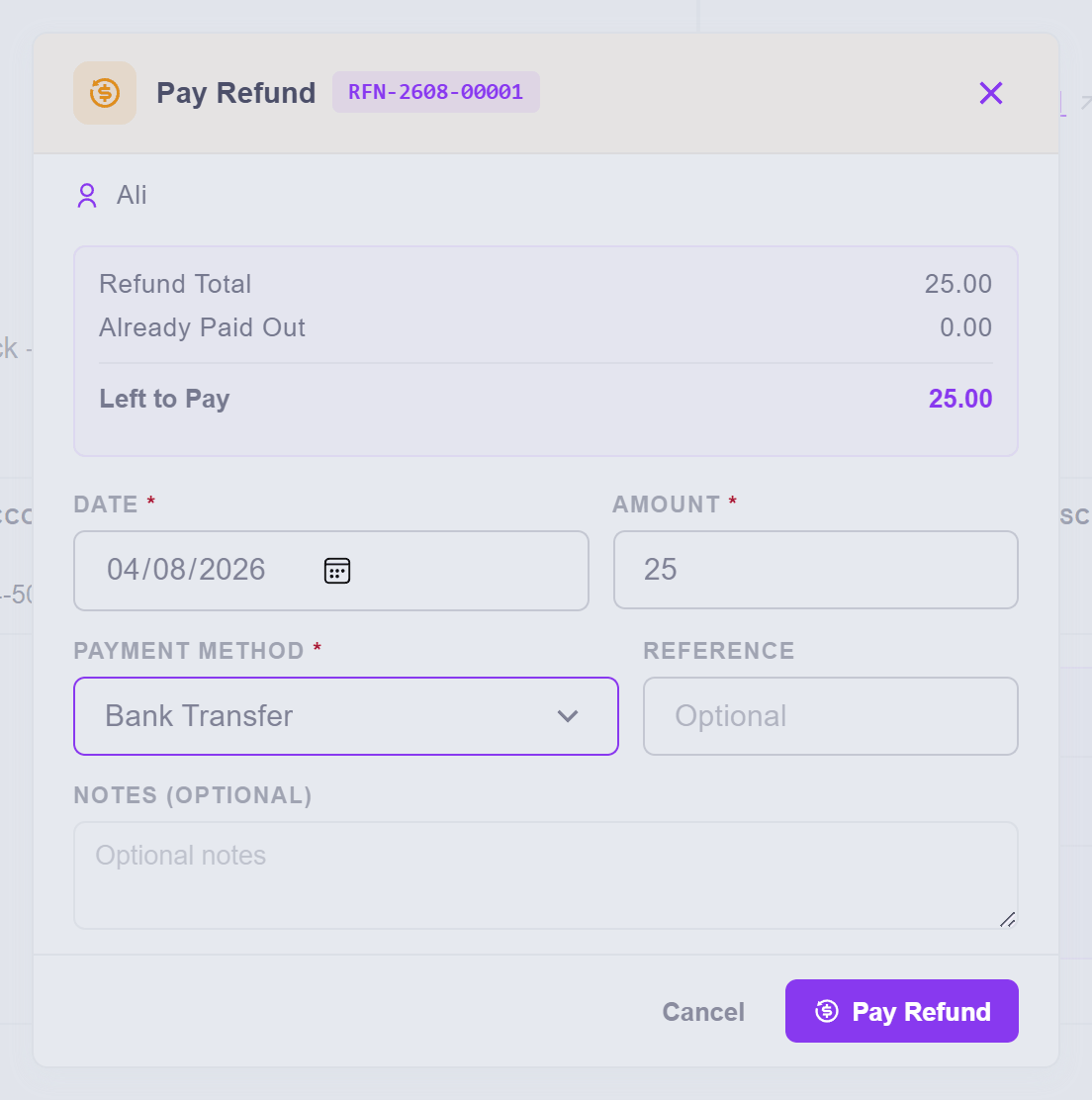
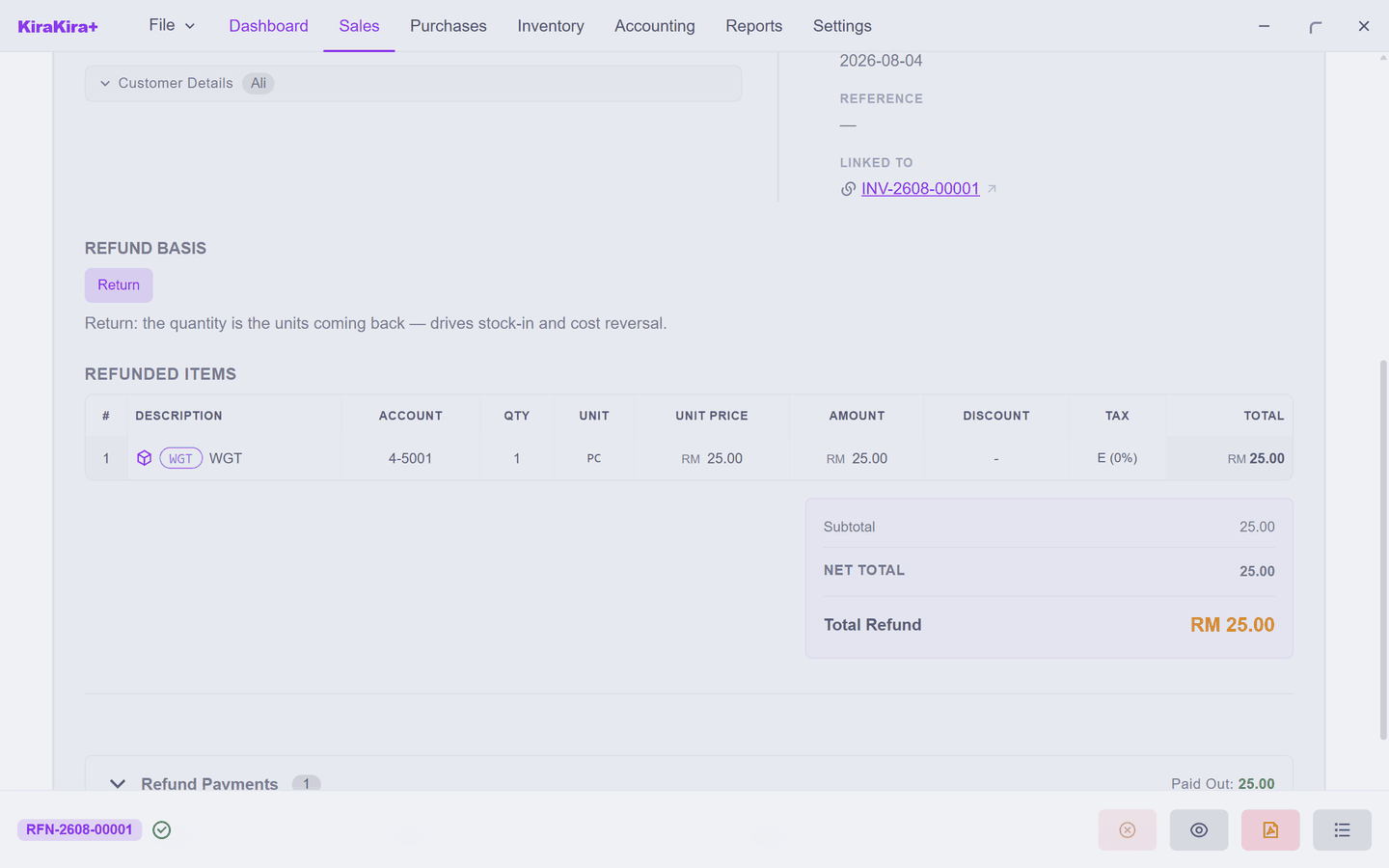
Pick how the money leaves and confirm. One confirmation is all it takes — the approval already happened on the note itself, and approving the same refund twice is exactly what this design avoids. The note closes as Processed:
A reviewer who says no at the Pending stage presses Reject instead, with a reason; a rejected note can be re-opened to a draft, fixed and resubmitted — and it never used up an RFN- number.
Scenario — Ali brings one widget back
Ali bought four widgets for RM 100.00, paid cash-on-the-spot, and one turned out faulty. He is a person, not a company — so this was always going to be a refund, never a credit.
1. Sales → Invoice, click Ali's paid invoice, press Refund Note.
2. In the picker press Refund All, then Continue. On the form, type 1 into Qty — one piece at 25.00, basis Return.
3. Press Save & Submit. The note sits at Pending, waiting for a yes.
4. Press Approve & Post. The note becomes RFN-2608-00001, Active — the widget is back in stock, and the books now owe Ali RM 25.
5. Press Payment, set the method, confirm. The note closes as Processed.
Check it worked.
| Where | What you see |
|---|---|
| Sales → Refund Note | RFN-2608-00001, Processed, RM 25.00 |
| Your bank | RM 25.00 lower — RM 100 came in, RM 25 went back |
| Inventory | WGT at 47 pieces — four sold, one returned |
The invoice, the receipt, the refund note and its payment all stay on the record, each pointing at the next.
Next: Correcting mistakes.