Appearance
Stock you already hold
Accounting → Opening Balance → Opening Stock. If you are switching from another system, you already own stock on the day you start. This screen records it, so you do not have to invent a purchase that never happened.
Skip this if you hold no stock
Selling only services? Nothing here applies. Go straight to Invoices and bills already outstanding.
What you are looking at
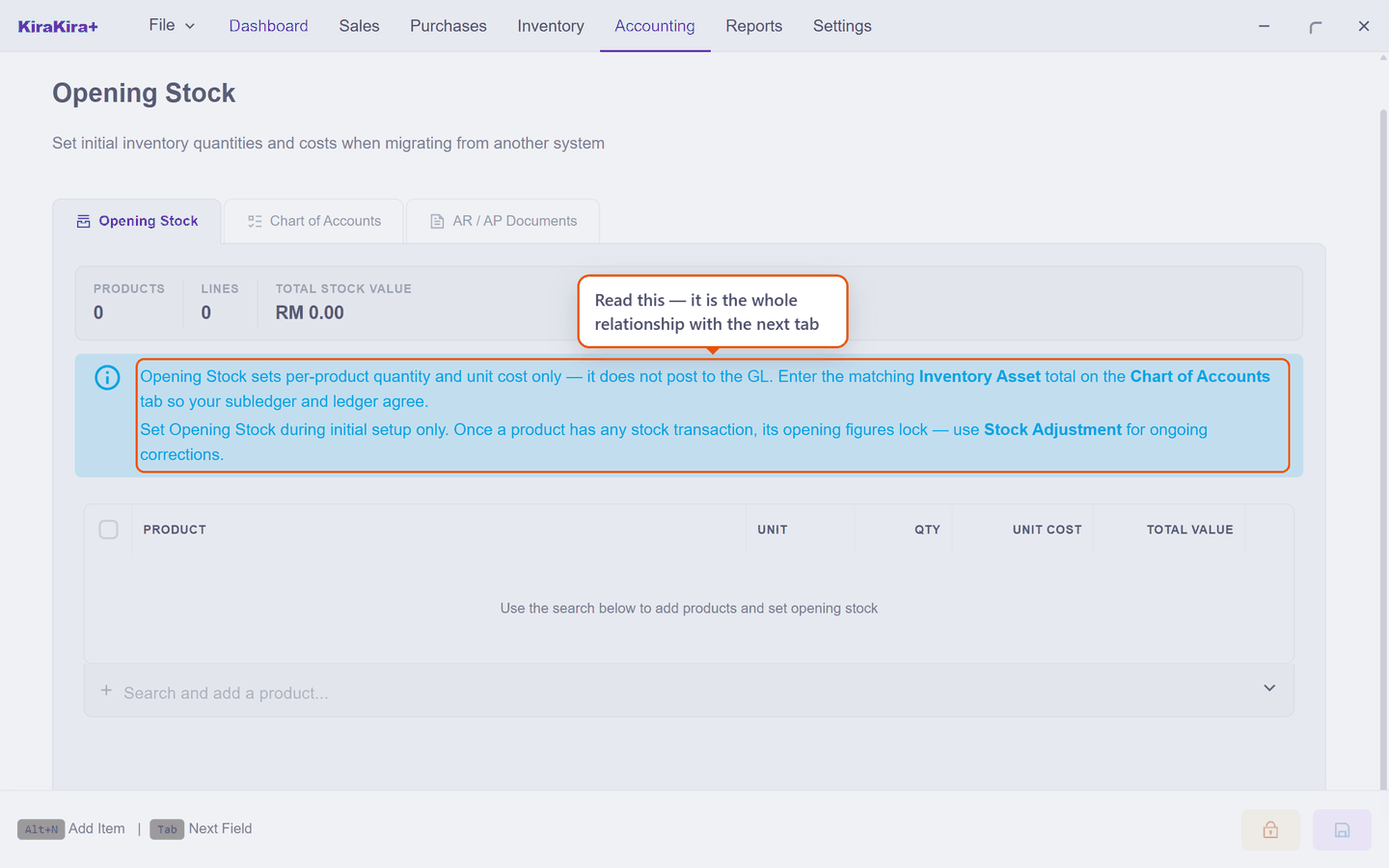
Two things the screen tells you, and both matter:
Opening Stock sets per-product quantity and unit cost only — it does not post to the GL. Enter the matching Inventory Asset total on the Chart of Accounts tab so your subledger and ledger agree.
Set Opening Stock during initial setup only. Once a product has any stock transaction, its opening figures lock — use Stock Adjustment for ongoing corrections.
The first is a pairing rule; the second is a timing rule. Take them in turn.
It counts the shelf, not the books
Entering opening stock tells KiraKira+ what you have and what it cost you. It does not touch your accounts. That is deliberate: the same fact has to appear in two places, and they are entered separately.
So whatever total you build here must be entered again as the Inventory figure on the Chart of Accounts tab. If the two disagree, your stock valuation will not tie to your balance sheet.
Check it yourself once you have entered both: the Total Stock Value shown here and the Inventory figure on the Chart of Accounts tab should be the same number. (The app does cross-check the AR/AP side and says so on screen — see Invoices and bills already outstanding.)
Do it before you trade
The second note is the one that bites. Opening figures lock the moment a product has any stock transaction — a bill, an invoice, an adjustment. After that, this screen can no longer set them, and corrections go through Stock Adjustment instead.
This is why the chapter sits here
Everything from section 7 onward moves stock. Record your opening position first, or you will be correcting it by adjustment for the life of the product.
Adding a product
Use Search and add a product…, then fill the two figures that matter:
| Column | What goes in it |
|---|---|
| Qty | How many you actually have, counted in the product's unit |
| Unit Cost | What you paid per unit — not what you sell it for |
Unit Cost is the one people get wrong. It becomes the product's starting average cost, so it drives your reported profit on every early sale. Use what the goods cost you.
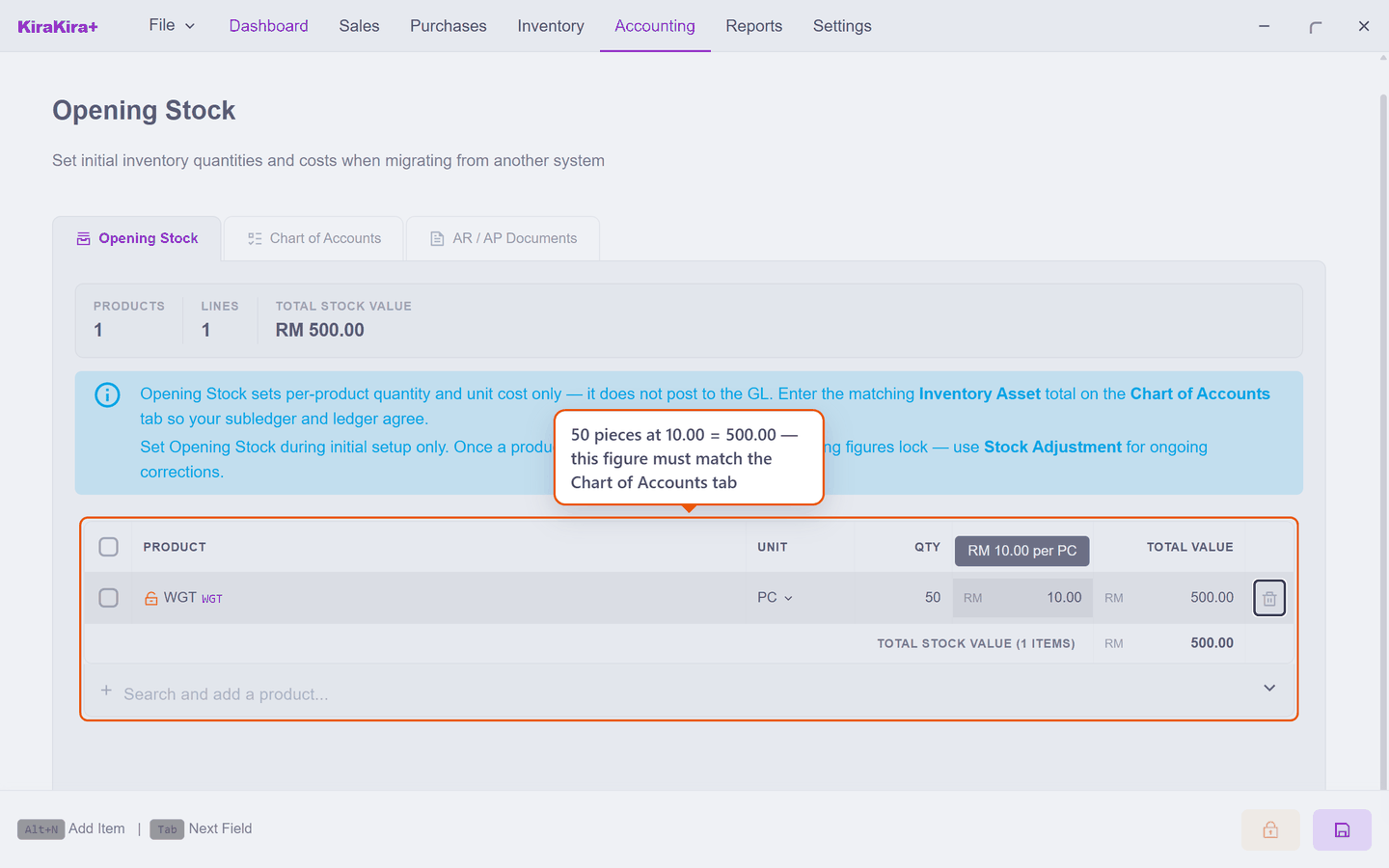
The Total Value column does the arithmetic — and that total is the number you carry across to the Chart of Accounts tab.
Scenario — Seri Maju's shelf on day one
Seri Maju starts with fifty widgets that cost RM 10.00 each.
| Field | Value |
|---|---|
| Product | WGT |
| Qty | 50 |
| Unit Cost | 10.00 |
Total value RM 500.00 — and that same 500.00 goes in as the Inventory line on the Chart of Accounts tab.
Check it worked. WGT shows 50 on hand in Inventory, with no purchase behind it.