
Appearance
Supplier Refunds
Purchases → Supplier Refund. A supplier refund records cash coming back from a supplier: you paid a bill, then sent the goods back — or the supplier agreed you were overcharged — and they returned your money. It is the last piece of the buying story, and the twin of the page before it:
| The bill is… | What you raise |
|---|---|
| not paid yet | a Debit Note — reduce what you owe |
| already paid | a Supplier Refund — record the cash coming back |
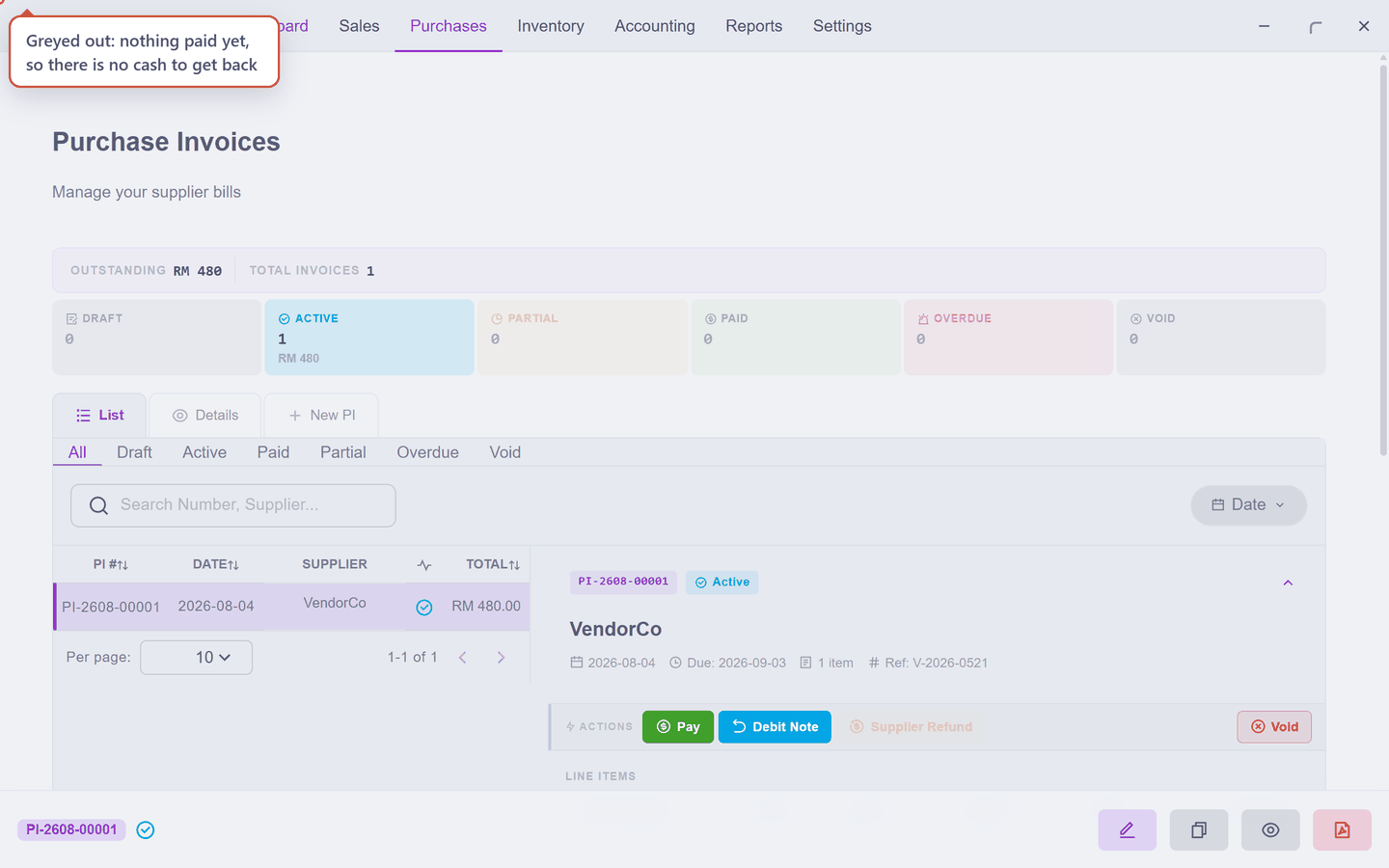
The app keeps you on the right side of that line: on a bill with nothing paid, the Supplier Refund button stays grey and tells you why — nothing paid yet — a supplier refund returns cash you have paid out.
Turn it on first
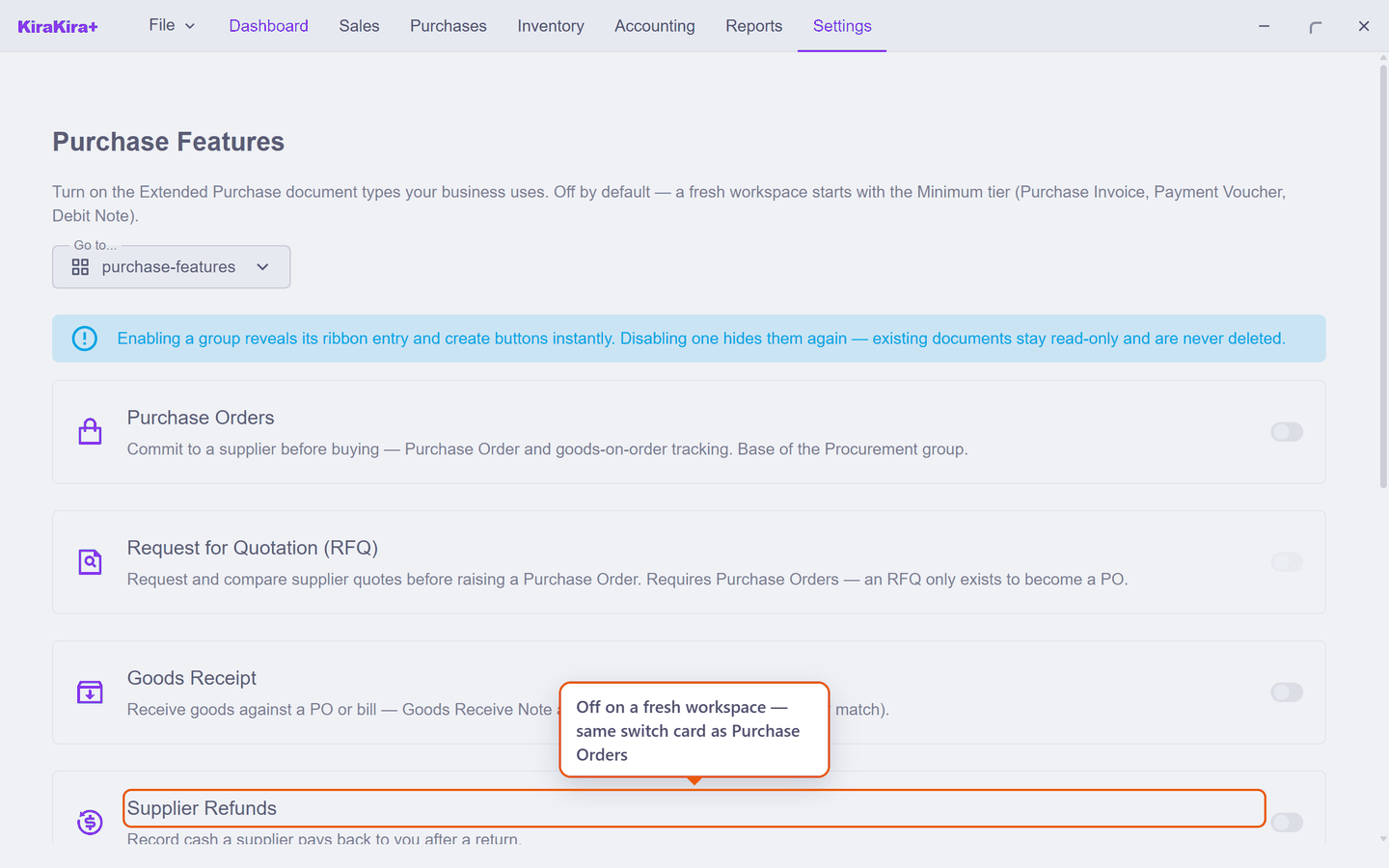
Like Purchase Orders, supplier refunds start switched off on a new set of books, so the Purchases menu has no entry for them. Go to Settings → Purchase Features and switch on Supplier Refunds — the card that says record cash a supplier pays back to you after a return:
Press Save, and Purchases → Supplier Refund appears.
It starts from a paid bill
Open Purchases → Purchase Inv and click the bill. On a bill you have not paid, the button is there but dead — this refusal is the whole rule of the page in one picture:
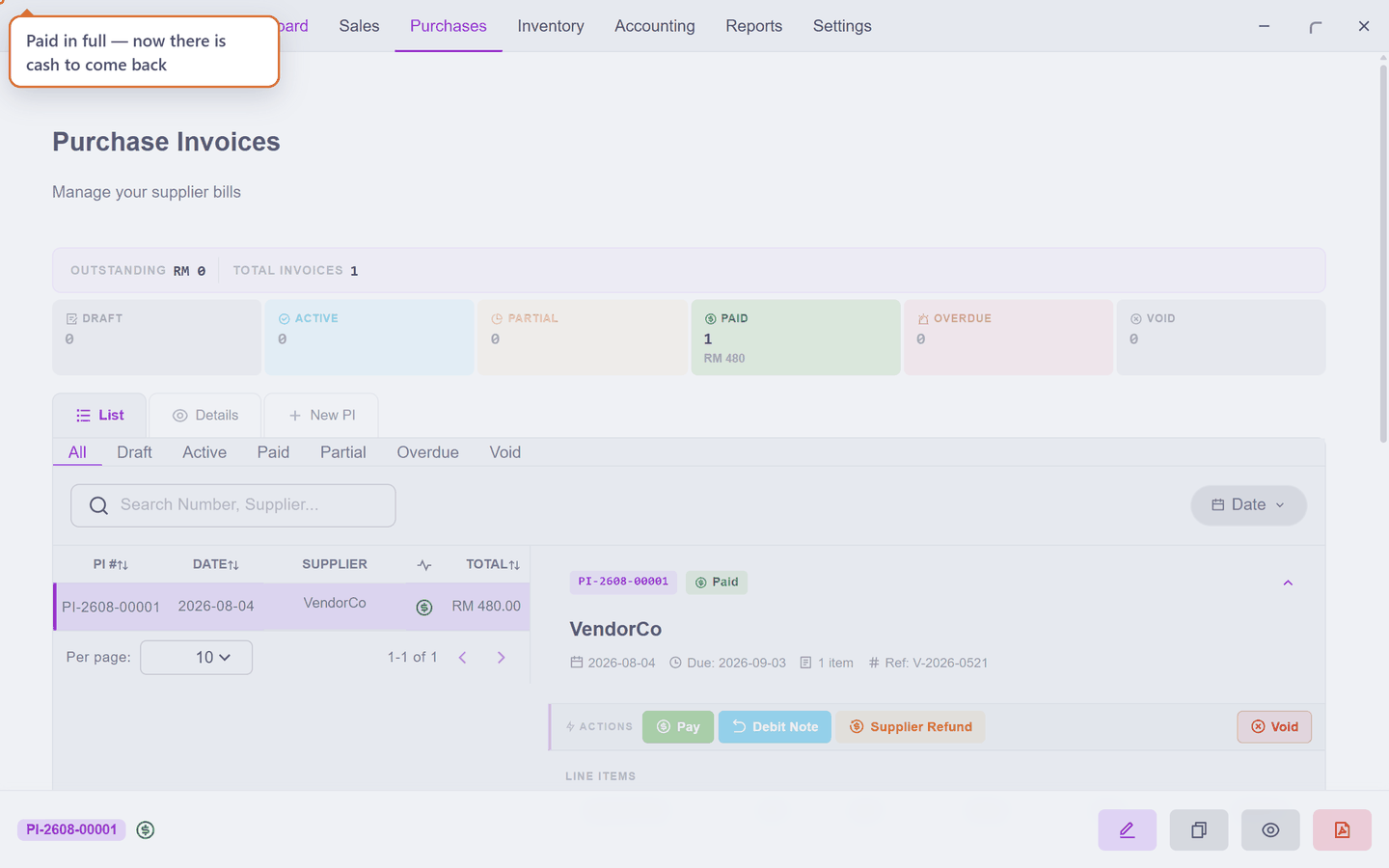
Once the bill is paid (Paying suppliers is the page for that), the button wakes up:
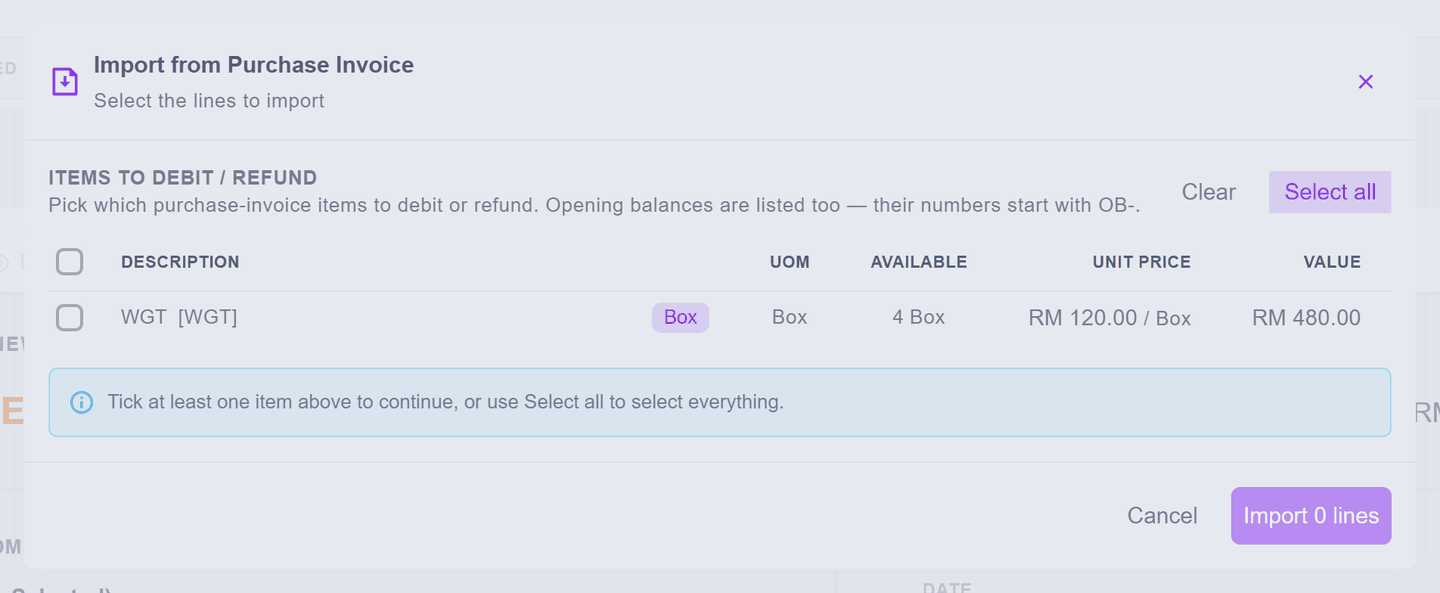
Press Supplier Refund. A picker opens listing the bill's lines — tick what is going back (or Select all). Nothing is imported unless you tick it:
Press Import, and the refund form arrives filled in from the bill:
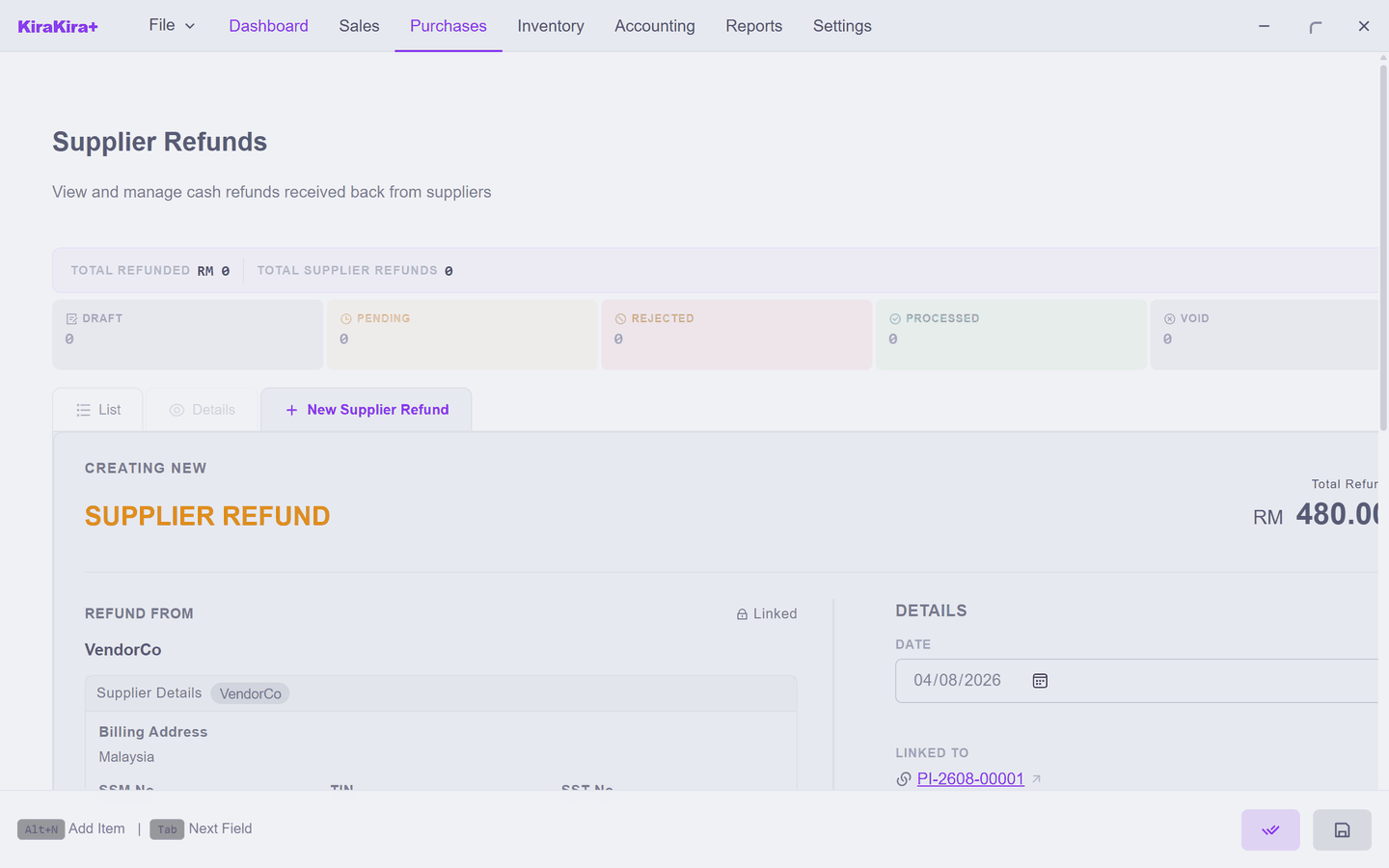
Here the quantities are yours to edit — keep the full amount for a full refund, or type less for a partial one. The refund also asks the same Return or Allowance question the Debit Note page explains: goods physically going back move stock; a money-only concession leaves stock alone.
This one asks for a second look
A debit note only moves paperwork, so finalising it is one click. A supplier refund ends with cash, and cash gets the same treatment here that paying a supplier gets: someone asks, and someone approves.
So the form's save button is Save & Submit — it does not post anything. The refund sits at Pending, waiting for a yes:
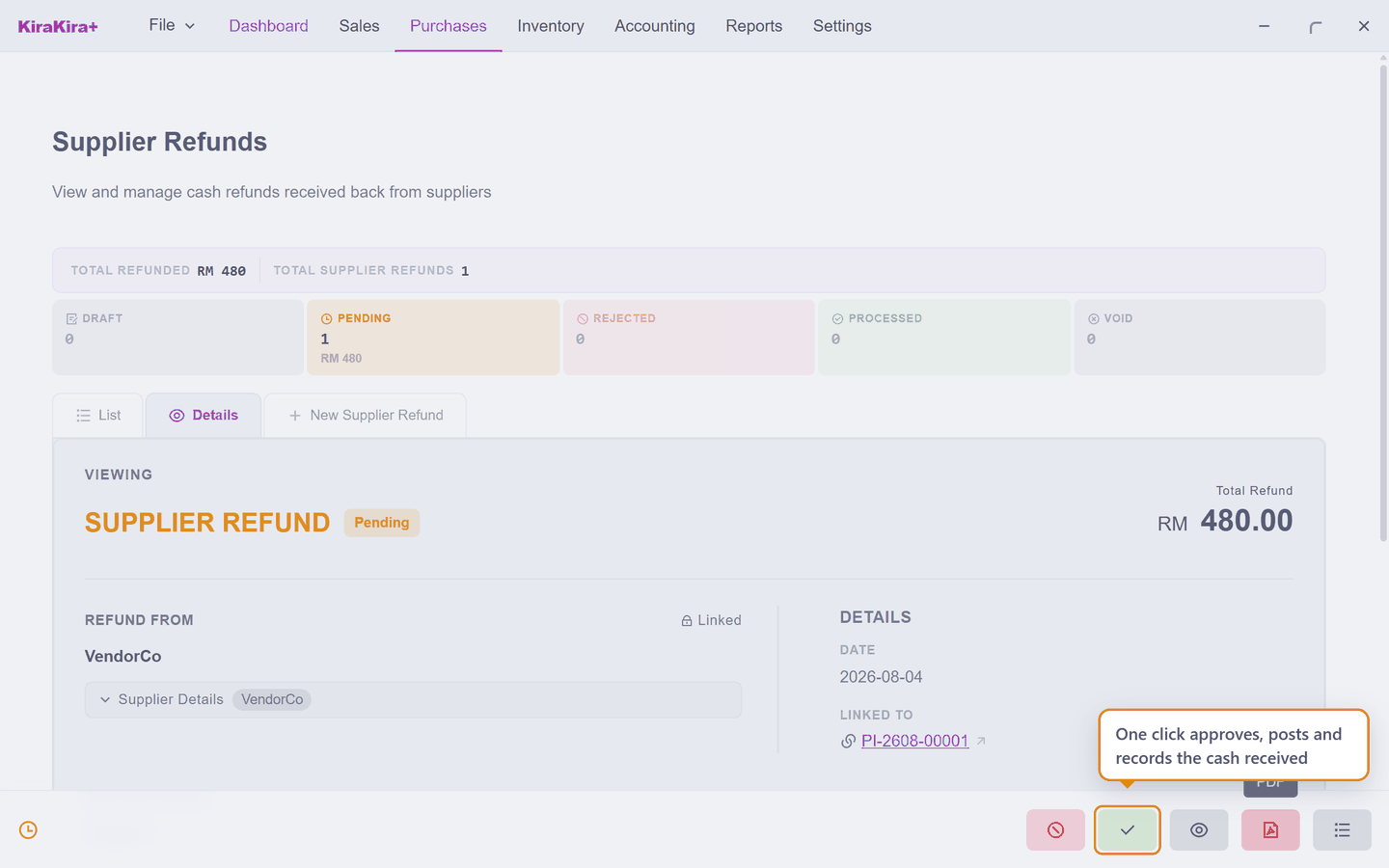
Working alone, both clicks are you, and that is fine — the pause is the point. A reviewer who says no presses Reject (with a reason); a rejected refund can be re-opened back to a draft, fixed and submitted again.
No number yet? That is deliberate
A refund waiting for approval carries no SR- number — the number is minted at the moment it is approved and posted, so a rejected attempt never uses one up.
Approve & Post — and say where the money landed
Approve & Post is one click that does the whole rest of the job: it approves the refund, posts it to your accounts, and records the cash — so it first asks the only question left:
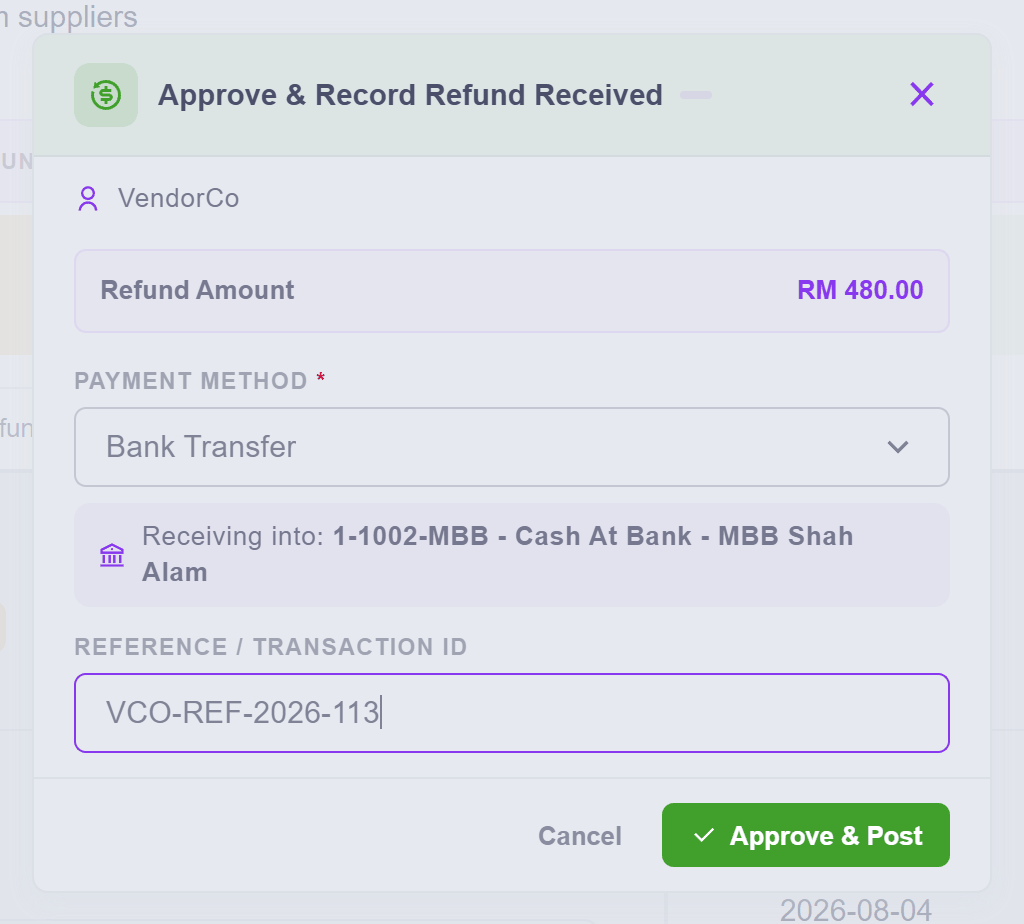
| Field | What it means |
|---|---|
| Payment Method | how the money came back — the account it lands in shows underneath, next to Receiving into |
| Reference | the supplier's transfer or transaction number, for matching the bank statement later |
Press Approve & Post. One more question can appear before anything is written — the same opening-balance warning the Debit Note page explains, because a Return-basis refund moves stock:
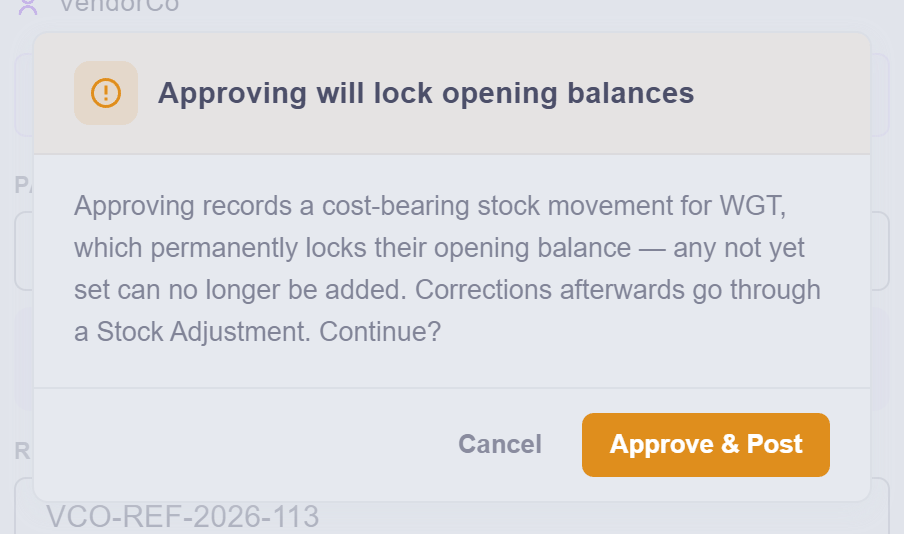
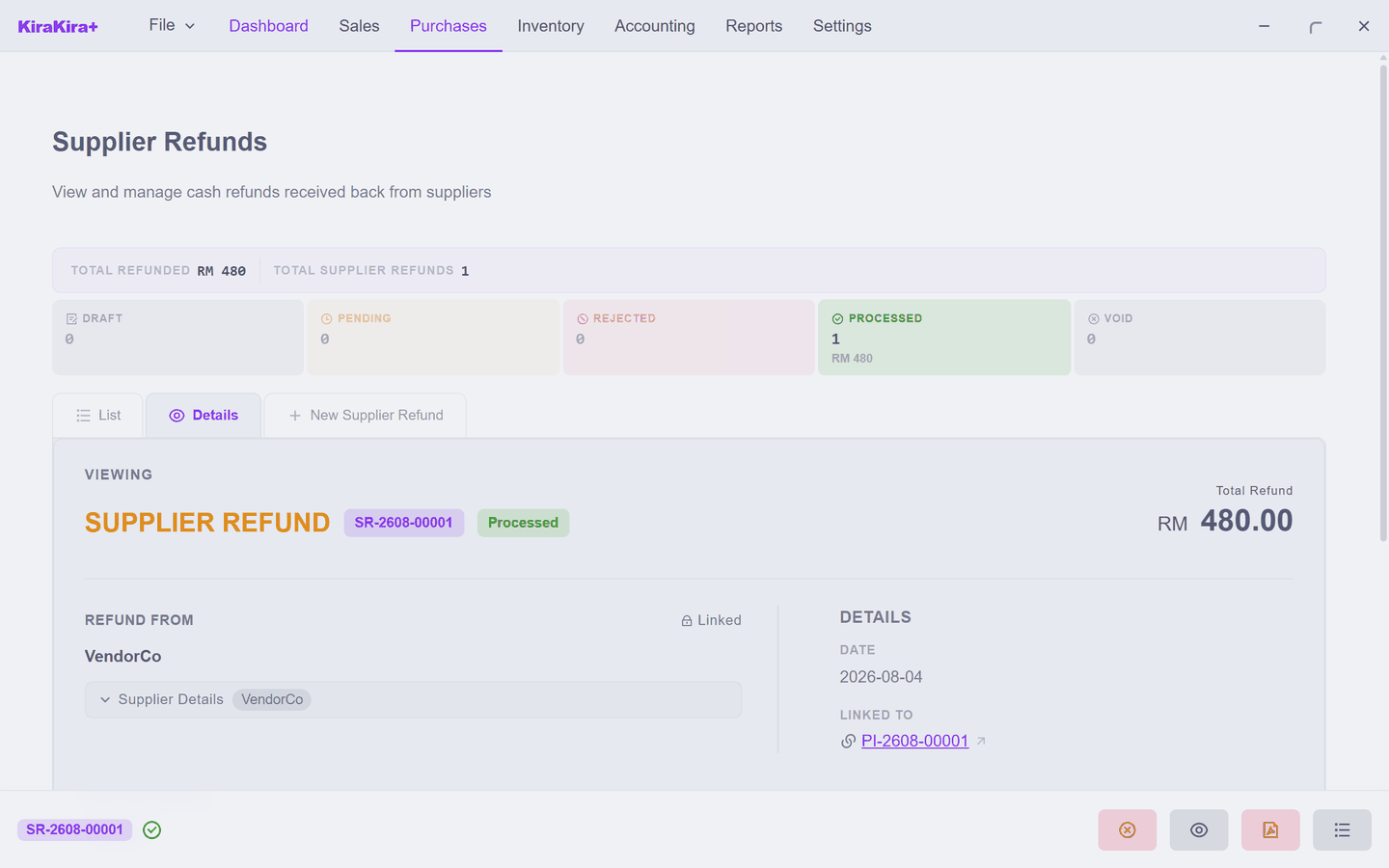
Press Approve & Post again to carry on. And that is the whole job — the refund is Processed: finished, numbered, cash recorded. There is no separate "waiting for money" state, because you record a supplier refund when the money is in your hand, not before.
Answer the dialogs — backing out means nothing happened
Press Cancel at either dialog and no refund is posted: the document simply stays at Pending, unnumbered. If the list still shows Pending afterwards, this is why.
What it does
- Your bank rises by the refund, in the account you named.
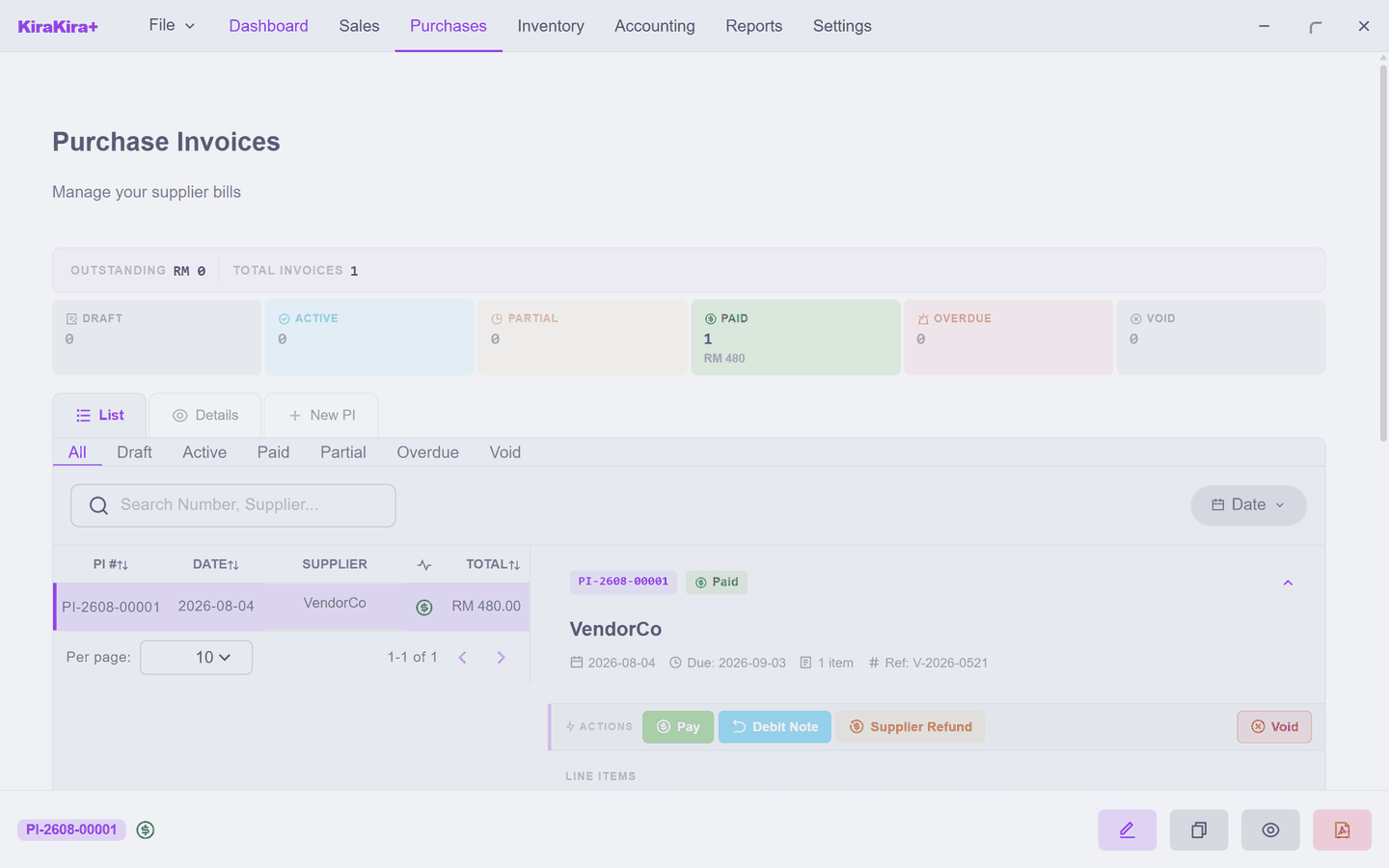
- The bill keeps the story: open it and its panel lists the refund it produced, next to the payments. You cannot refund more than you actually paid on it.
- Your stock falls by the returned quantity — on a Return basis the goods genuinely leave again.
A supplier credit is not a supplier refund
If a Debit Note left you holding credit with a supplier, this screen cannot turn that credit into cash. A supplier credit is spent against your next bill with them instead — see AR/AP Contra.
Scenario — VendorCo pays Seri Maju back
The four boxes of widgets arrived, the bill was paid the same week — and then the fault showed up. VendorCo takes all four boxes back and transfers the RM 480.00 to Seri Maju's bank.
1. The bill PI-2608-00001 is already Paid (that part is the Paying suppliers story). Open it under Purchases → Purchase Inv and press Supplier Refund.
2. The picker lists the bill's one line. Tick it and press Import 1 line.
3. The form opens filled in: VendorCo, 4 BOX of WGT at 120.00, total RM 480.00, basis Return — the boxes are going back. All four are going, so leave the quantity alone.
4. Press Save & Submit (the double-tick button, bottom right). The refund lands at Pending.
5. Press Approve & Post. In the dialog, set Payment Method to Bank Transfer — Receiving into shows the bank account the money lands in — and put VendorCo's transfer reference in Reference. Press Approve & Post to confirm.
6. The opening-balance warning appears — the widgets are physically leaving, and WGT's opening stock is long since entered — so press Approve & Post once more.
Check it worked. One click did three things:
| Where | What you see |
|---|---|
| Purchases → Supplier Refund | SR-2608-00001, Processed, RM 480.00 |
| The bill's own panel | the refund listed against PI-2608-00001 |
| Inventory | WGT back at 50 pieces — the returned boxes left the shelf |
The bill, the payment, and the refund all stay on the record, each pointing at the next — the full round trip of money out and money back.
Next: Correcting mistakes.