Appearance
Record a payment you received
Your customer has paid the invoice you just sent. Telling KiraKira+ about it takes about a minute, and it is the step that turns "they owe us" into "the money is in".
You do not create a receipt from scratch
Go to the payment, not to the Receipts screen. You pick the invoice that was paid, and the receipt is written for you — which is what keeps the payment tied to the right invoice.
1. Open Sales → Payments
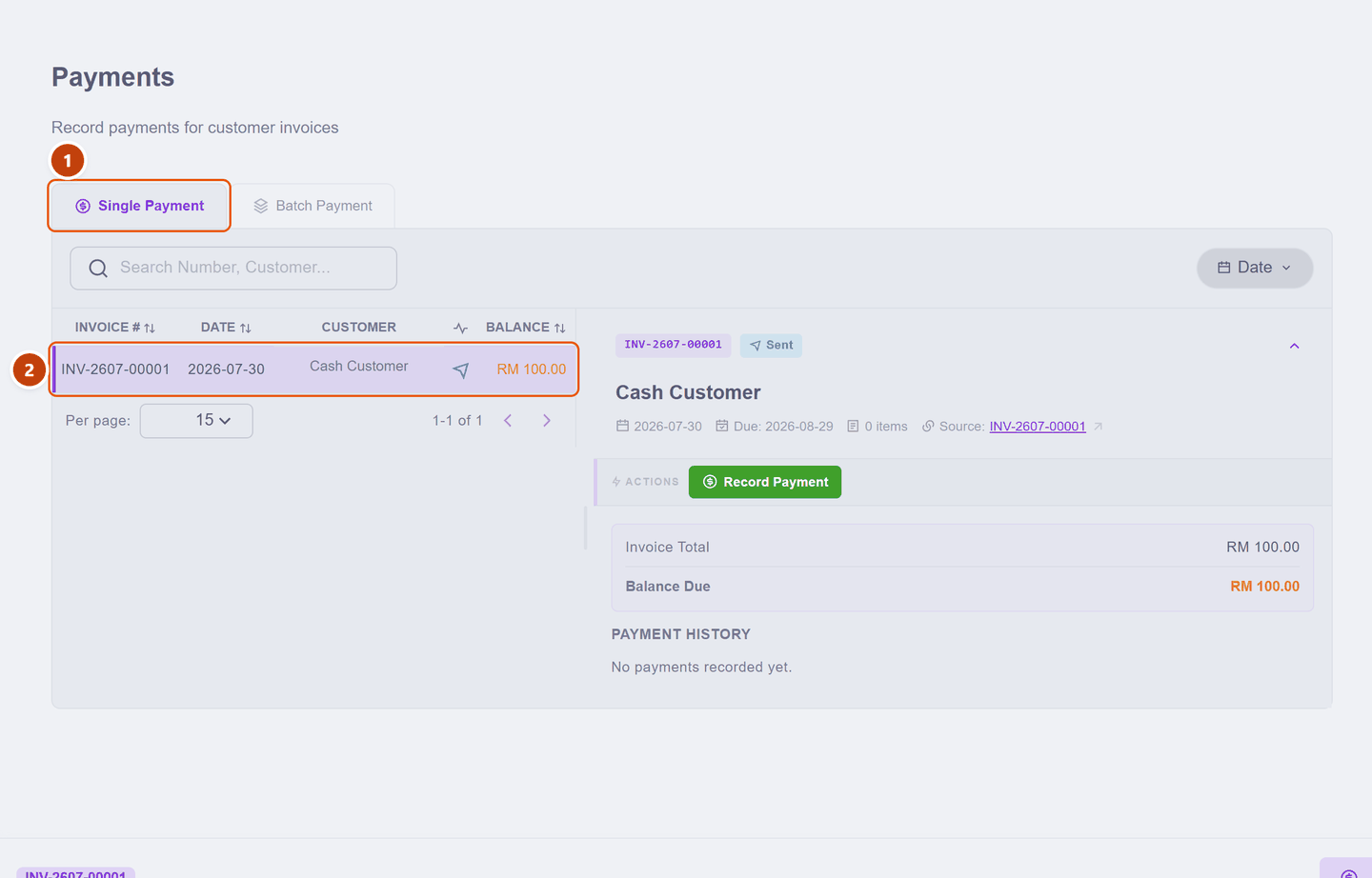
Every invoice still waiting for money is listed:
| What it is | ||
|---|---|---|
| 1 | Single / Batch | Single for one invoice. Use Batch when a customer settles several at once |
| 2 | The waiting list | Invoice number, date, customer and the balance still owed |
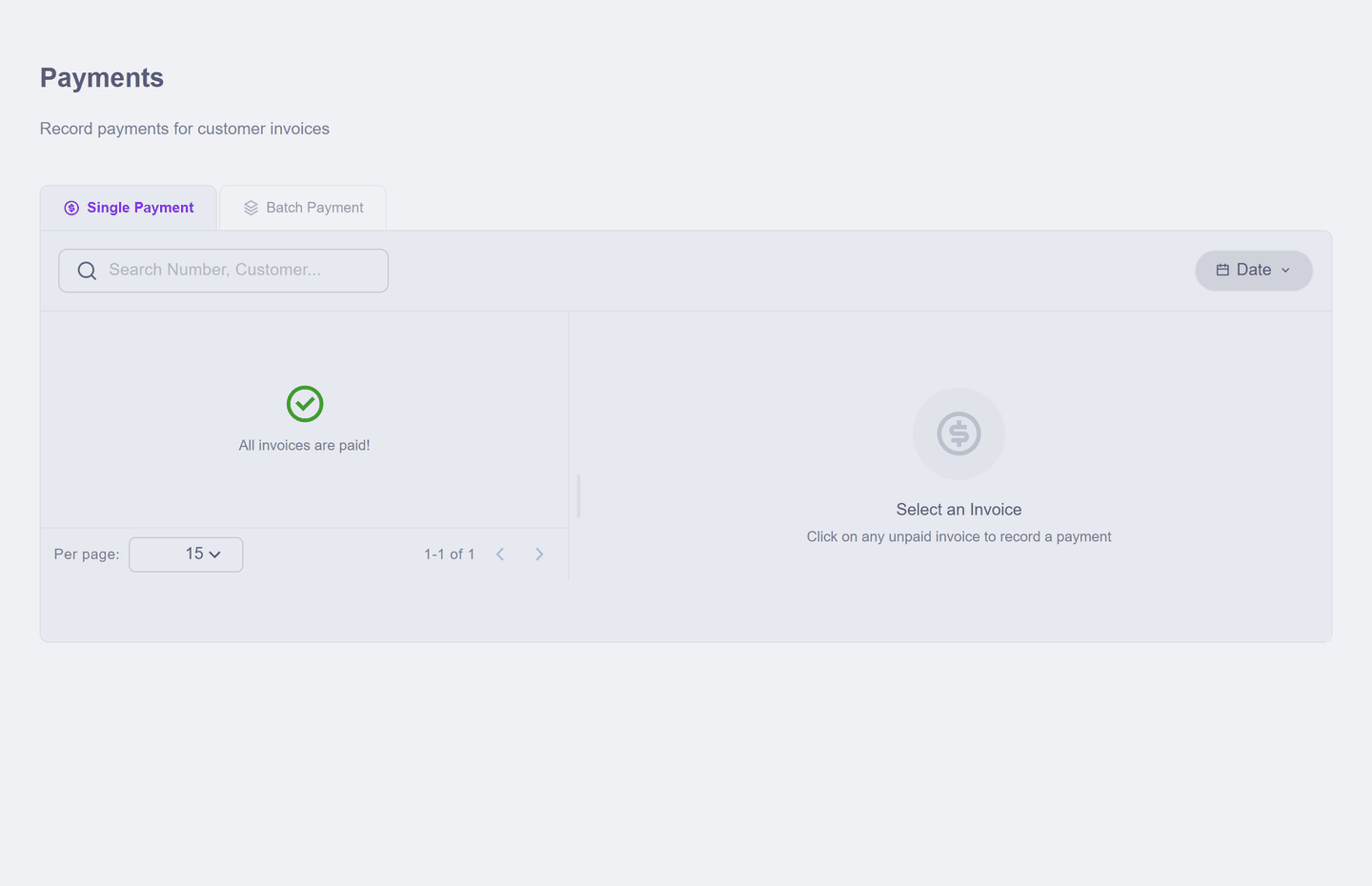
"All invoices are paid!"
That message means exactly what it says — there is nothing outstanding, so there is nothing to record. It is a good sign, not an error.
2. Click the invoice
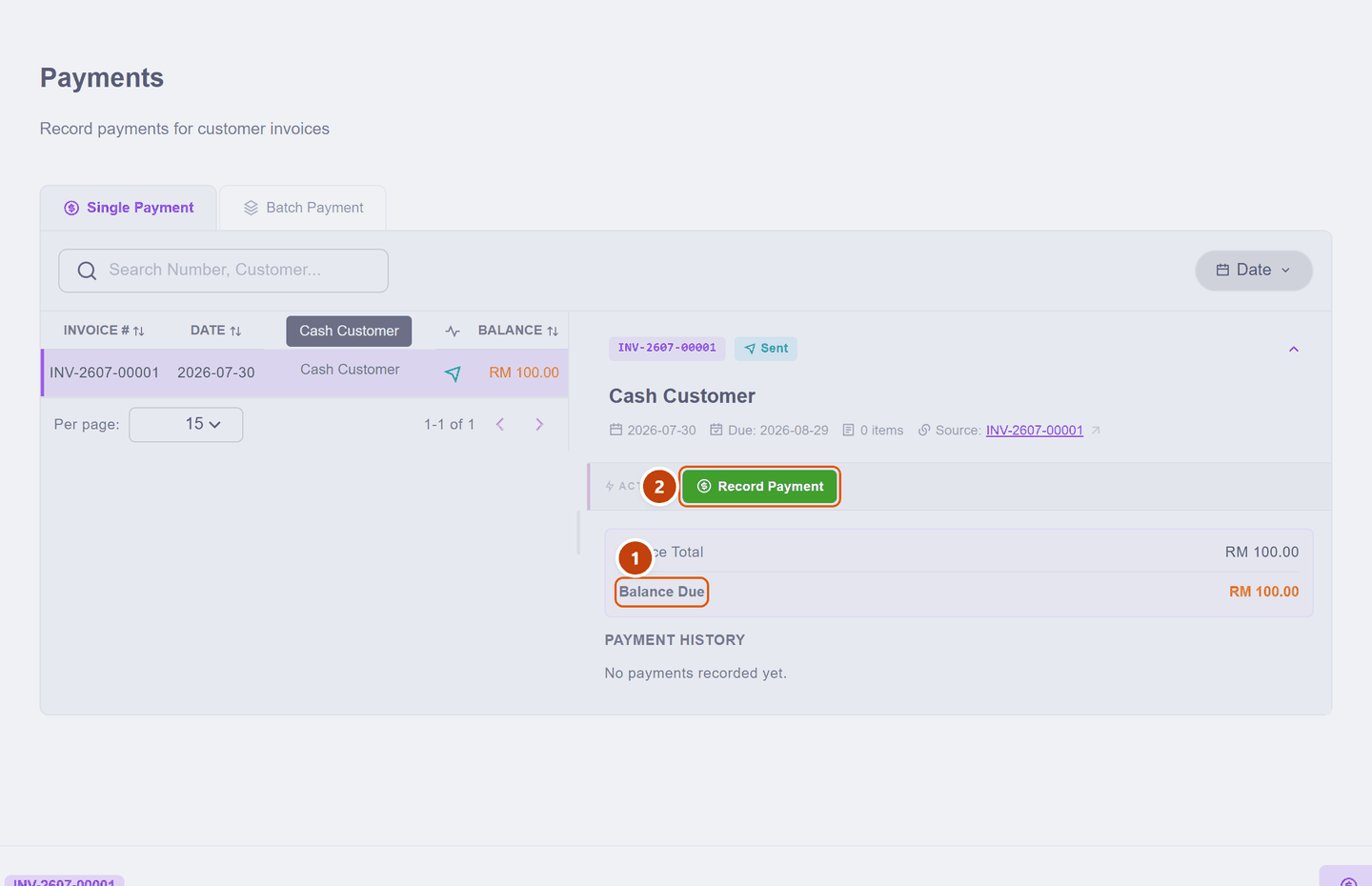
The panel on the right shows what is owed and what has been paid so far:
| What it is | ||
|---|---|---|
| 1 | Balance Due | What is still outstanding — this is what you are collecting |
| 2 | Record Payment | Opens the form below |
Payment History underneath lists every payment already recorded against this invoice. For a first payment it reads "No payments recorded yet."
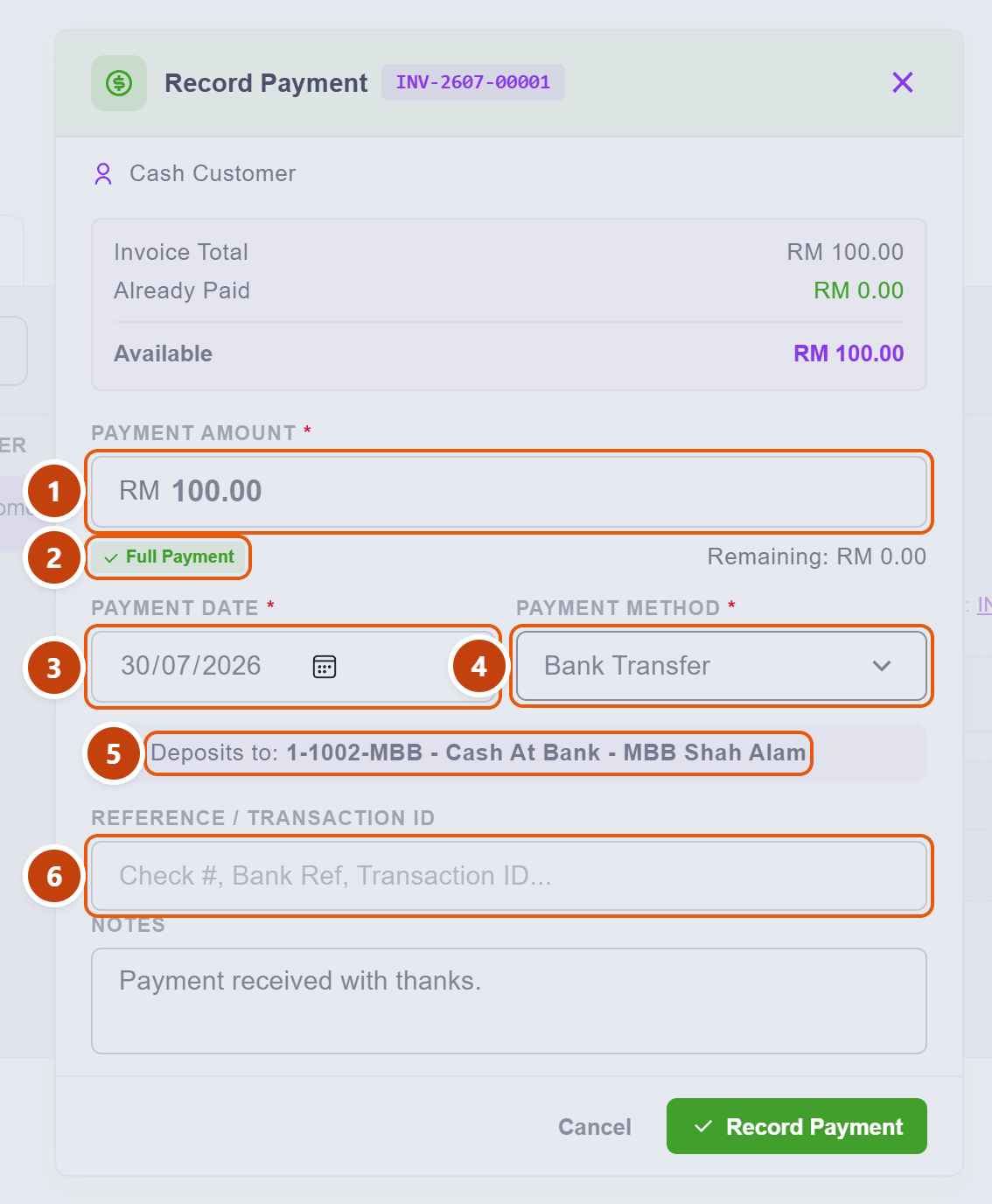
3. Fill in how the money arrived
| Field | What to do | |
|---|---|---|
| 1 | Payment Amount | Already filled with the full balance. Change it if they paid part |
| 2 | Full Payment | Not a button — a label confirming the amount covers the whole balance (it flips to Partial Payment if you type less). The Remaining figure beside it shows what would be left |
| 3 | Payment Date | The day the money actually arrived, not today. This decides which month it lands in |
| 4 | Payment Method | How they paid — from the list you set up in Payment methods |
| 5 | Deposits to | Not a field — a confirmation. It names the exact account the money goes into, chosen by the method above |
| 6 | Reference | Optional but worth it: cheque number, bank reference, transaction ID. This is what you search for later when the bank statement disagrees |
That Deposits to line is the whole point of setting up payment methods. Pick Bank Transfer and the money lands in your bank account; pick Cash and it lands in cash on hand. You choose once, when the money moves, and the bookkeeping follows.
Check the deposit account before you commit
If that line still names the demo bank (MBB Shah Alam), stop and fix it first — see Payment methods. Otherwise your money is recorded as arriving at a bank you do not have.
Click Record Payment.
4. Check it worked
Two things change, and both are worth looking at once so you trust it later.
The invoice is settled — it drops off the waiting list entirely:
And the receipt exists as its own document, under Sales → Receipts:
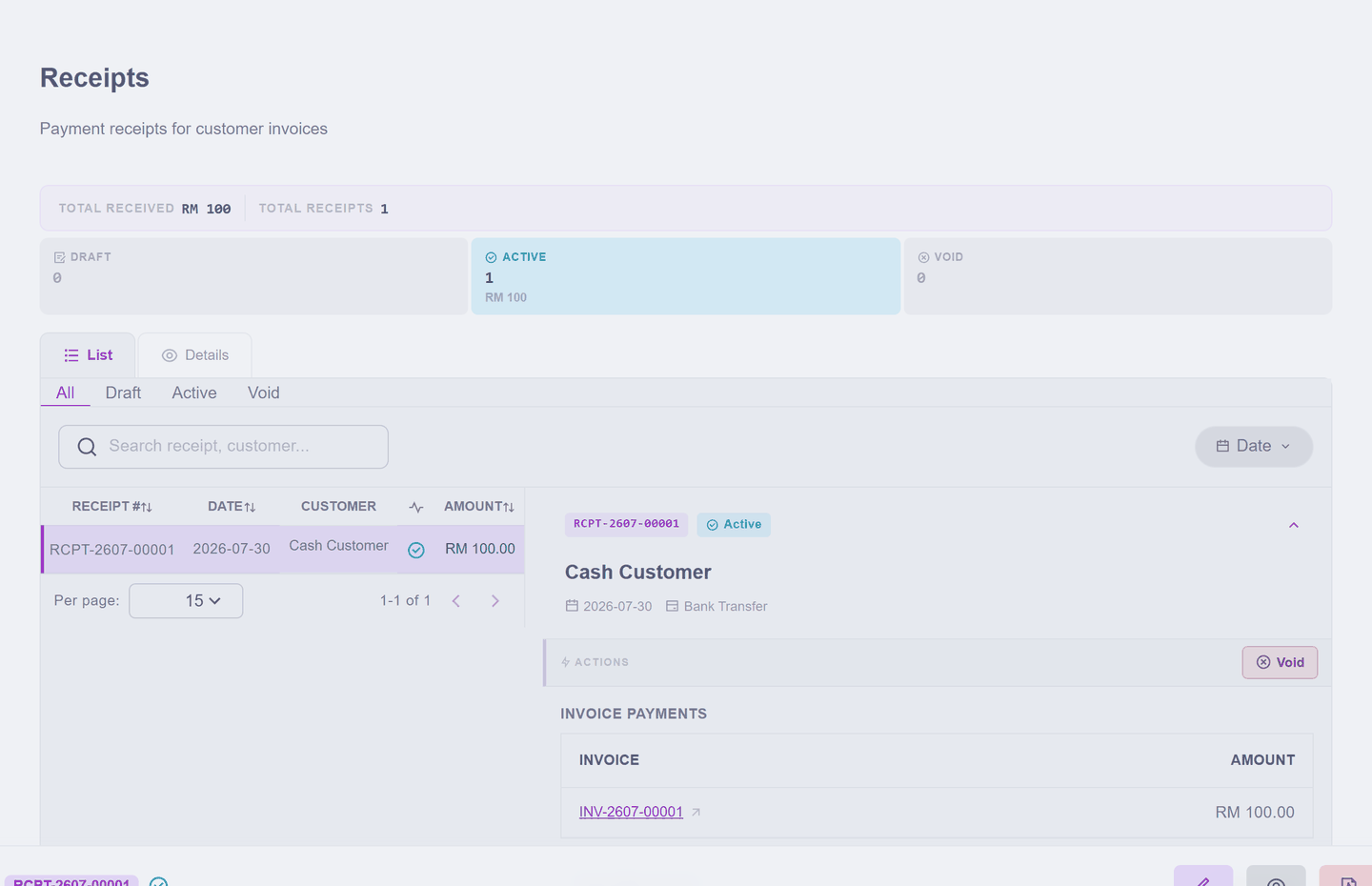
It has its own number (RCPT-2607-00001), it records which invoice it settled, and — like every official document — it is not edited but voided if it was wrong.
Partial payments are normal
Pay in RM 40 of a RM 100 invoice and the invoice becomes Partial: it stays on the waiting list showing RM 60 still due, and you record the rest as a second payment later. Payment History then shows both.
What happened in your accounts
You do not have to care, but in case you are curious: the money moved out of "customers owe us" and into your bank account. Nothing was invented — the invoice already recorded the sale; this only recorded the settlement.
Next: Enter your first supplier bill — the same story from the other side.