
Appearance
Debit Notes
Purchases → Debit Note. A debit note records that a finalised bill got smaller: goods you sent back, or a price the supplier agreed to knock off. A finalised bill cannot be edited — your accounts already depend on it — so the correction becomes a document of its own, one that says reduce that bill by this much and points at the bill it reduces.
Your supplier calls the same paper something else
When this happens in real life, the supplier usually sends you their credit note. Same event, seen from the other side of the deal. If a supplier's credit note is in your hand, a debit note is how you record it.
Start from the bill
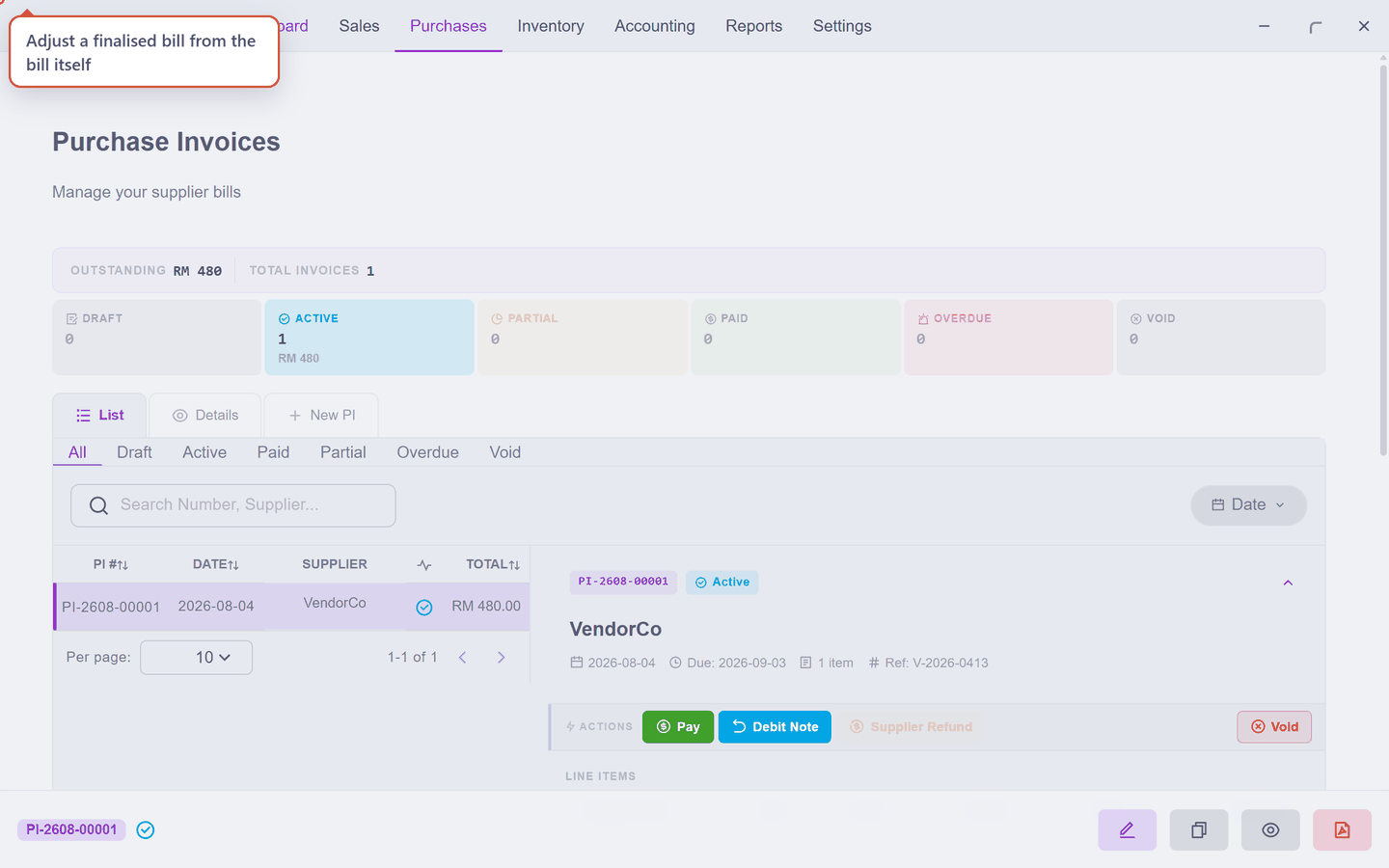
You do not type a debit note from scratch. Open Purchases → Purchase Inv, click the bill in the list, and press Debit Note:
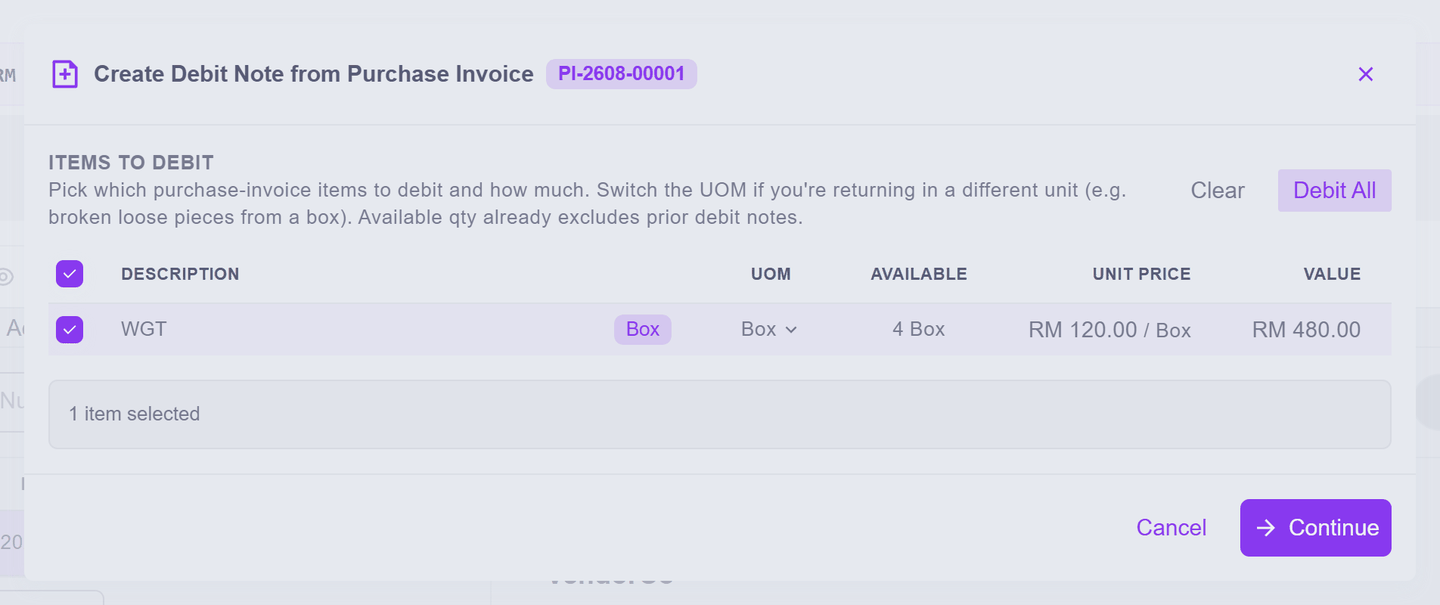
A picker opens listing the bill's lines, because a correction rarely covers the whole bill. Set how much of each line is affected — or press Debit All to take everything. As the screen itself suggests, you can switch the unit if you are returning in a different one — e.g. broken loose pieces from a box:
Press Continue and the debit note arrives already filled in — supplier, lines, prices, all copied from the bill, and locked to it (the padlock next to Debit From says Linked):
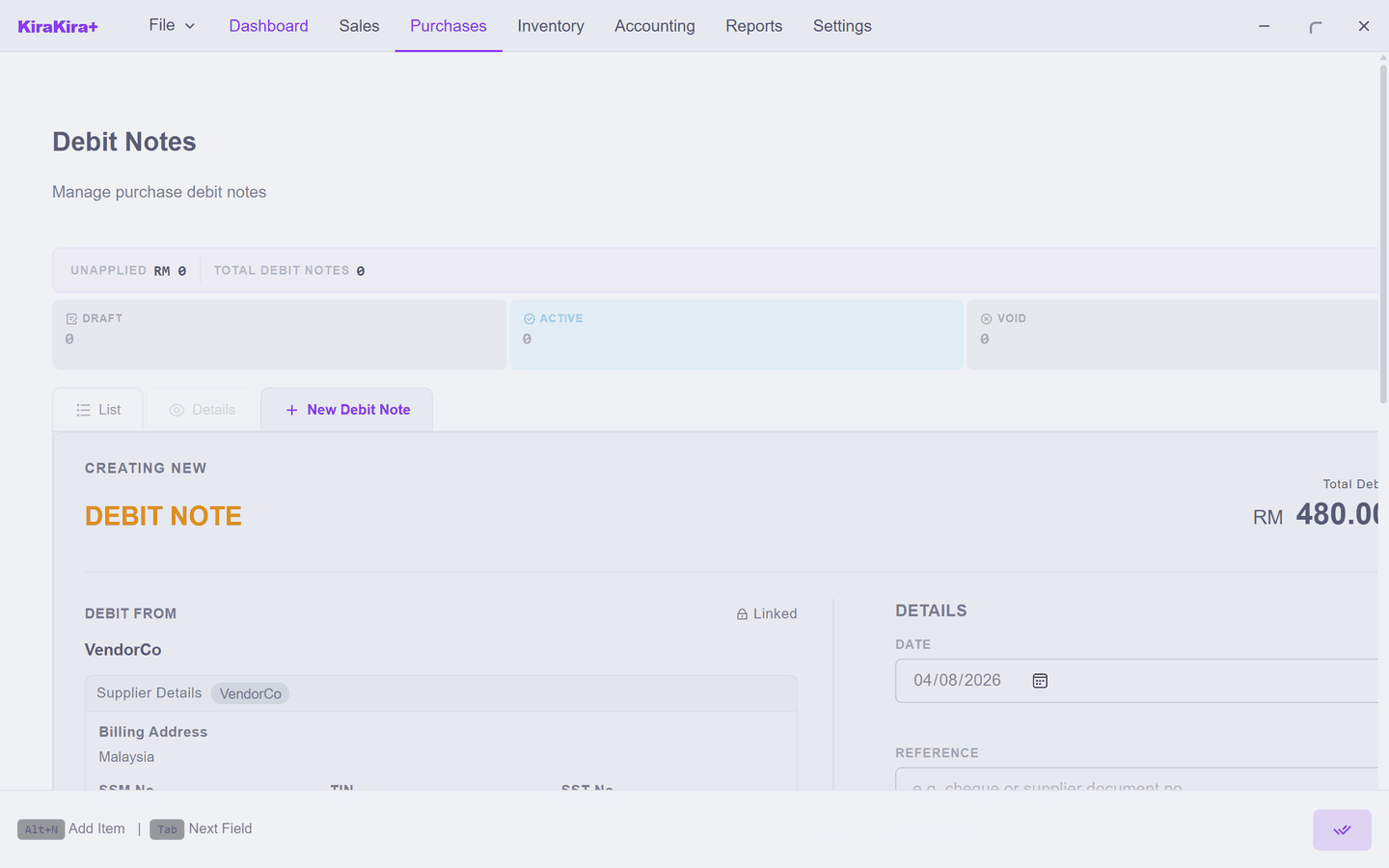
The quantities are locked here — you chose them in the picker. The prices stay editable, because a price correction is precisely a case where the bill's figure is not the right one.
Reference is for their paper
If the supplier sent you their credit note, put its number in Reference — the same way the bill records their invoice number. It is optional, and it is how you find this note again when the supplier phones about it.
There is also a New Debit Note tab
Purchases → Debit Note → New Debit Note, then Import, reaches the same picker from the other end. Same thing, one extra click.
Sent back, or knocked off?
One question decides what the note does to your stock, and the form asks it once for the whole note — Adjustment Basis:
| Basis | The goods | Your stock |
|---|---|---|
| Return | go back to the supplier | falls by the returned quantity |
| Allowance | stay with you | does not move |
Use Return when boxes physically leave the building. Use Allowance when the supplier is knocking money off — wrong price on the bill, damaged goods you agreed to keep at a discount. As the form itself puts it: price reduction, goods kept, no stock movement.
You cannot debit more than is left
A debit note takes value off the bill, so it is capped by what the bill still has: the total, minus what you have already paid, minus any earlier debit notes. The picker does the first part of this for you — as its own note says, available qty already excludes prior debit notes — and if you ask for more anyway, the app refuses with a table showing exactly where the room went, line by line.
Already paid the bill in full?
Then there is nothing left to reduce — your money is with the supplier. Getting it back is a different document: a Supplier Refund.
Finalising asks a question first
Press the double-tick button (bottom right) to finalise the note. Before anything is written, a warning may appear:
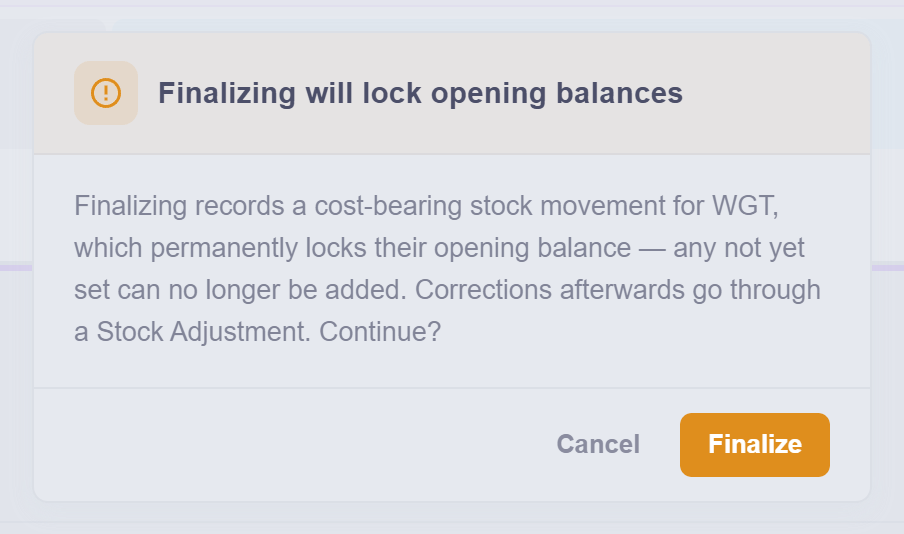
A Return moves stock, and any stock movement permanently locks the opening balances of the products involved — that is what the dialog is telling you. If your opening stock is already entered (or you never had any to enter), press Finalize and carry on.
Answer the dialog — Cancel means nothing happened
This dialog is the last step, not a formality. Press Cancel, or close the window without answering, and no debit note is created at all — not even a draft. If the Debit Notes list looks empty afterwards, this is why.
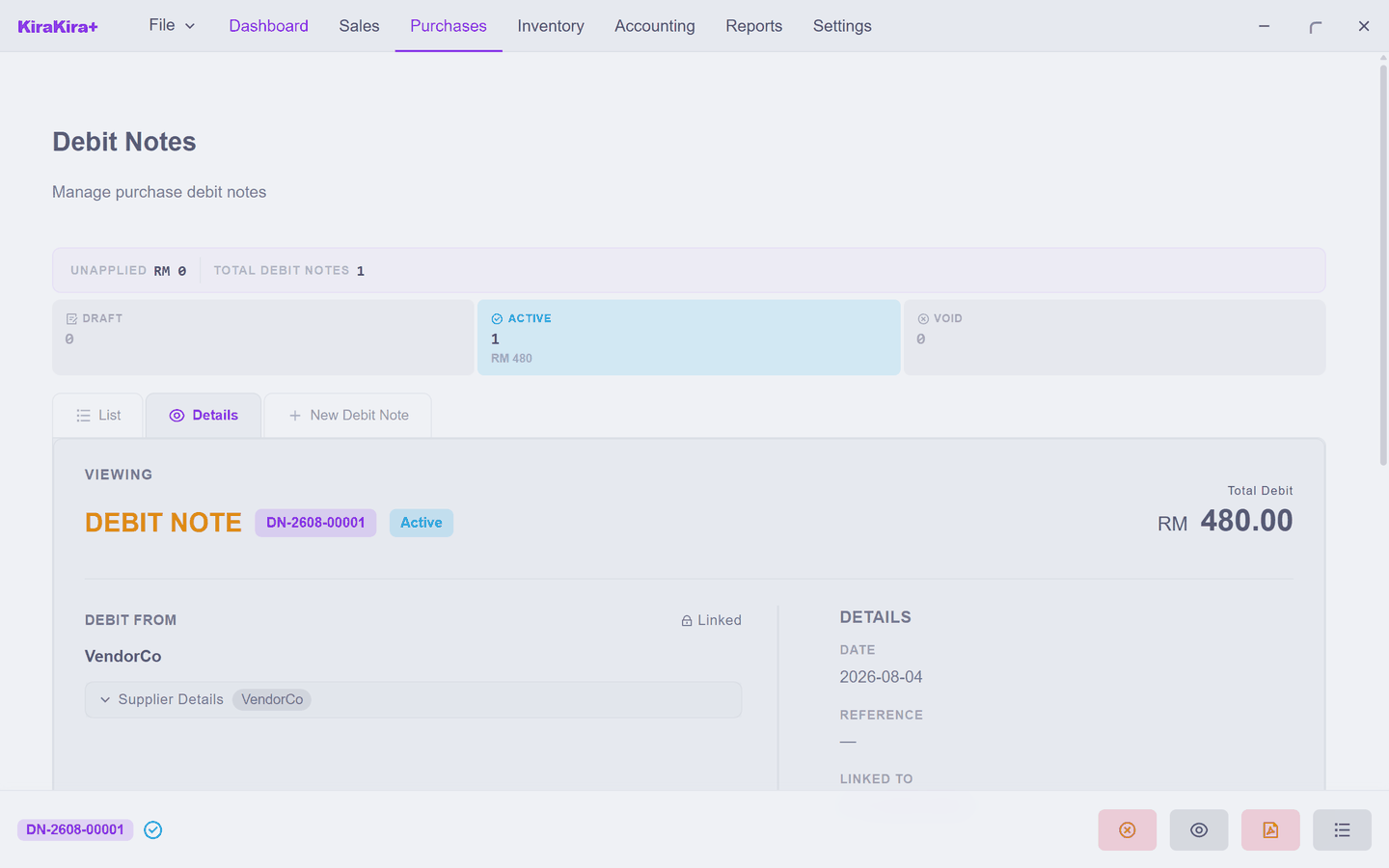
The note takes its DN- number. Scroll its details and you will find Adjustment Basis and Linked to — the basis it was posted on, and the bill it reduced.
What it does to the bill
The bill's balance falls by the note's total, immediately. Debit the whole bill and it ends at RM 0 outstanding — the app then shows it as Paid, meaning settled in full, even though what settled it was a correction rather than money:
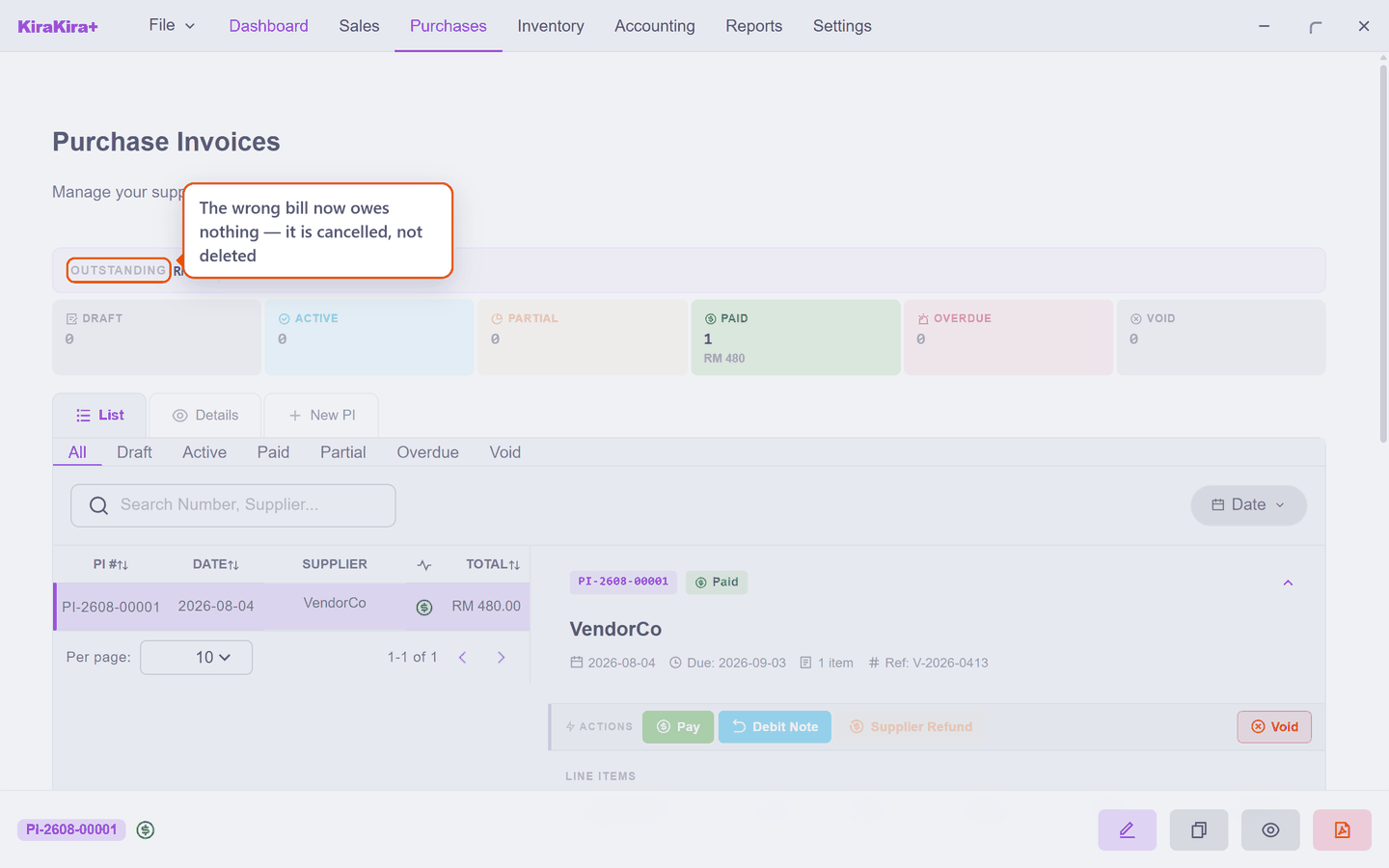
Both documents stay on the record: the bill that was wrong, and the note that corrected it. That is deliberate — a correction leaves a trail, it does not delete history.
Debit Note or Void?
The bill's details also offer Void, which cancels the bill as if it were never entered. Use Void for a mistake of entry — the same bill typed twice, the wrong supplier picked. Use a debit note when the bill was real and the deal changed: goods went back, a price was corrected. Once payments or other documents hang off a bill, Void refuses anyway, and the debit note is the way. (Under LHDN's e-invoice rules the same split is mandatory — a validated e-invoice can only be cancelled within 72 hours; after that, corrections go through notes like this one. The corrections page has the full decision table.)
Scenario — Seri Maju sends the whole delivery back
The four boxes of widgets from VendorCo's bill V-2026-0413 turn out to be water-damaged. VendorCo agrees to take the delivery back and cancel the bill. Nothing has been paid yet.
1. Purchases → Purchase Inv, then the List tab. Click the bill's row — its details open beside the list — and press Debit Note.
2. The picker lists the bill's one line: 4 BOX of WGT. The whole delivery is going back, so press Debit All, then Continue. (For a partial return you would type a smaller quantity on the line instead.)
3. The debit note opens already filled in: VendorCo, 4 BOX at 120.00, Total Debit RM 480.00, linked to PI-2608-00001. Nothing to retype.
4. Check Adjustment Basis reads Return — the boxes are physically leaving, so stock must follow.
5. Press the double-tick button (bottom right). The opening-balance warning appears; WGT's opening stock is long since entered, so press Finalize.
Check it worked. Three places tell the same story:
| Where | What you see |
|---|---|
| Purchases → Debit Note | DN-2608-00001, Active, RM 480.00 |
| Purchases → Purchase Inv | the bill at RM 0 outstanding, shown as Paid |
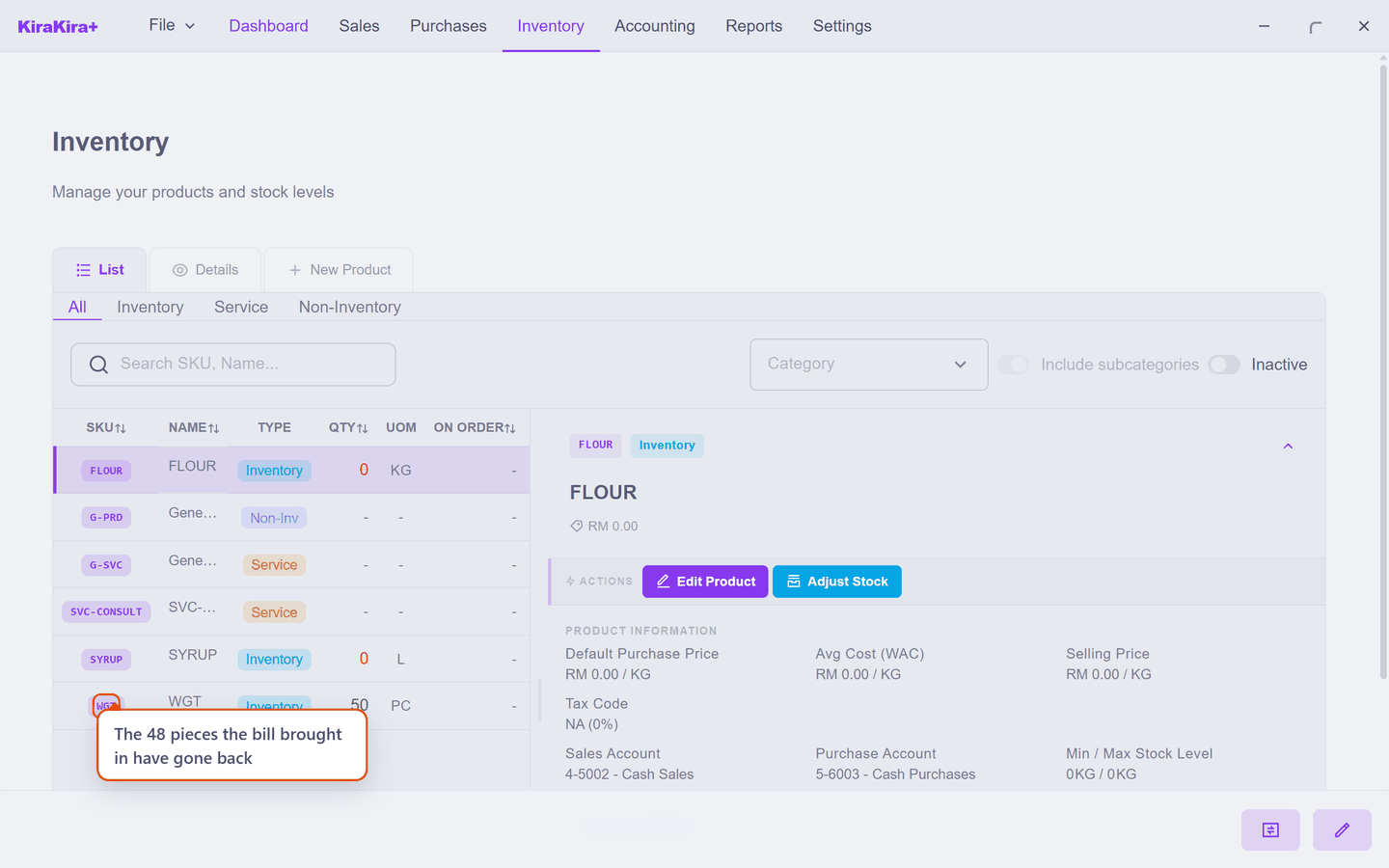
| Inventory | WGT back to 50 pieces — the 48 the bill brought in are gone |
The bill is neutralised, not deleted — anyone reading the books later sees both the bill and the note that corrected it, each pointing at the other.
Next: Supplier Refunds.