
Appearance
Adding a customer
Contacts → New Contact. A customer is anyone you send an invoice to — a company, a shop, or a person. Adding them once means you never retype their details on a document again.
Only the name is required
Everything else on this screen can be left blank and filled in later. Add the address and tax details when you actually need them — usually the first time you send this customer a proper invoice.
What you are looking at
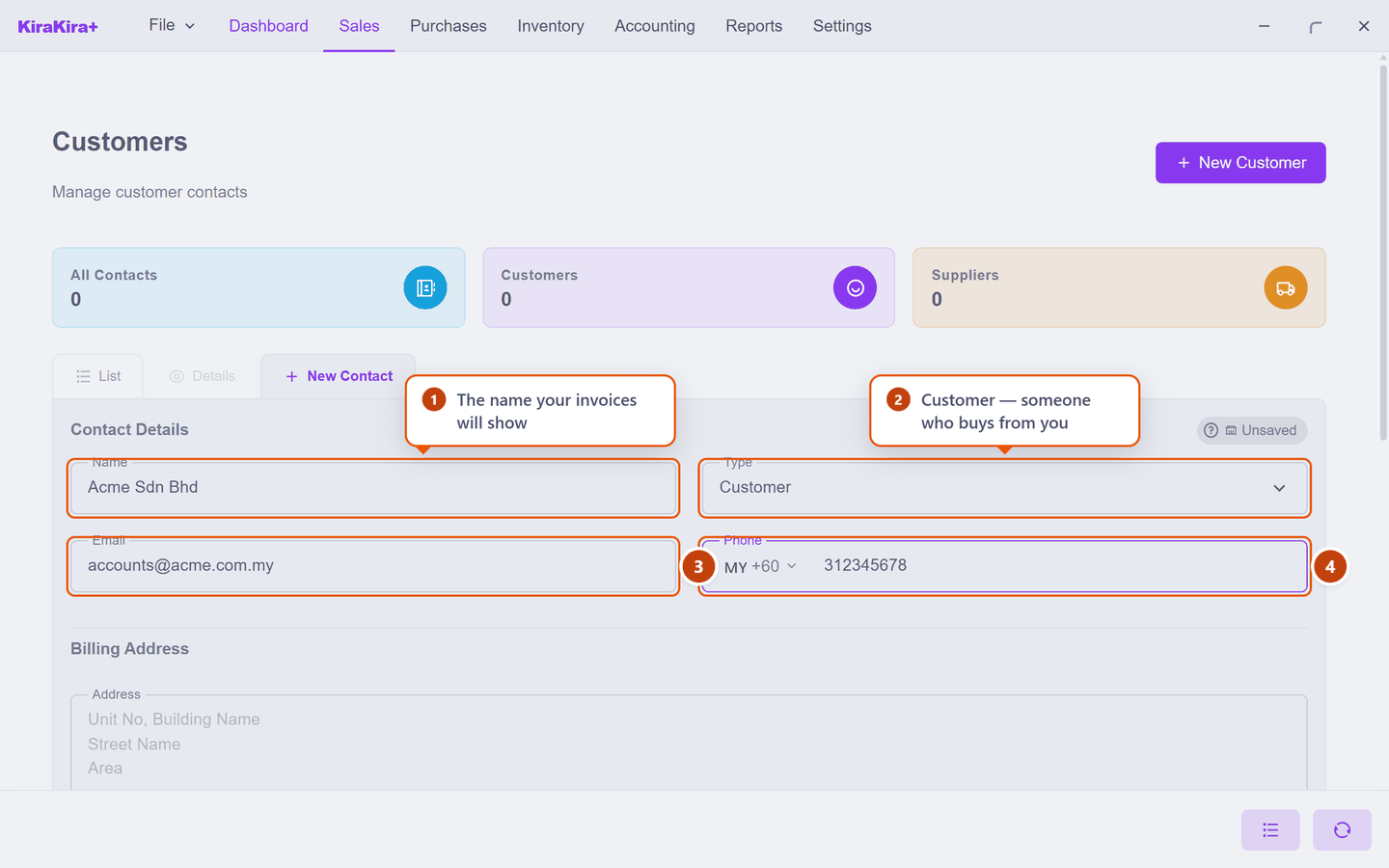
| Field | What it does | |
|---|---|---|
| 1 | Name | Exactly what your invoices will print. Type it the way the customer writes it themselves. |
| 2 | Type | Customer — someone who buys from you. See Adding a supplier for the other choices. |
| 3 | Where you would send the invoice. Optional. | |
| 4 | Phone | Pick the country from the flag, then type the rest of the number. |
The address fills itself in — but only in one order
The address is not four independent boxes. Pick the State first. Until you do, Postcode and City are greyed out, and the screen says so:
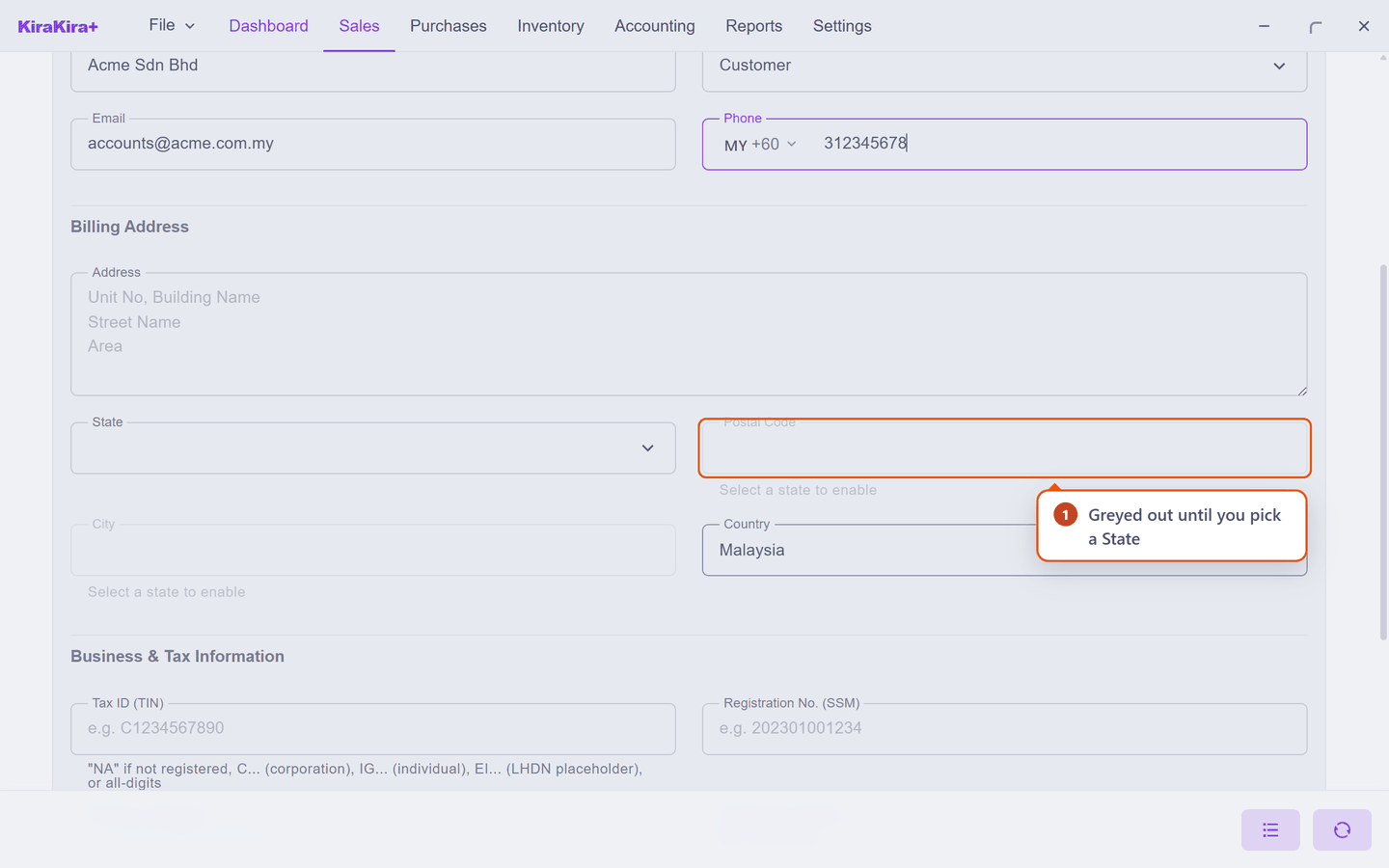
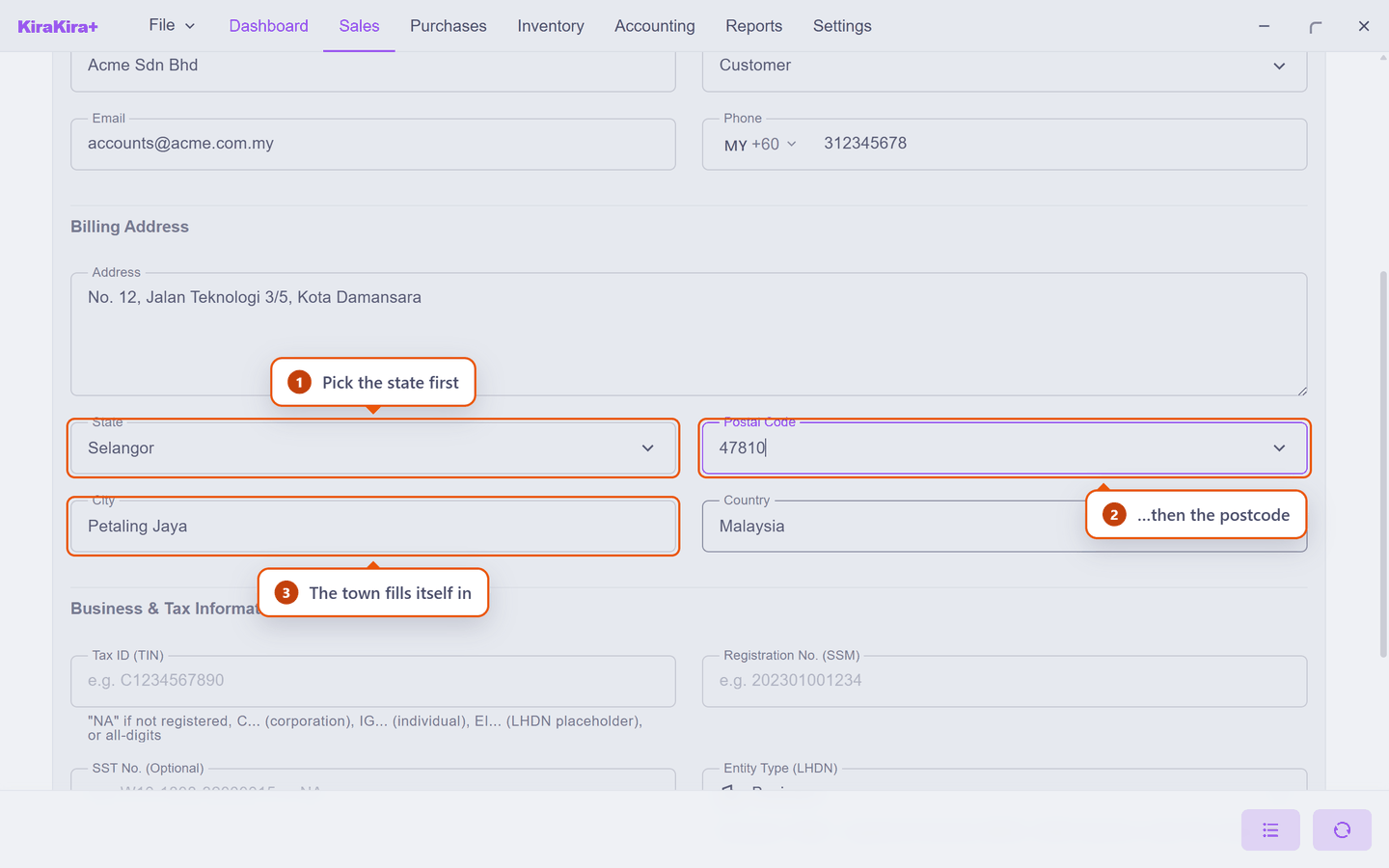
Once a state is chosen, the postcode list narrows to that state — and choosing a postcode fills the town in for you:
| Field | What to do | |
|---|---|---|
| 1 | State | Pick this first — it unlocks the two below. |
| 2 | Postcode | Start typing; only postcodes in that state are offered. |
| 3 | City | Leave it alone. It arrives with the postcode. |
Changing the state clears the postcode and town
That is deliberate — a postcode from the old state would no longer be valid. If you change the state, pick the postcode again.
Scenario — adding Acme Sdn Bhd
Seri Maju has landed its first regular account: Acme Sdn Bhd, a trading company in Kota Damansara. Here is what goes in each box.
| Field | What Seri Maju enters | |
|---|---|---|
| 1 | Name | Acme Sdn Bhd |
| 2 | Type | Customer |
| 3 | accounts@acme.com.my | |
| 4 | Phone | +60 3 1234 5678 |
| Address | No. 12, Jalan Teknologi 3/5, Kota Damansara | |
| State → Postcode | Selangor → 47810 (the town fills itself in) |
Leave the Business & Tax Information block empty for now — Acme's tax details are covered in Tax and registration details.
Then press Save Contact, at the bottom of the card.
Not the round save button
Most screens in KiraKira+ save with the round button in the bottom-right corner. This one does not — the contact form has its own Save Contact button at the foot of the card.
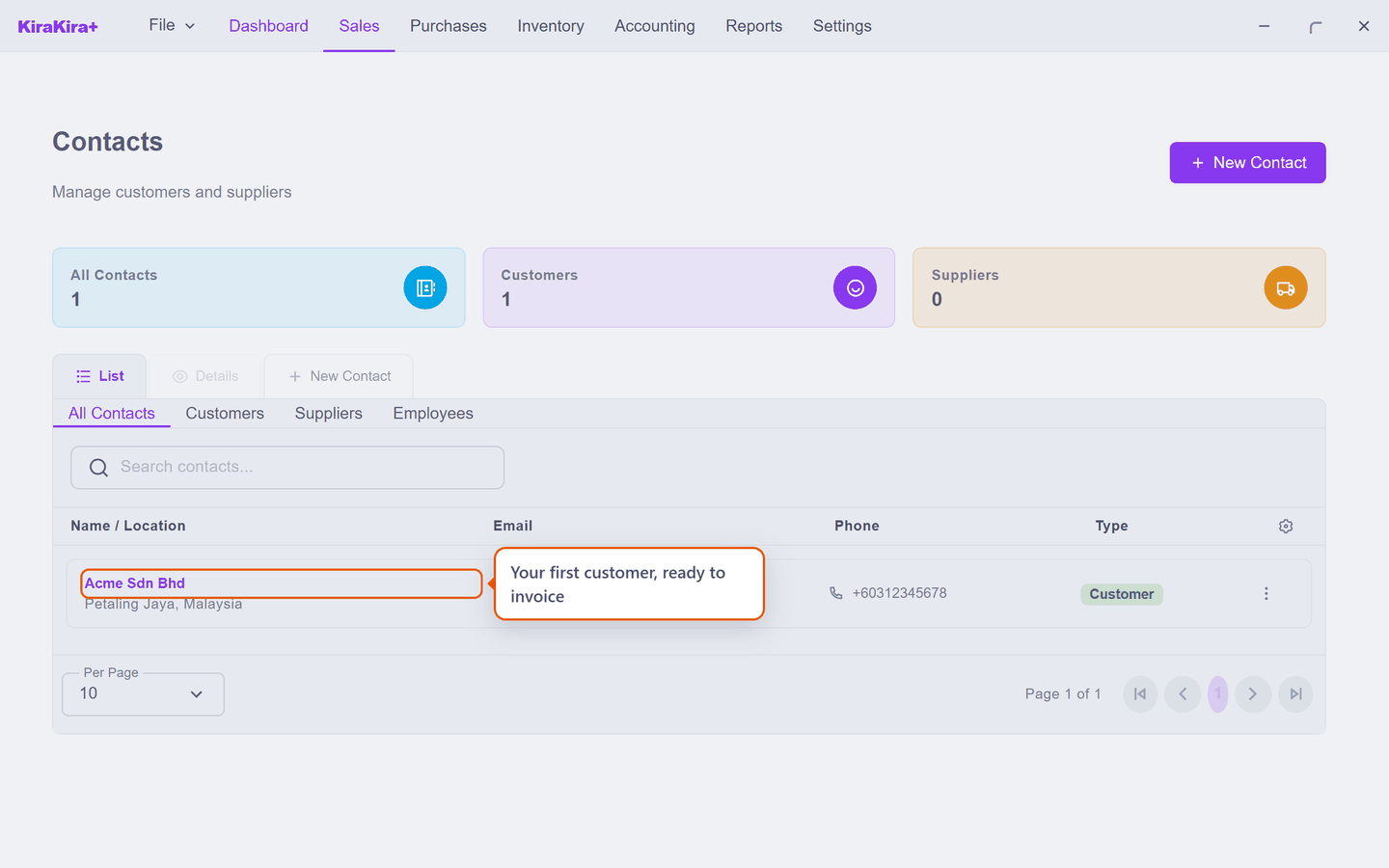
Check it worked. Acme appears in the list, with its town under the name and a green Customer tag on the right. The counters above the list move to All Contacts 1 and Customers 1.
When something is wrong
The boxes check themselves. Put a badly formed tax number in, and the box turns red and tells you what it expected:
Invalid TIN — use "NA" if not registered, C{digits} (corporation), IG{digits} (individual), EI{digits} (LHDN placeholder), or all-digits
The same goes for the SST number, the phone number and the postcode. Fix the red box and it clears itself.
Name works the same way, and it is the one box you cannot leave empty. Press Save Contact with no name and the box turns red with "Name is required" — nothing is saved until you fill it in.
Next: Adding a supplier.