
Appearance
Chart of Accounts
Accounting → Chart of Accounts. This is the list of buckets your money sits in: bank accounts, sales, expenses, what you owe, what you are owed.
You are not expected to build this
KiraKira+ ships 119 accounts already set up for a Malaysian trading business, and the accounts it posts to automatically — debtors, sales, creditors, purchases, stock — are already chosen for you. Most businesses change one thing here: the bank account name. Read this page to know your way around, not because there is a pile of work to do.
What you are looking at
| What it does | ||
|---|---|---|
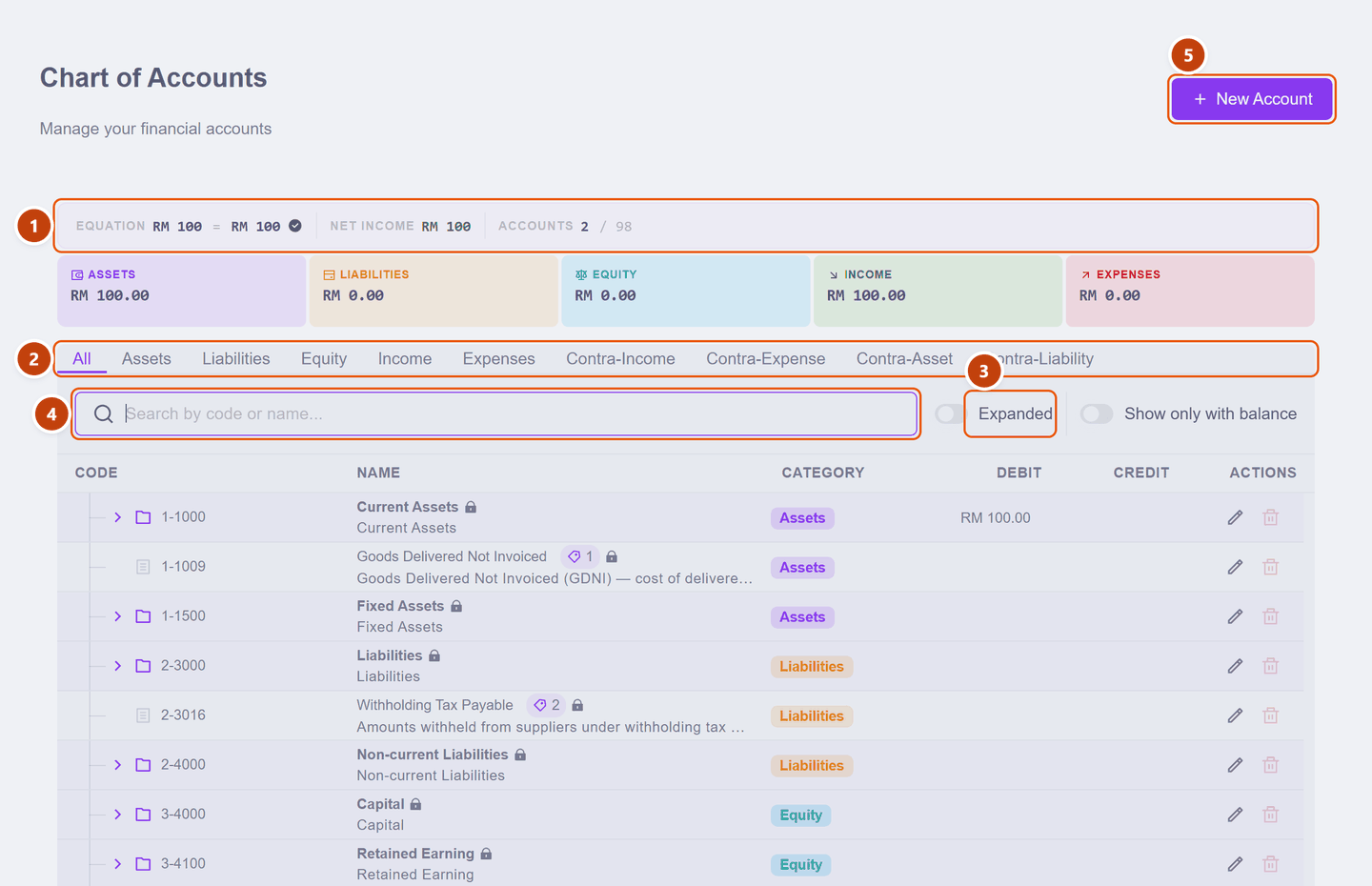
| 1 | Summary strip | Equation checks Assets = Liabilities + Equity + Net Income; the green tick means your books balance. Accounts reads accounts that have a balance / accounts you can post to |
| 2 | Category filter | Show only Assets, only Income, and so on. All is the default |
| 3 | Expanded | The list opens collapsed, showing only the 14 top-level groups. Switch this on to see individual accounts |
| 4 | Search | By code or name — the quickest way to find one account |
| 5 | New Account | Adds one of your own |
Below the strip, the five coloured cards are your live totals per category.
Groups versus accounts you can actually use
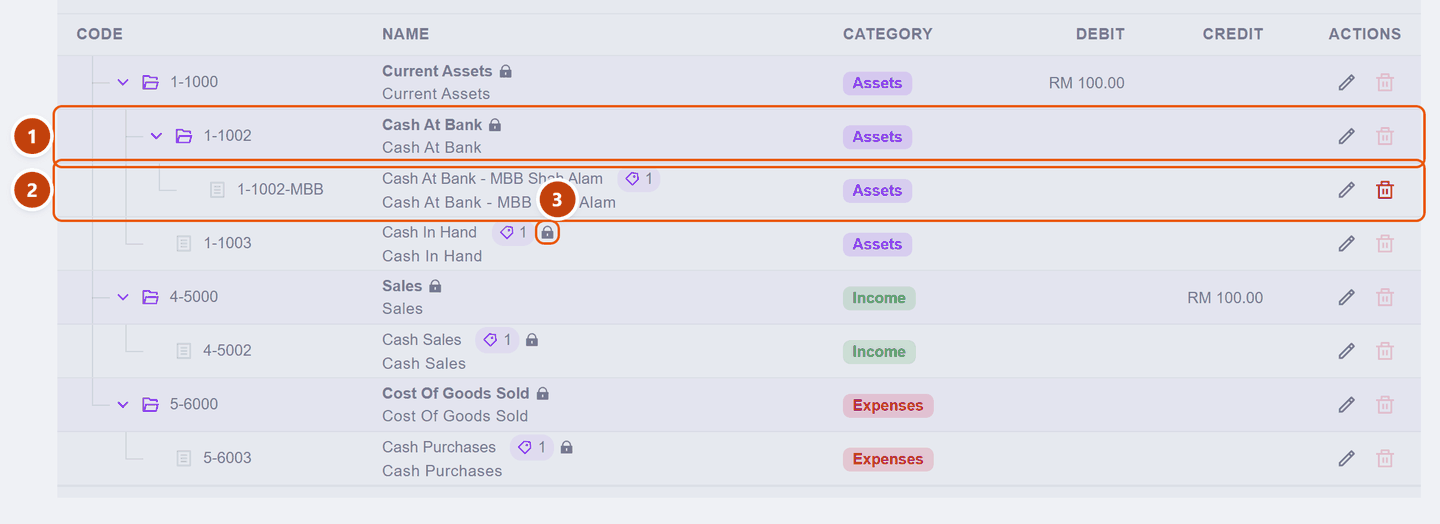
Switch Expanded on and the tree opens up. Two kinds of row live in it:
| What it means | ||
|---|---|---|
| 1 | Folder icon — a header | A grouping row only. It totals what is underneath, and no transaction can post to it |
| 2 | Page icon — a real account | This is what an invoice, receipt or journal actually uses |
| 3 | Padlock — System Account | An account KiraKira+ relies on. You can rename it, but the bin is greyed out — it cannot be deleted |
That padlock is why this is hard to break. Notice 1-1002-MBB has no padlock and an active bin: it is demo data, not a system account — which is exactly why you are free to rename it.
The one job on this page
1-1002-MBB — Cash At Bank — MBB Shah Alam is the demo company's bank. Rename it to your own, as walked through in Payment methods — every payment method points at it, so one rename fixes all of them.
Looking inside an account
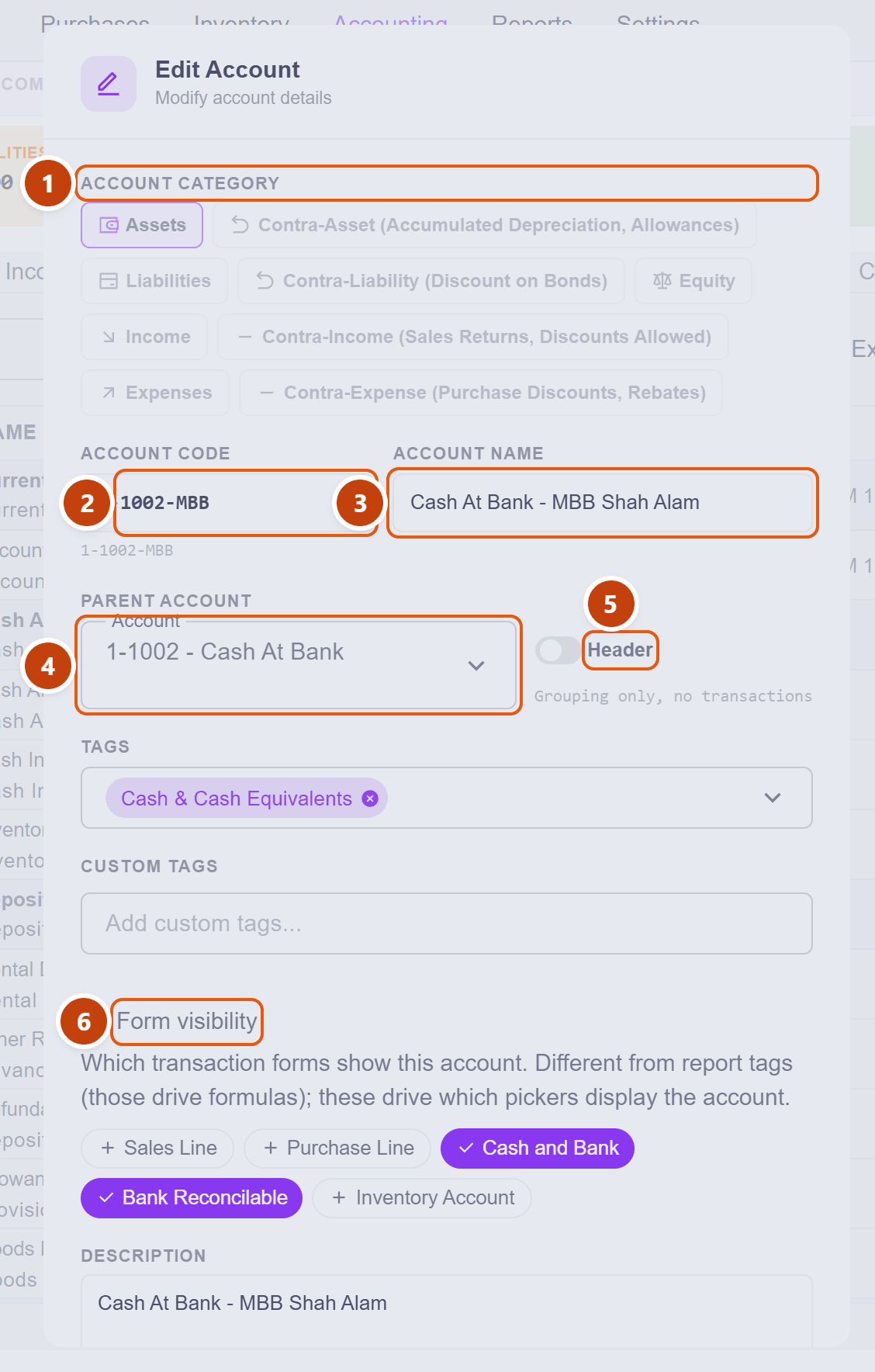
The pencil opens Edit Account:
| Field | What it means | |
|---|---|---|
| 1 | Account Category | Which of the five kinds it is, plus the contra variants — accounts that subtract rather than add, like Sales Returns. Already correct on every account that ships |
| 2 | Account Code | The number you and your accountant refer to. The 1- in front is added for you, and the full code appears underneath as you type |
| 3 | Account Name | What shows in every picker and on your reports |
| 4 | Parent Account | Where it sits in the tree — the group it belongs under |
| 5 | Header | On = grouping only, no transactions. Leave it off for an account you want to post to |
| 6 | Form visibility | Which pickers offer this account — a sales line, a purchase line, a bank picker, the stock accounts |
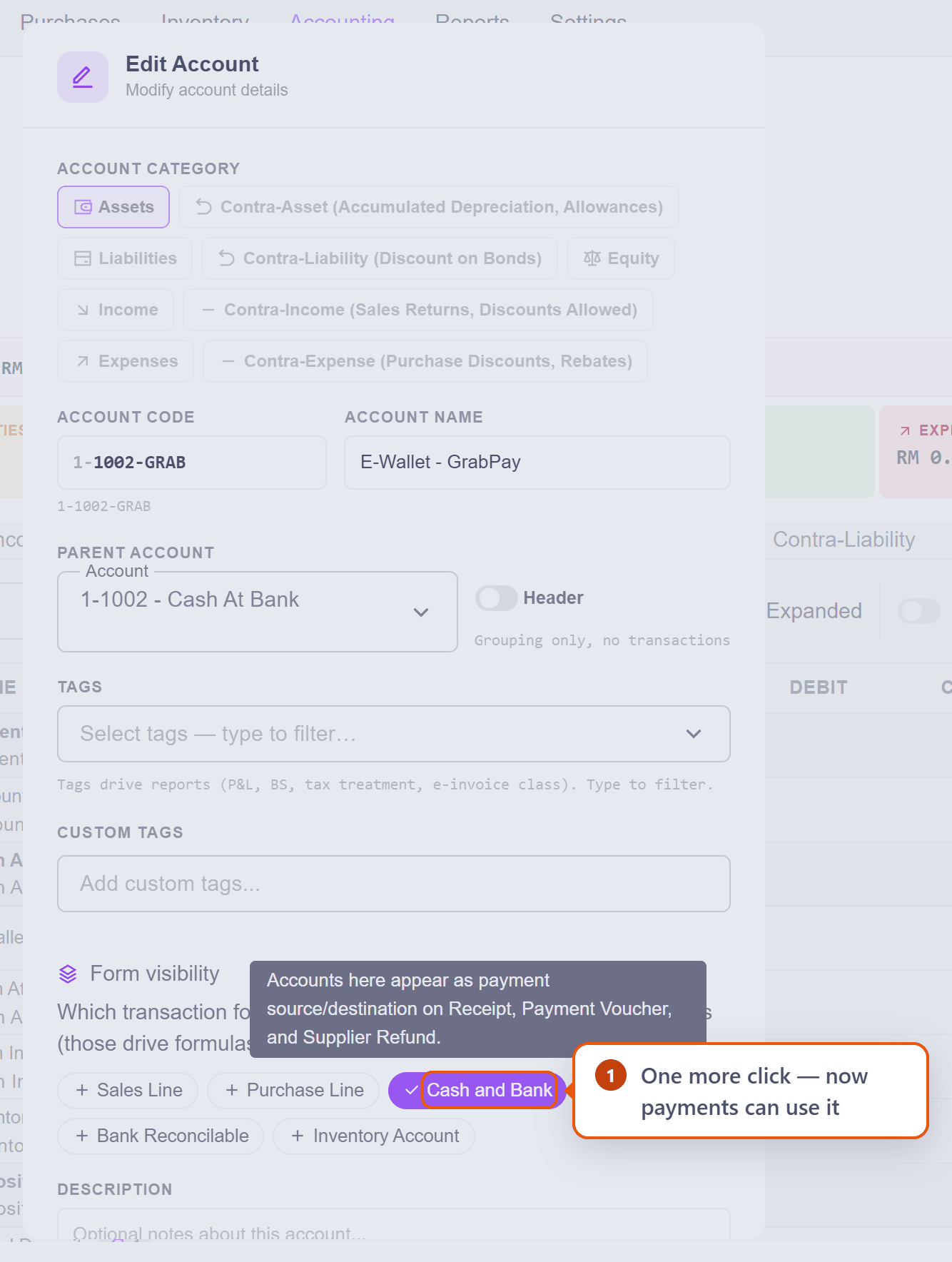
Form visibility explains something you have already seen: when you set up a payment method, only two accounts were offered out of 119. Those are the two marked Cash and Bank. It is what stops you accidentally paying money into "Sales".
Tags are a different thing
The Tags box is for reports — it drives which line of a financial statement an account rolls into. Form visibility drives forms. The dialog says as much itself, and the two are easy to confuse.
Adding an account
Use New Account when you genuinely need one — a second bank account, an e-wallet, or an expense you want to see separately, like Delivery Charges.
Codes follow a convention worth keeping to: 1- assets, 2- liabilities, 3- equity, 4- income, 5- expenses. If you are unsure which code to use, that is a good question for your accountant.
Scenario — a GrabPay wallet account
Seri Maju accepts GrabPay, and the money sits in the Grab merchant wallet for a few days before it reaches the bank. That deserves its own account, so the wallet balance is visible instead of hiding inside the bank figure.
Click New Account:
| Field | What Seri Maju enters | |
|---|---|---|
| 1 | Account Category | Assets — money you hold is an asset. Already selected |
| 2 | Account Code | 1002-GRAB — the 1- is added for you |
| 3 | Account Name | E-Wallet - GrabPay |
| 4 | Parent Account | 1-1002 — Cash At Bank, so it sits with the other money accounts |
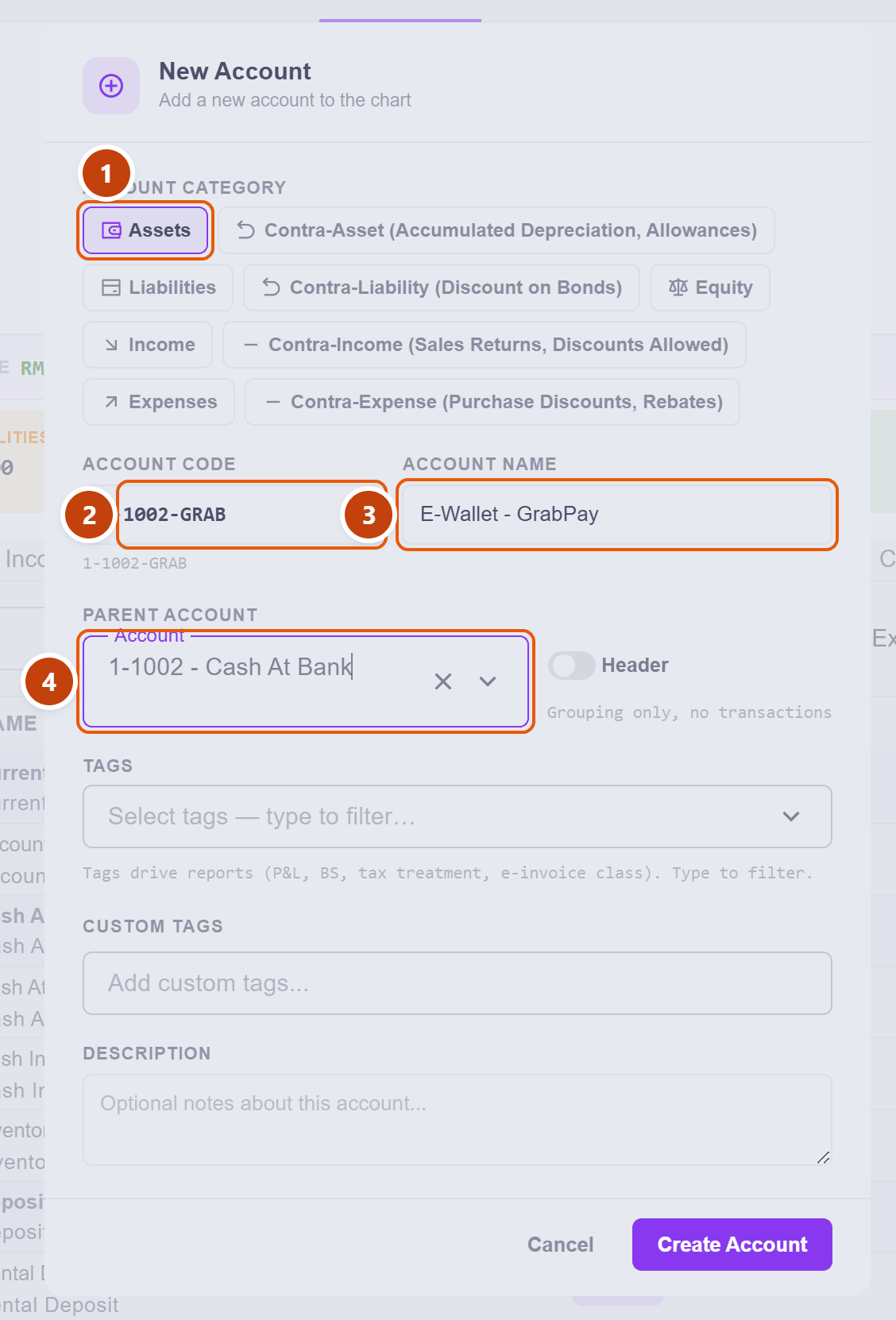
Leave Header off and click Create Account.
The dialog stays open on purpose — it flips into edit mode so you can do the one step that only exists for saved accounts: under Form visibility, click Cash and Bank. As the app itself puts it, accounts in that group "appear as payment source/destination on Receipt, Payment Voucher, and Supplier Refund":
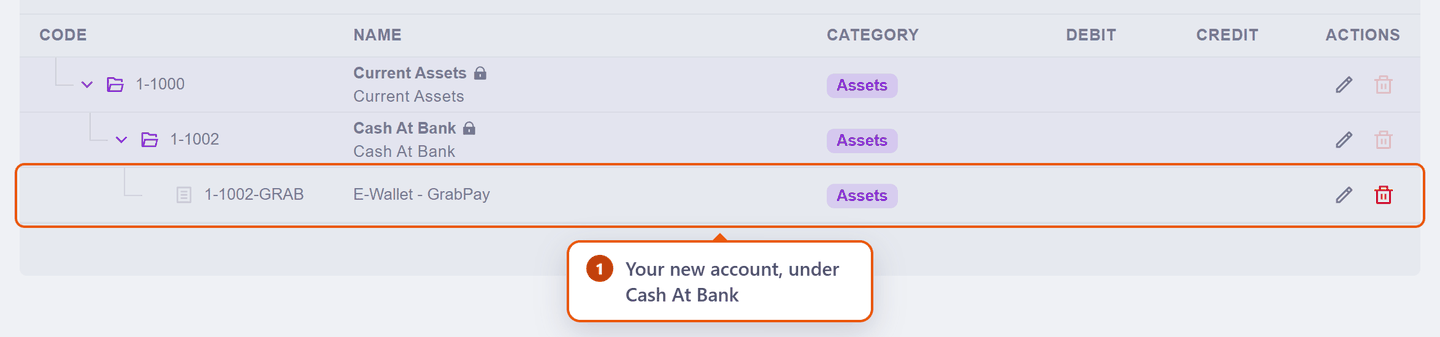
That click saves by itself — close the dialog, and the account is in the tree under Cash At Bank:
Check it worked. Over on Settings → Payment Methods, click Add Method and open the Linked Account picker — it now offers three accounts, and the wallet is one of them:
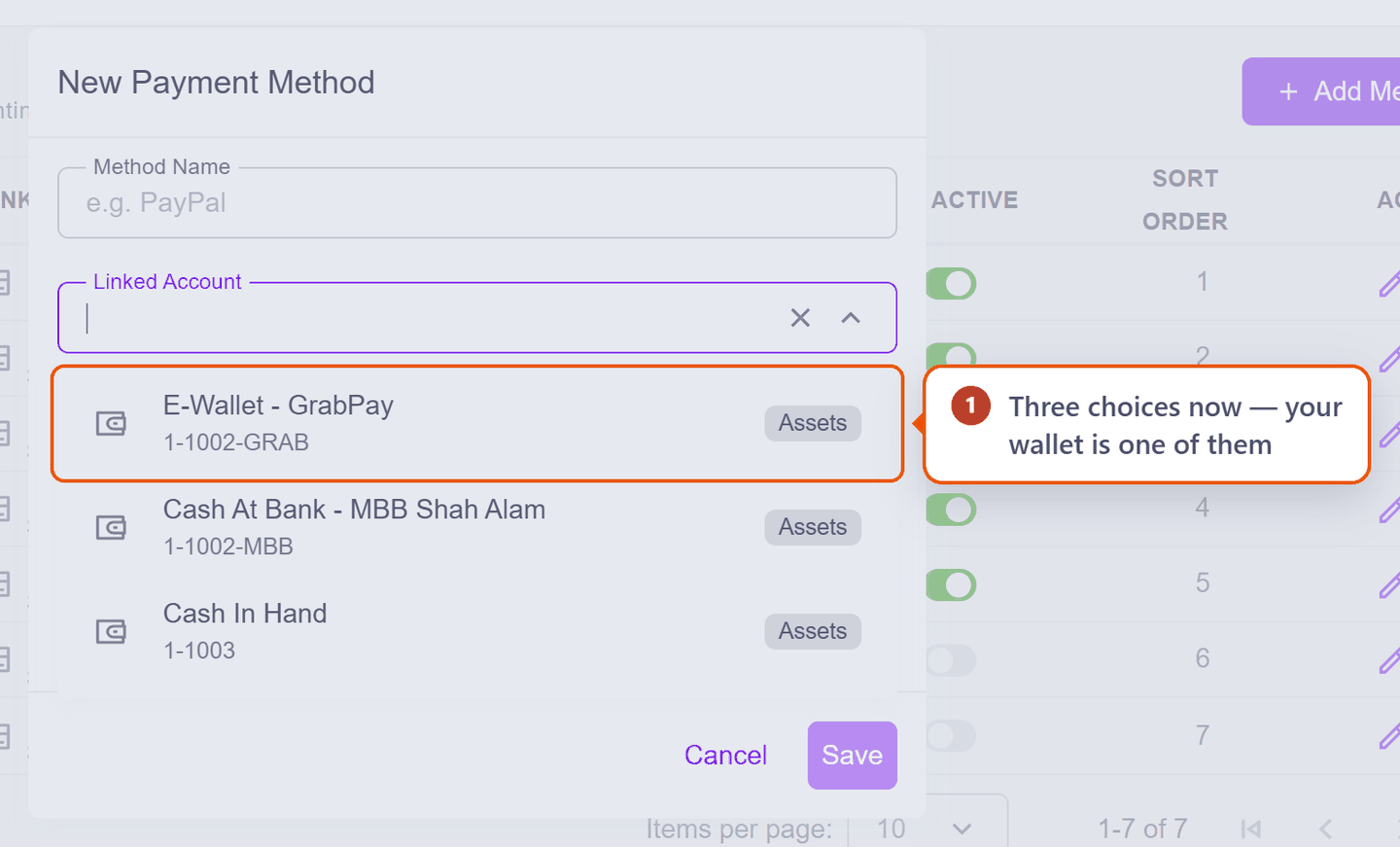
Point the GrabPay payment method from the Payment methods scenario at this account instead of the bank, and your books will show exactly how much is sitting in the wallet at any moment.
Deleting an account
As a rule, don't. System accounts cannot be deleted at all, and for the rest KiraKira+ checks whether the account has been used anywhere before letting it go. An account you have stopped using costs nothing to leave in place — and deleting one that appears on last year's reports would make them unreadable.
Next: Document numbering — the prefixes and running numbers on your invoices.